Purpose
When a company needs to be added to the watchlist then follow the below guide to change the relevant settings
Overview
- When approving the company registration
- Update FreshSales account fields
- Update Travel policy (US only) and disable pre-paid hotels (US & UK) in Admin Suite
When approving the company registration
Step 1: After clicking on 'Approve' in the registration email in Outlook then add a note int the comments that you have waitlisted and additional notes as to why etc.
Update FreshSales account fields
Step 1: Open FreshSales
Step 2: Search by company name and open the account details
Step 3: Open the fields under Onboarding Set-up Data
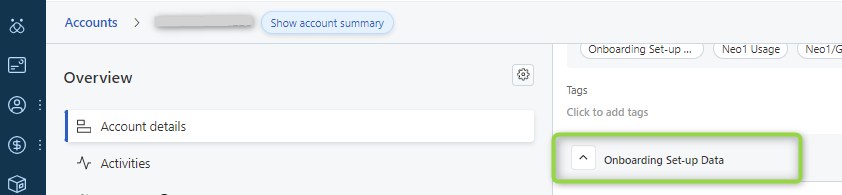
Step 4: Change the field Watchlist to Yes

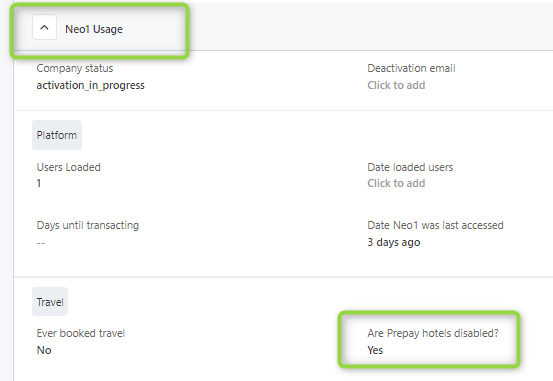
Step 5: Open the fields under Neo1 Usage
Step 6: Change the field Are Prepay hotels disabled to Yes
Update Travel policy (US only) and disable pre-paid hotels (US & UK) in Admin Suite
Step 1: Open Admin Suite and find the company, open the compay
Step 2: Open Travel --> Travel Policies. Check if there is a custom policy in place. If so please go to step 8
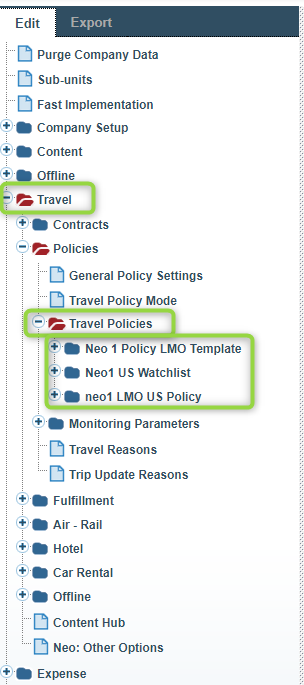
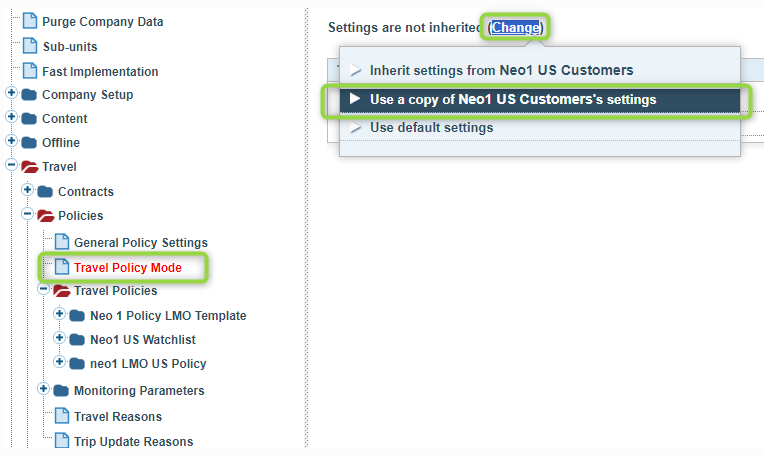
Step 3: If there is no costume policy then click on Travel Policy Mode
Step 4: Click on Change
Step 5: Select Use a copy of Neo1 US Customer's settings
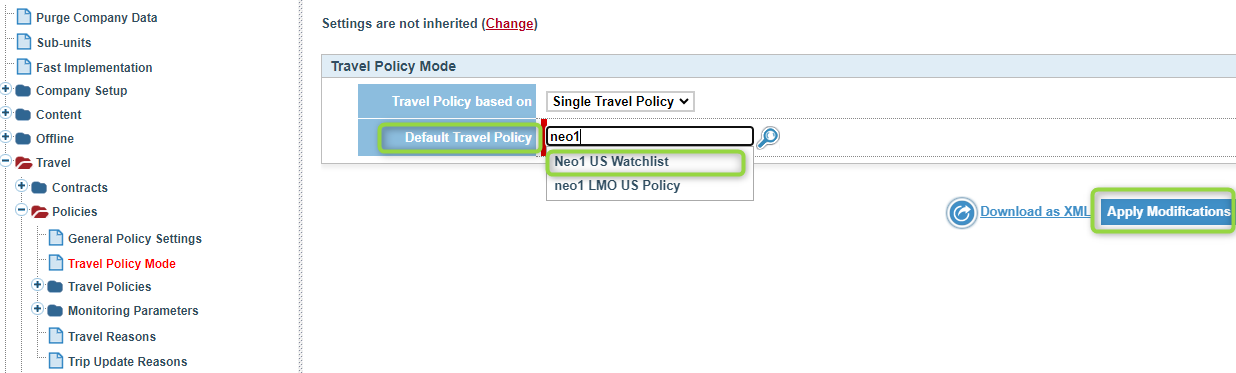
Step 6: Change the Default Travel policy to Neo1 US Watchlist
Step 7: Click on Apply Modifications --> continue with Step 12
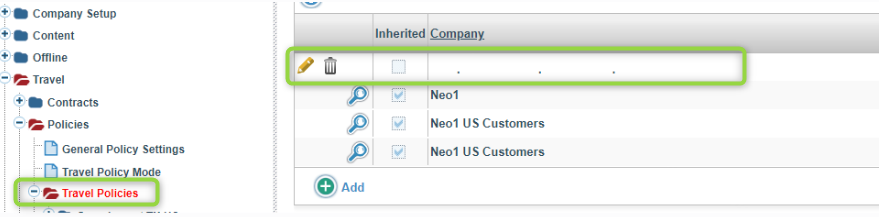
Step 8: If there is a custom policy - Go to Travel Policies
Step 9: Click on the pencil to in front of the company name (company's custom policy)
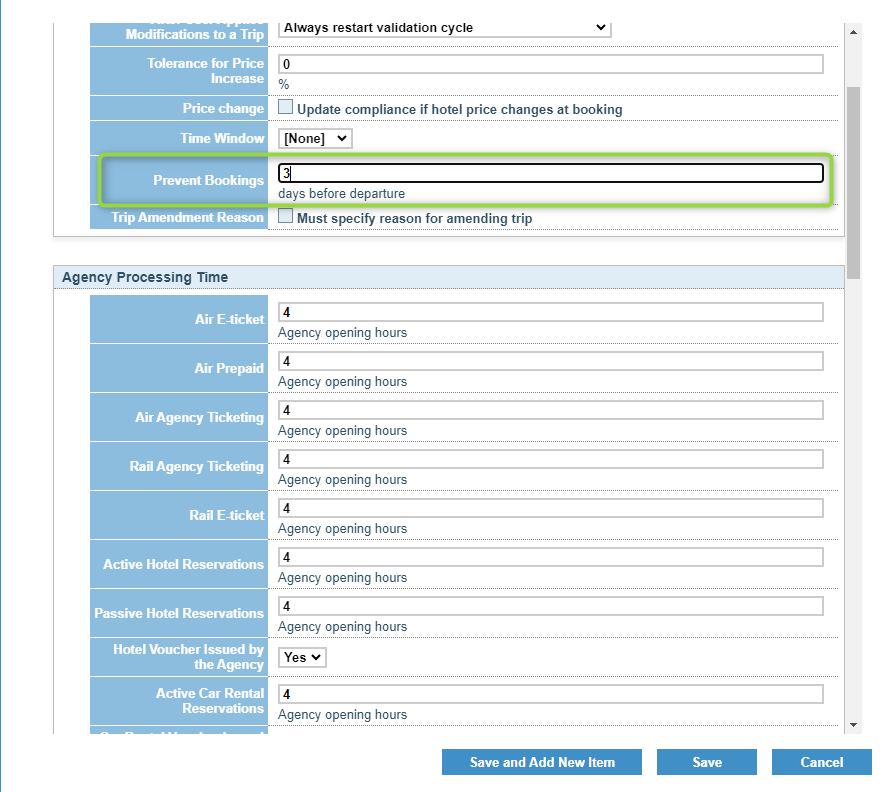
Step 10: Next to Prevent Bookings - add 3 days before departure
Step 11: Click on Save
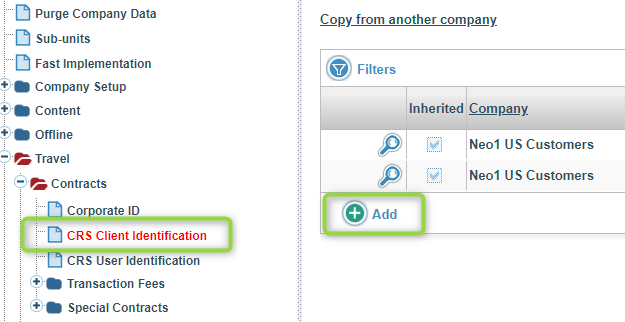
Step 12: Disable prepay hotel rates --> Go to Contracts
Step 13: Click on CRS Client Identification
Step 14: Click on +Add
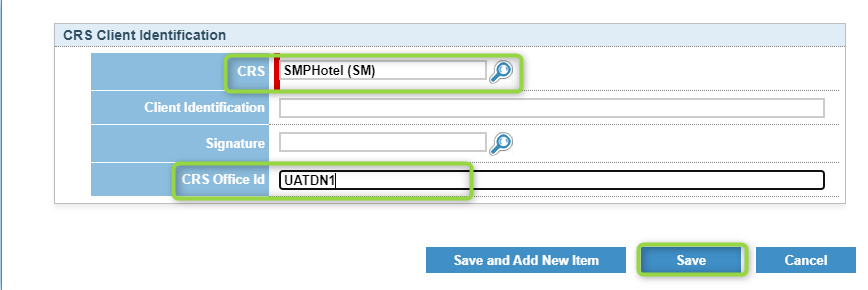
Step 15: Add the following:
CRS: SMPHotel (SM)
CRS Office ID: UATDN1
Step 16: Click Save