

Purpose
Clearing Bridger alerts
Clearing a Bridger alert
When a bridger alert is triggered, Neil auto forward the alert to everyone (let Neil know if you don't get these). The alert won't say which company or registration. We just know an alert came in.
Step 1: Open Bridger and login
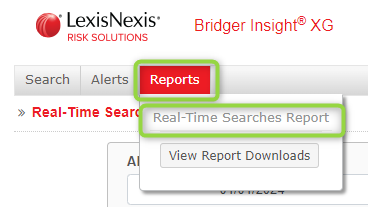
Step 2: Click reports and select Real-Time Searches Report
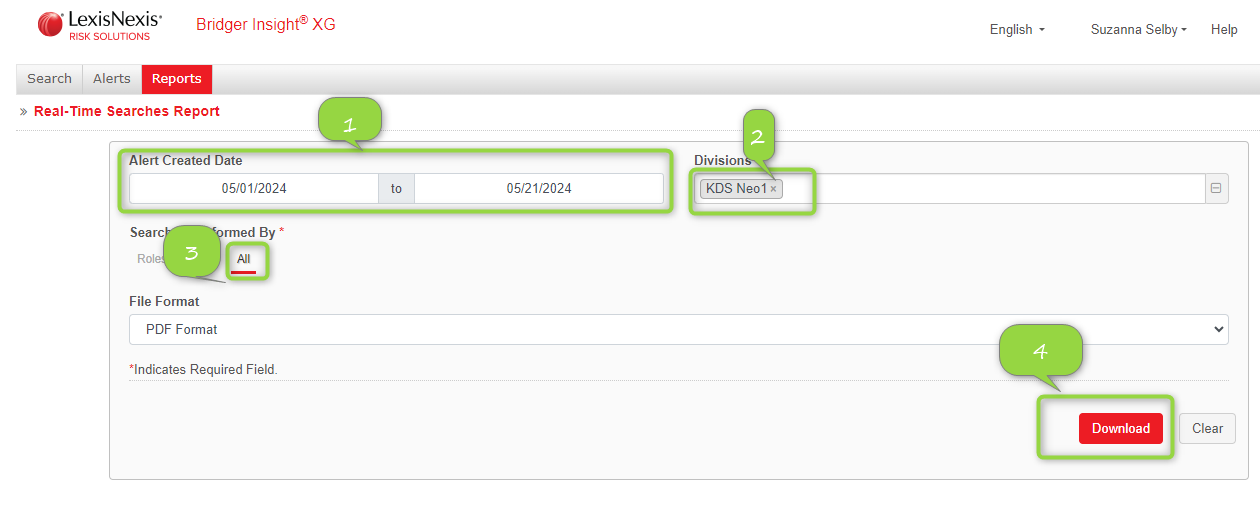
Step 3:
- Amend the date range to avoid a very long list.
- Division: KDS Neo1
- Searches performed by: All
- click Download
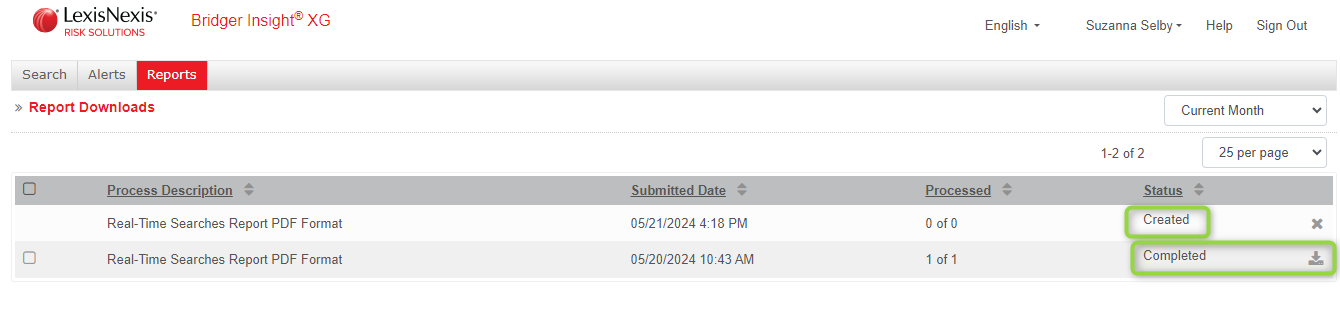
Step 4: In the list you will see your document Created. Wait a few seconds and it will change to Completed. Then download the PDF file.
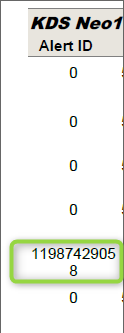
Step 5: Open the PDF and look at the first column. You will see an alert ID for the company or person which triggered the alert ID. Copy the alert ID.
Step 6: Click Alerts and then New Query.
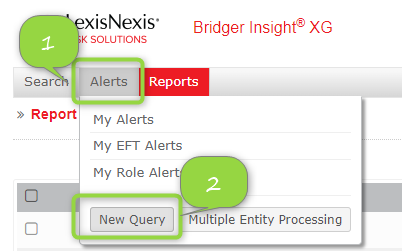
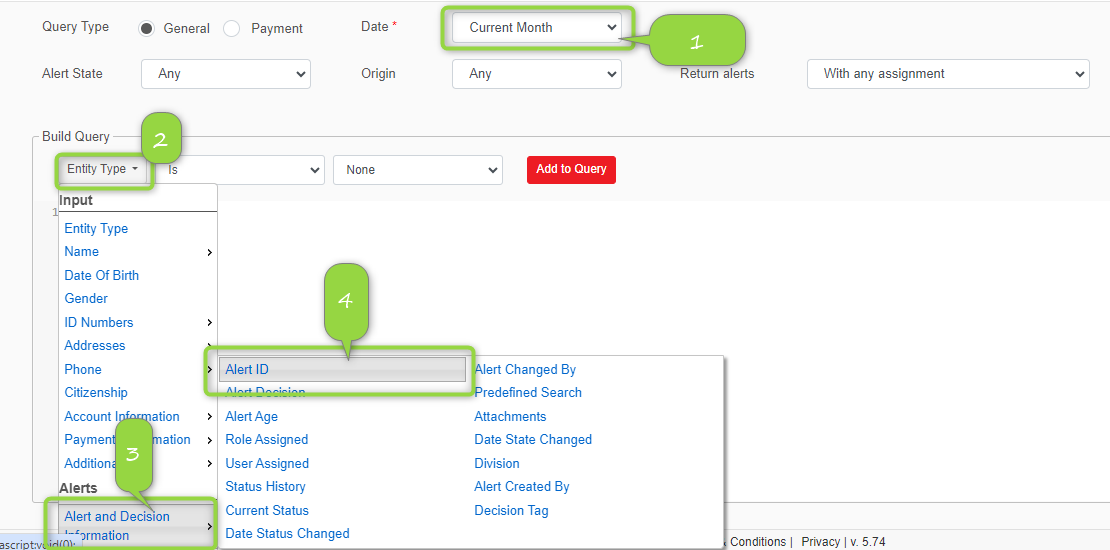
Step 6:
- Date: Select the relevant date rate.
- Use the dropdown next to Entity Type to select Alert and Decision information
- Selected Alert ID
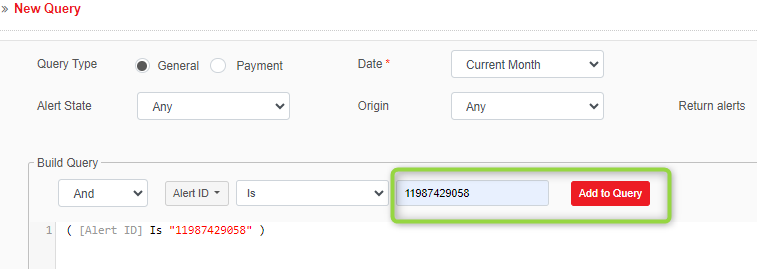
Step 6: Add the Alert ID and click Add to Query
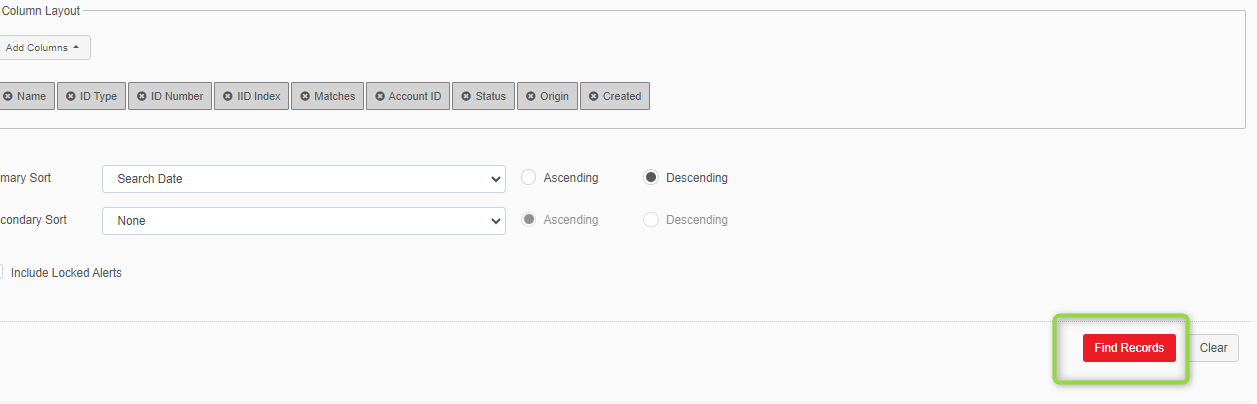
Step 7: Scroll down and click Find Records
Step 8: Click on the alert to open the details
Step 9: Check the details. Check the (company)name if it is an exact match. Check the country and DOB. If one of these details is not matching we can close as false positive.
If we don't have enough information from the registration to identify if this could be a match yes or no, then we need to Escalate to Compliance and Await Instructions
Step 10: To close either using option A or C. We need to attach a screenshot of the registration. Grab this from the FD ticket. We only need to include from Company info downwards including any declared beneficial owners.
Add the screenshot as an attachment to the alert by clicking the paperclip icon.
Once added, you chose A or C depending on the alert.
When closing A:
Always add additional info. For example: only partial name match, add the company website and if it is a person alert add a the link to their LinkedIn profile. As many details as you can give. If country doesn't match, add this as well.
Example: Closing as False positive. US based company in Florida. Link to website: (website link).
Or
Example: Closing as False positive on partial name match. Beneficial owner is US based and works at company xx. Company website: (website link) and link to LinkedIn profile (add LinkedIn link)
When closing C:
Always add additional info. For example: Not able to close as false positive. This is a bad registration, we are not accepting onboarding and locked the account. We don't have any information about the person or company to close alert. Attached are the details of registration. Please close this for us.
