Purpose
The processes to follow when an account need to be locked.
Overview
- Reject (onboarding not approved) or customer not moving foward)
- Approved but technical onboarding hasn’t triggered
- Technical onboarding is triggered and maybe already completed but registration is rejected by MBD
- When a customer asked to close their account
Reject (onboarding not approved/disqualified) or customer not moving forward
Step 1: Select ‘reject’ in the email or in Power automate. (Include the reason of rejection)
Step 2: Lock the account
Step 3: Update the "Reason locked in Neo1" field in FreshSales (in the overview)
Step 4: Change Blacklist to Yes in FreshSales (under company information)
Step 5: Close the Stage 2 registration ticket
 Tip: Blacklisting is specific to accounts that are disqualified, not accounts that are existing GBT customers.
 Approved but technical onboarding hasn’t triggered
Step 1: Lock the account
Step 2: Change the field in Freshsales Onboarding Approval Given to No. This is to avoid the automation to start the onboarding
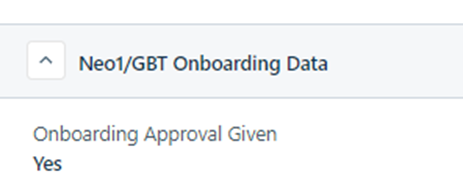
Step 3: Add a note in FreshSales with the reason why we locked/stopped onboarding process and that we changed the onboarding approval to No
Step 4: Update the "Reason locked in Neo1" field in FreshSales (in the overview)
Technical onboarding is triggered and maybe already completed but registration is rejected
Step 1: Lock the account in Neo1
Step 2: Add a note in Freshsales with the reason why we locked/stopped onboarding process
Step 3: Update the "Reason locked in Neo1" field in FreshSales (in the overview)
Step 4: If technical onboarding is fully completed, check in Salesforce the BT type. This should still show Prospect. If the BT Type is Client go to step 6 .If onboarding is partially completed then go to step 5.
Step 5: If onboarding is partially completed
- If SBP has been requested but not yet completed, then delete the row in the SBP set up request file kds neo1 accounts list.xlsx
- If the DK request has been completed, create a manual decommission case in Salesforce
- If billing hasn’t been requested, reach out to Neil or Suz to stop the billing automation (only if DK request has already been requested/completed)
- If DK request has been submitted but not yet completed, go to the case in Salesforce and add a comment to cancel the request
- Add a note in Freshsales with what you have done/requested/cancelled etc
Step 6: If onboarding is complete and BT Type is Client, follow guidance under this section.
When a customer asked to close their account
Step 1: Send Account Cancellation canned response notating that the account will be closed in one week (or on requested date). If they ask to close sooner, then action as requested. Set a CZ task as a reminder.
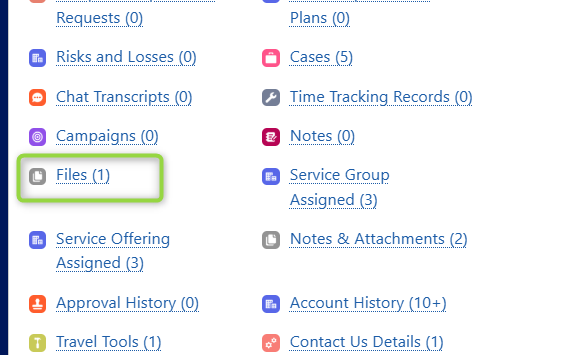
Step 2: Take a screenshot of the email to save as a file. Add that evidence of decommission in the Salesforce account under files
Step 3: Lock account in Neo1 on established date
Step 4: Update the "Reason locked in Neo1" field in FreshSales (in the overview)
Step 5: Make a note in Freshsales that customer requested to close account and add additional context around why they have left, if provided
Step 6: In CZ, update the field Date for GBT Decommission: 7 days from today unless a different date is established (under Company Information and Engagement)
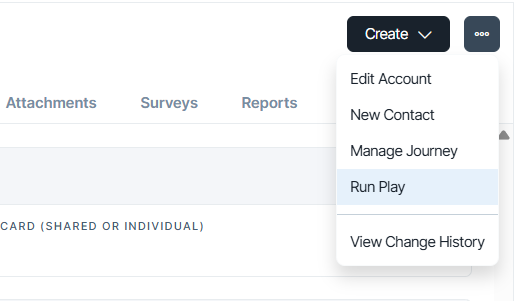
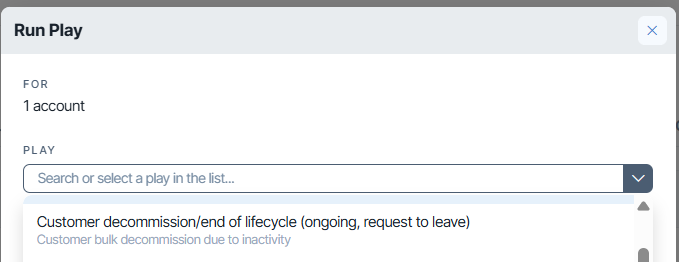
Step 7: In CZ, run the play Customer Decommission/End of lifecycle