

Purpose
In this article, we will cover how to manually create a billing case in Salesforce. This is to be actioned for accounts when the automation has failed or timed out (timeout occurs 30+ days post registration).
How to create a manual billing case
Start by accessing Salesforce from the GBT Apps Dashboard. See either of the case examples below for reference.
- Standard billing: https://amexgbt.lightning.force.com/lightning/r/Case/500UN00000VDXKdYAP/view
- Zero fee billing (for Education/Nonprofit): https://amexgbt.lightning.force.com/lightning/r/Case/5001U000011QL7WQAW/view
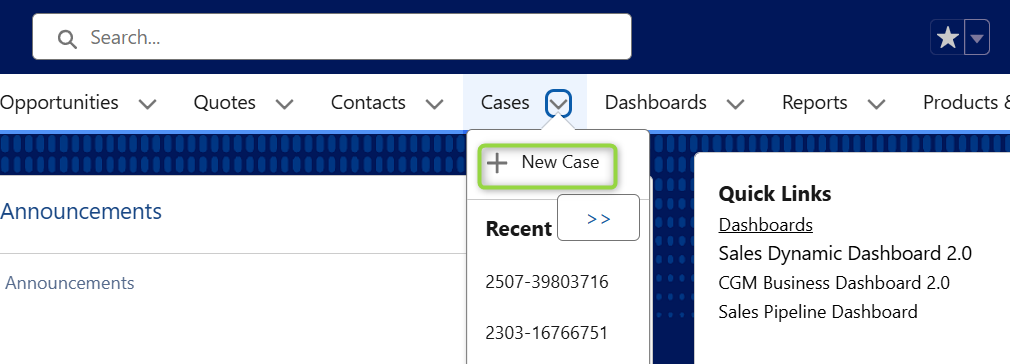
Step 1: Click Cases > New Case in the menu bar
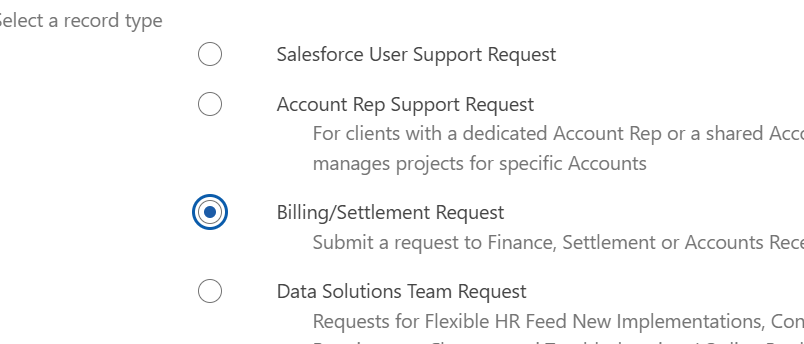
Step 2: Select record type - Billing Settlement request
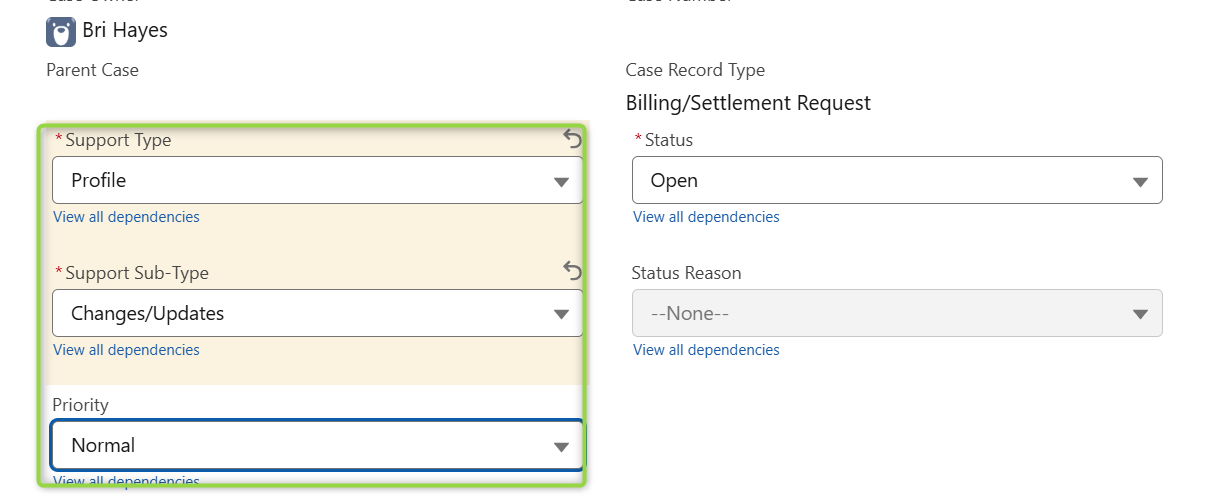
Step 3: Update case record information as highlighted in green below
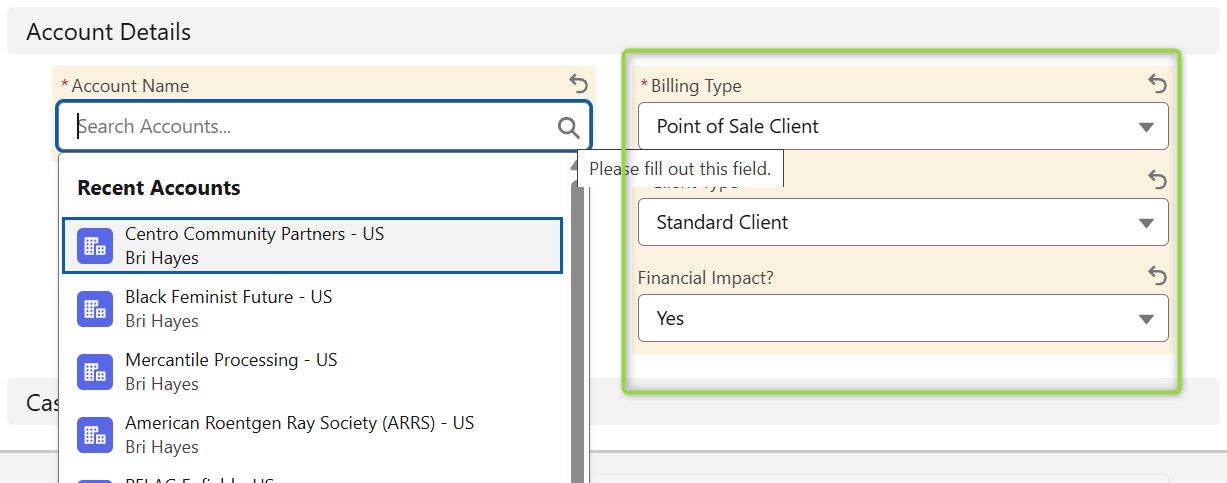
Step 4: Update Account details to include the appropriate account name and the below highlighted values for Billing Type, Client Type and Financial Impact.
Step 5: Update Subject -
For Standard requests - Neo1 Self Registration Site - Add new traveler DK (client name)
For Zero fee requests - Neo1 - Formerly LOLA fee table - Add new traveler DK (client name)
Step 6: Update Description -
For standard requests -
Please add DK: XXXXXXXXXX to Neo1 Self Registration Site, effective MM/DD/YYYY (yes, this is the correct effective date).
Please note: evidence of signup to Neo1 and acceptance of T&C's attached under files on account record.
For Zero fee requests -
Please add DK: XXXXXXXXXX to Neo1 Formerly Lola Site, effective MM/DD/YYYY (yes, this is the correct effective date).
Please note: evidence of signup to Neo1 and acceptance of T&C's attached under files on account record.
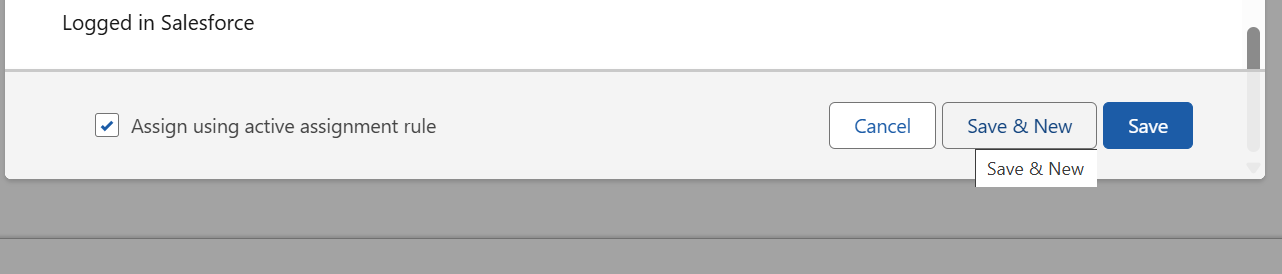
Step 7: Scroll to the bottom and click Save
Step 8: Once the case is successfully created, access the appropriate account in ChurnZero. Click Quick Actions > Edit Account to update the GBT Billing Setup Requested field with the date that the case was created.
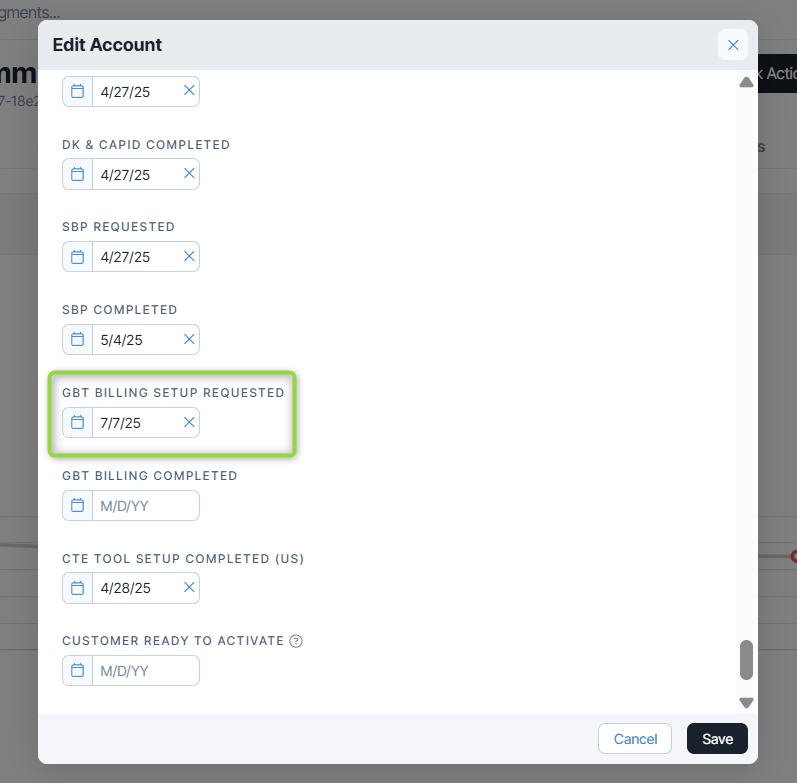
Tip: Once the case is completed, please go back into ChurnZero and update the GBT Billing Completed date.

Please monitor your GBT inbox for any case correspondence from the actioning team that may cause the case to be delayed or aborted.