

Purpose
In this article, we will cover how to load custom hotel rates through Salesforce, in collaboration with the PRDS team.
See this link for access to the PRDS - Roomcheck site. It is important to have this access established in order to retrieve rate loading instructions later in this process. If your access is not established, please follow these instructions to get it requested.
DISCLAIMER - Rate loading is not a feature that we will provide to all clients. As this is a manual process, and custom hotel rates will prevent us from better positioning AmexGBT rates, this is only to be granted as an option for clients with high airfare volumes.
 Tip: In the interest of time, Bri can assist with any actions that require PRDS access if your access is not established.
 Overview
- GDS Rate Access code & PRDS Lite Hotel Submission Form
- Prior to actioning our first case, please request the following from the customer:
- Case 1 of 2 - Request PRDS Access Code
- Case 2 of 2 - Translation table update
- Update Neo Admin
GDS Rate Access code & PRDS Lite Hotel Submission Form
Prior to actioning our first case, please request the following from the customer:
- Rate access code (3-digit alphanumeric ; to be supplied by hotel contract provider)
- Name and location of hotels with negotiated rates
In order to provide the requested rate access code, the hotel provider may request our booking engine and pseudo cite code (PCC) details. They are as follows: The engine is Sabre, and the PCC is C2AL and C2BL.
Once the requested details are returned, please complete the attached PRDS Lite Hotel Submission Form (see the bottom of this article).
Case 1 of 2 - Request PRDS Access Code
Rate loading requests will be actioned via two separate salesforce cases. Case 1 is to request the creation of a new PRDS access code. See this case as an example.
Salesforce path: New Case> PRDS Request > PRDS RoomCheck > New PRDS code > Select client account name
Subject line - Please create new code for Neo 1 client and load rates
Provide the following information in the Description:
Which GDS is servicing the client: Sabre
Provide the current client hotel GDS rate access code (if exists): ***Insert code provided by client***
Please provide servicing PCC’s: C2AL / C2BL
Please provide servicing CAP ID: ***Insert client CAPID***
Please attach the completed PRDS Lite submission template: (complete and attach to case files after the case is created)
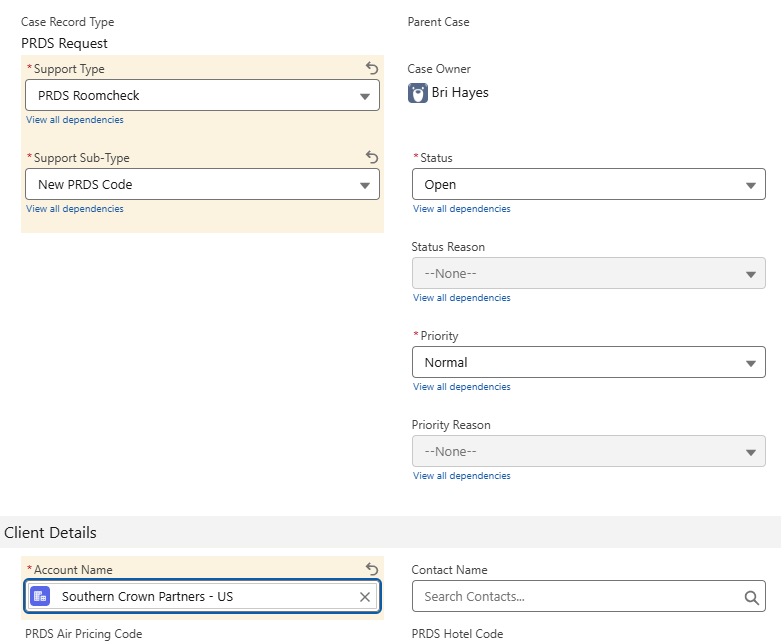
Following creation of the case, PRDS will take the following steps:
Create a client profile (add CAP ID’s) and internal PRDS Code
Create a Sabre viewership Table for the client in Sabre and apply PCC’s
Create a Sabre translation table for the client
PRDS will validate/provide the rate loading instructions for client to issue to the hotel for loading into the GDS
PRDS will load the client negotiated rates submitted on the submission file
PRDS to process Sabre translation table updates with rates access codes used as advised by the client
As these actions are taken, you may see the creation of additional cases. Examples:
https://amexgbt.lightning.force.com/lightning/r/Case/500UN00000U154eYAB/view
https://amexgbt.lightning.force.com/lightning/r/Case/500UN00000UNUliYAH/view
https://amexgbt.lightning.force.com/lightning/r/Case/500UN00000UTZQvYAP/view
No action should be required on their additional cases, but please monitor your email for any questions.
Actions once code is completed:
- Retrieve (from Global RoomCheck) and provide the client with GDS rate loading instruction document. See this link for guidance.
- Advise the client to confirm the rate access code that the hotel has used in Sabre once the hotel has confirmed that the rate loading is complete, and confirm the hotel chain code (if available)
- Once client has advised (Action B) a new SF case to PRDS must be created as below
Case 2 of 2 - Translation table update
Salesforce path: PRDS Request > PRDS RoomCheck > Update Client > Select client account name
Subject line – Translation table update
Description: Hotel Chain Name (or code if available) and the rate access code that the hotel has confirmed that they have loaded rate against
Update Neo Admin
Once the second case is completed, the rates are now loaded. Next step is to add their CAPID in Admin suite under Travel > Contracts > CRS Client Identification.
Step 1: Click Add
Step 2: Choose SMPhotel as the CRS and list their CAPID as the CRS Office ID
Step 3: Click Save
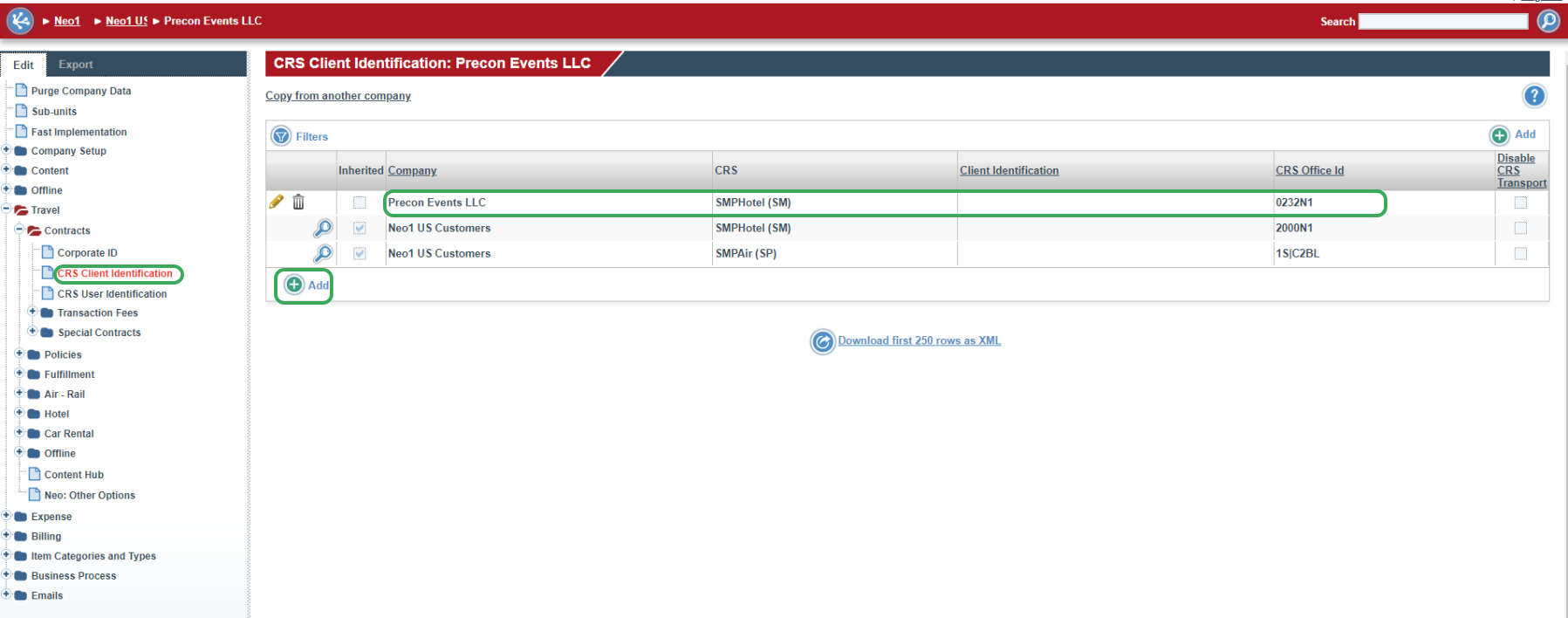
***Final step, please test their instance using your arranger access to ensure that you see the rates reflected. If you don't see them instantly, sync the account and give it one day and test again. ***