

Purpose
In this article, we will cover how to create and supply a diagnostic log (trace) for JIRA cases.
Overview
Creating a diagnostic log (trace)
Why? Kdsdiag logs provide greater detail that allows the JIRA team to better understand what occurred on the backend at the time that an issue is present. Instead of including the log from the customer search in our JIRA cases, we must rerun their search in diagnostic mode to create this diagnostic log.
Step 1: This is accomplished by using your arranger access to create a trip and typing in "kdsdiag" in the flight outbound search field to trigger diagnostic mode. Once you type that in, you will see the screen update to indicate that diagnostic mode is turned on.
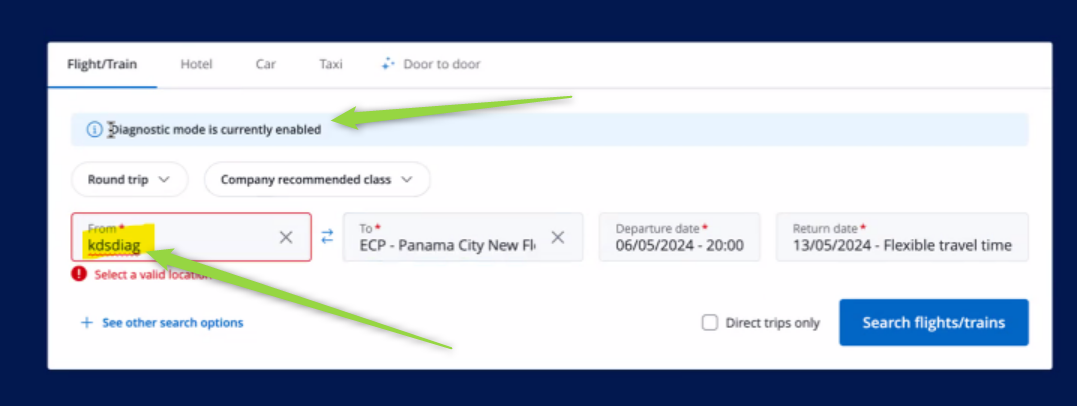
Step 2: Now that diagnostic mode is enabled, proceed with the creation of your itinerary to capture the issue.
Providing your log (trace)
Once you've recreated the user experience (issue) you are ready to grab the log details to be included in the JIRA case.
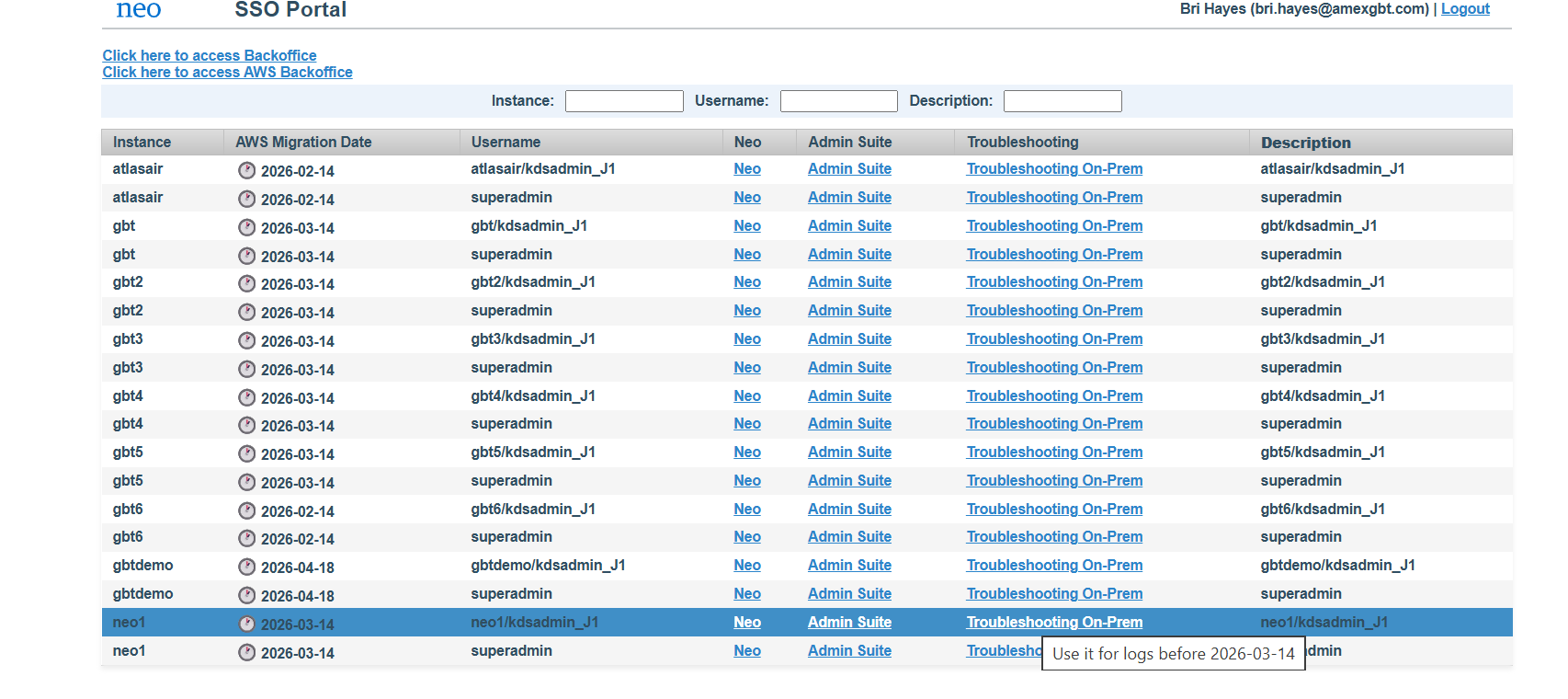
Step 1: From Neo Admin Suite, access the troubleshooting site for Neo1 (second from bottom).
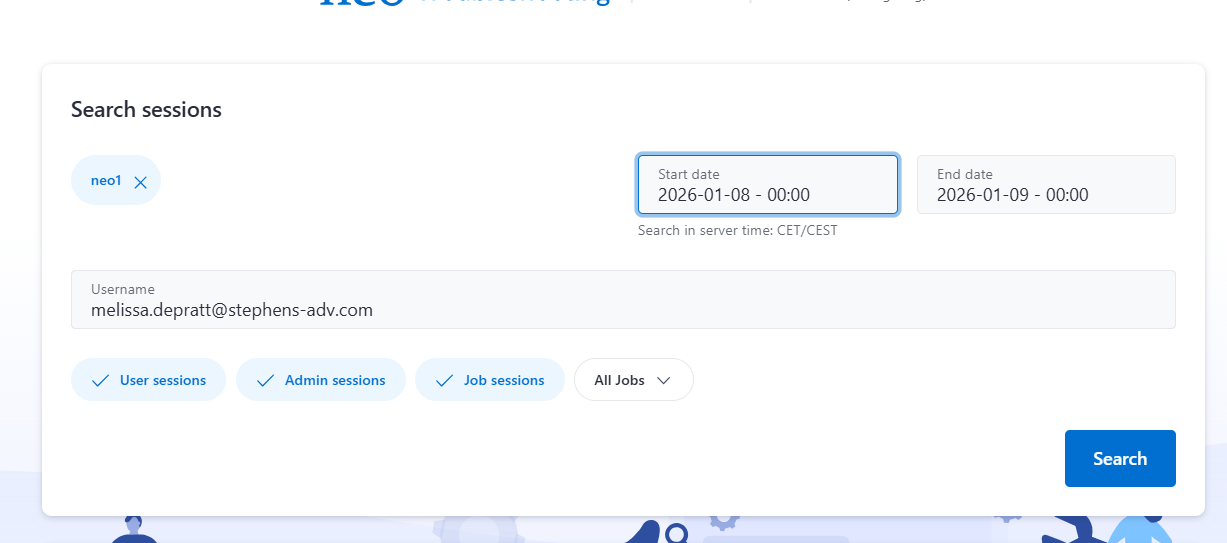
Step 2: Search for your session (insert user email and date details). This should be the user email that you were acting on behalf of when you ran the search (not your user email, unless applicable).
Step 3: Find your log (will likely be the most recent one), and select the Neo trace option

Step 4: Copy the session ID. This link and any supporting screenshots of the experienced issue should all be included in the JIRA.
