

 Audience: Admins
Managing travel and expenses for these Health Care Professionals (HCP) presents unique challenges due to stringent regulatory requirements and compliance mandates.
Enabling HCP guests to self-complete required information directly in their profile removes the pain of chasing for information, reduces risk of errors or missing information, and supports compliance.
Step by step guide
Step 1: navigate to your event’s guests list
Step 2: Create HCP guests:
- By uploading a guest list
- Or adding a guest manually
Video: How to create HCP guests
Step 1: Navigate to your event’s guests list
To get started, navigate to the Events section from the navigation menu, then locate and select your event. Once on the event dashboard, click Manage under the RSVP Summary section. This will redirect you to the Manage Guests section.
Use ’Upload guest list’ to bulk import a guest list, or click ’Add guest’ to create individual HCPs one at a time.
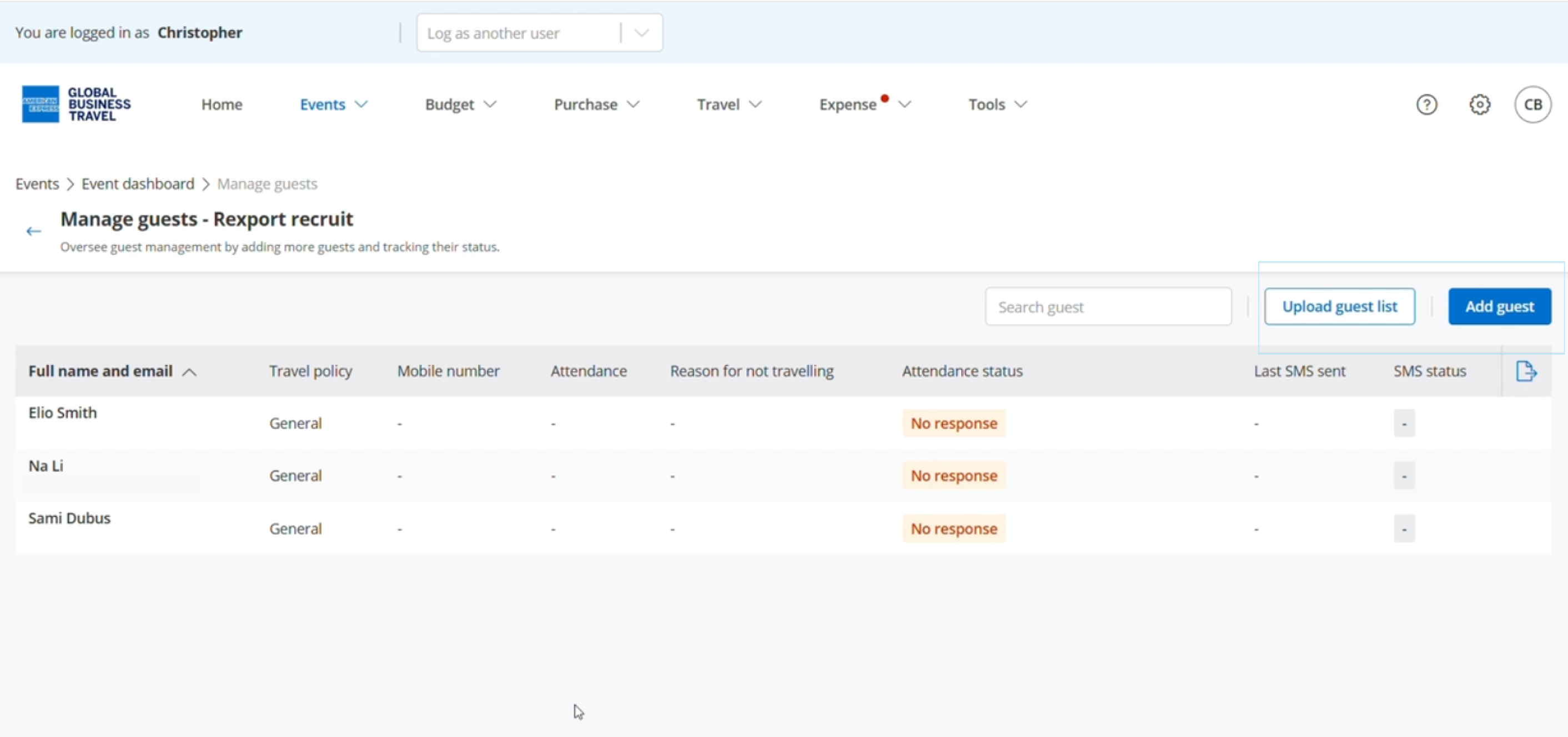
Step 2: Create HCP guests
By uploading a guest list
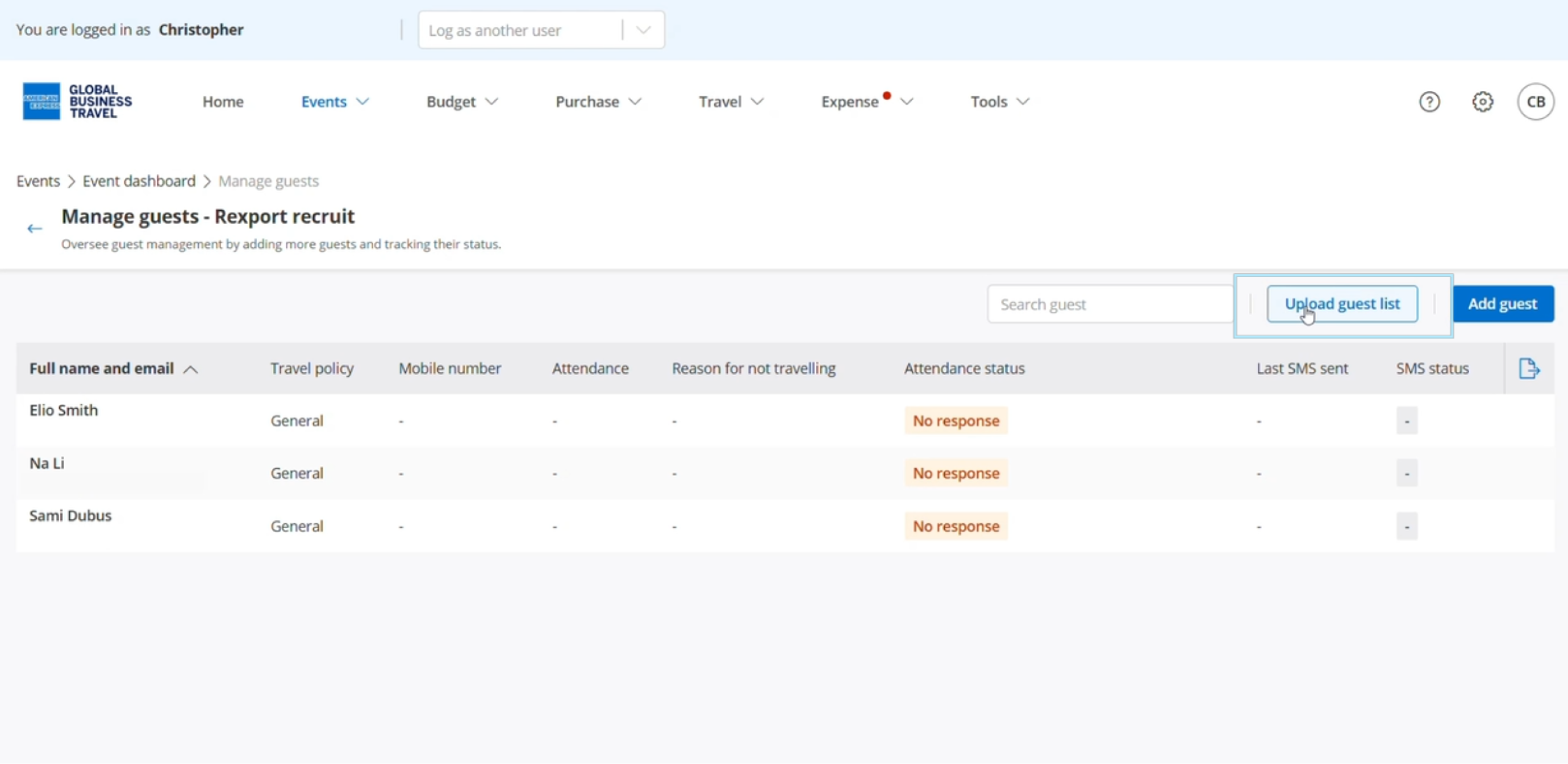
Click 'Upload guest list' for bulk import
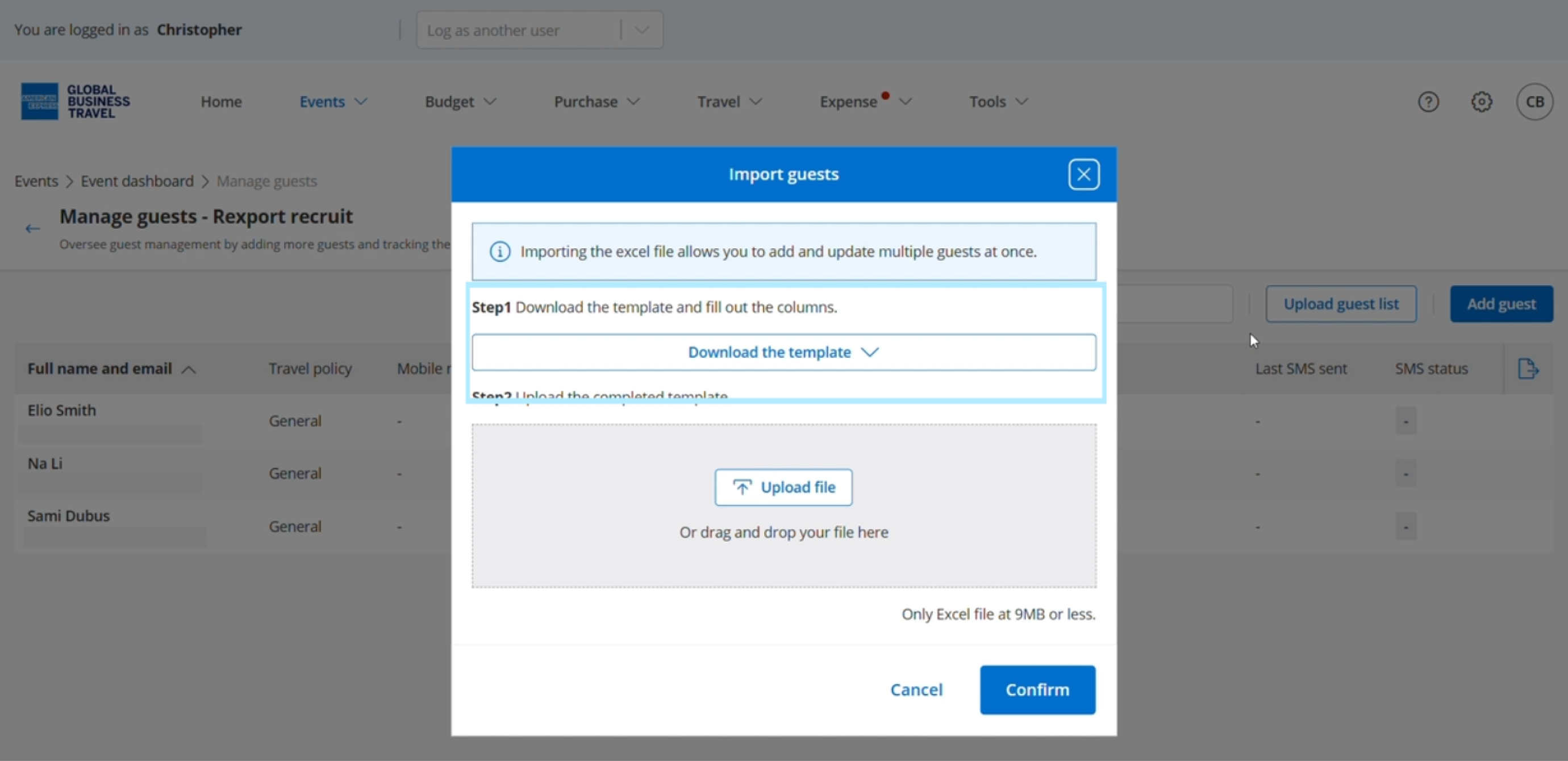
Click ‘Download the template’.
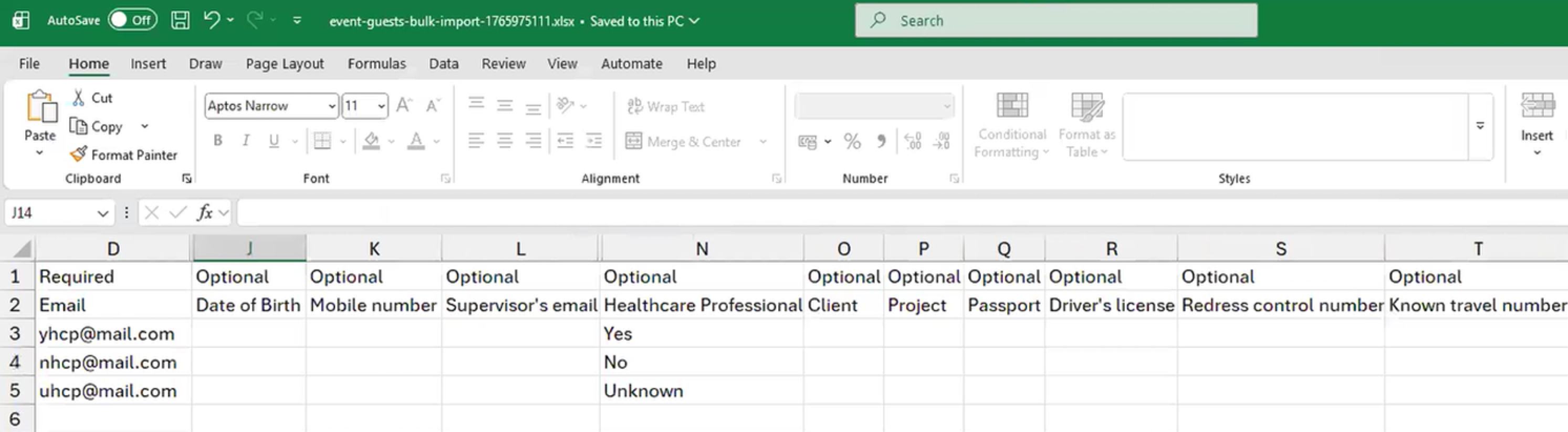
Identify HCP Guests
When uploading a guest list, the admin defines whether a guest is an HCP.
- Yes - if the guest is a healthcare professional
- No - if they are not healthcare professional
- Unknown - by default empty
Upload the completed file
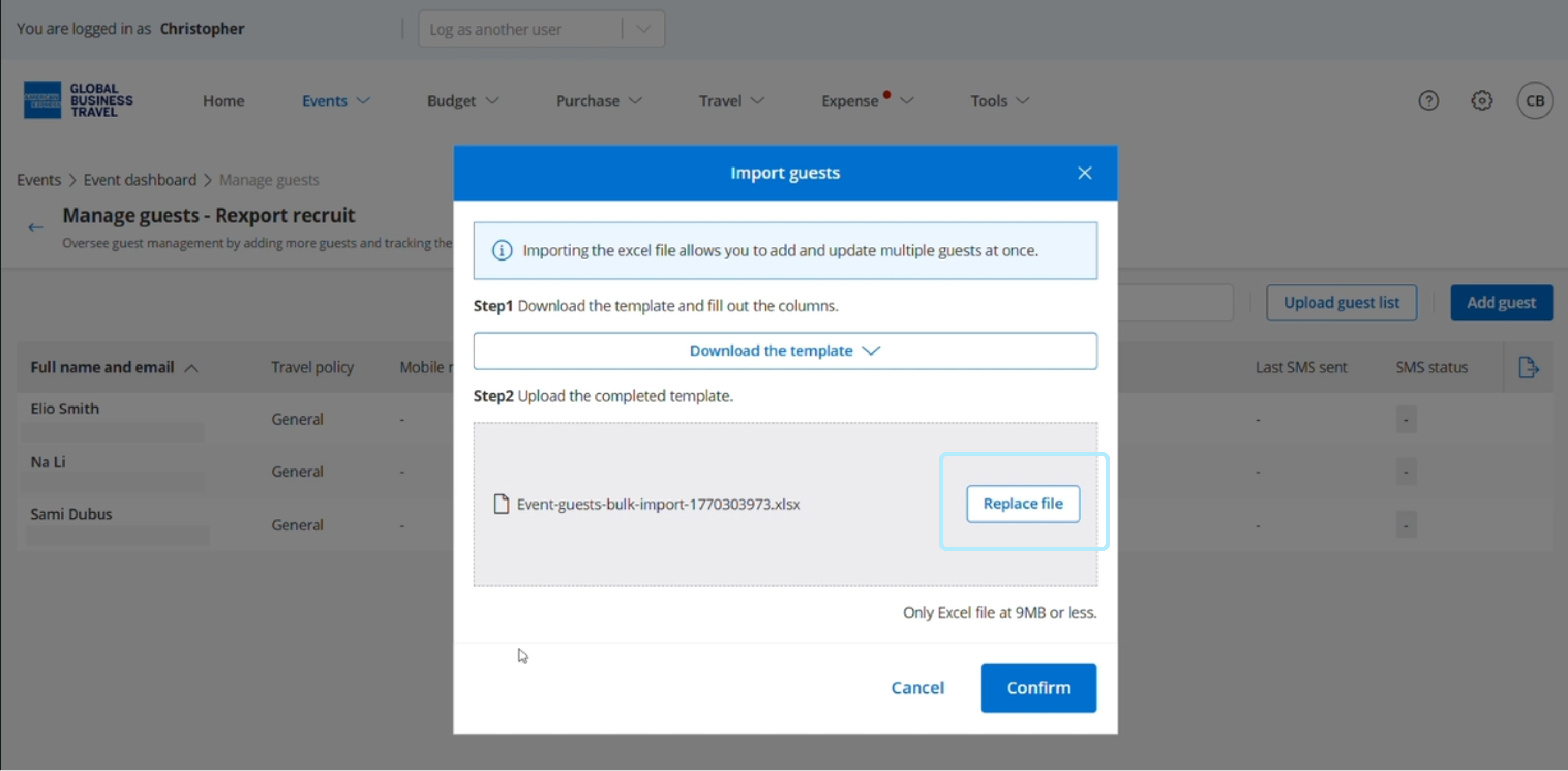
Click 'Confirm'.
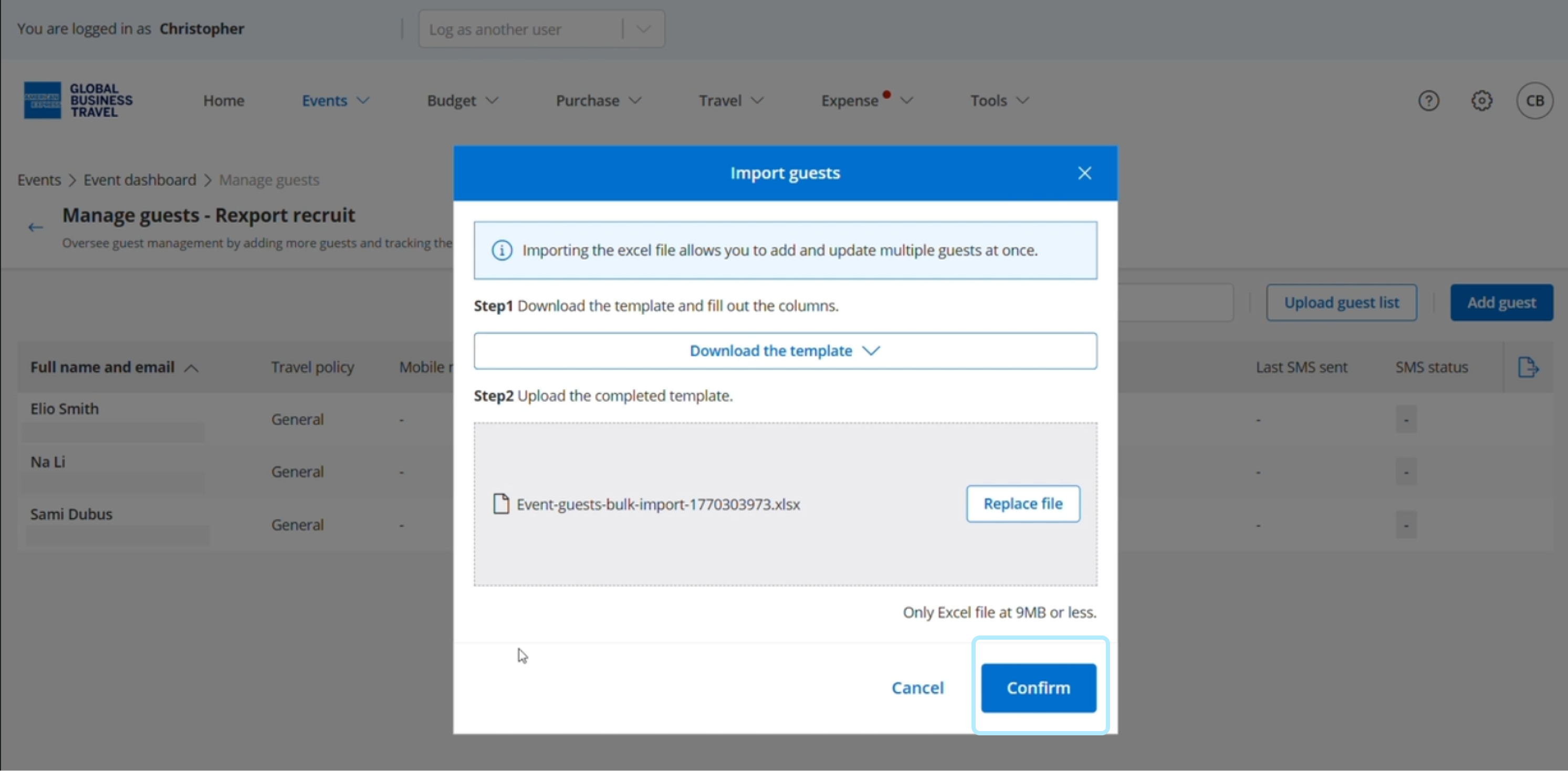
Or adding a guest manually
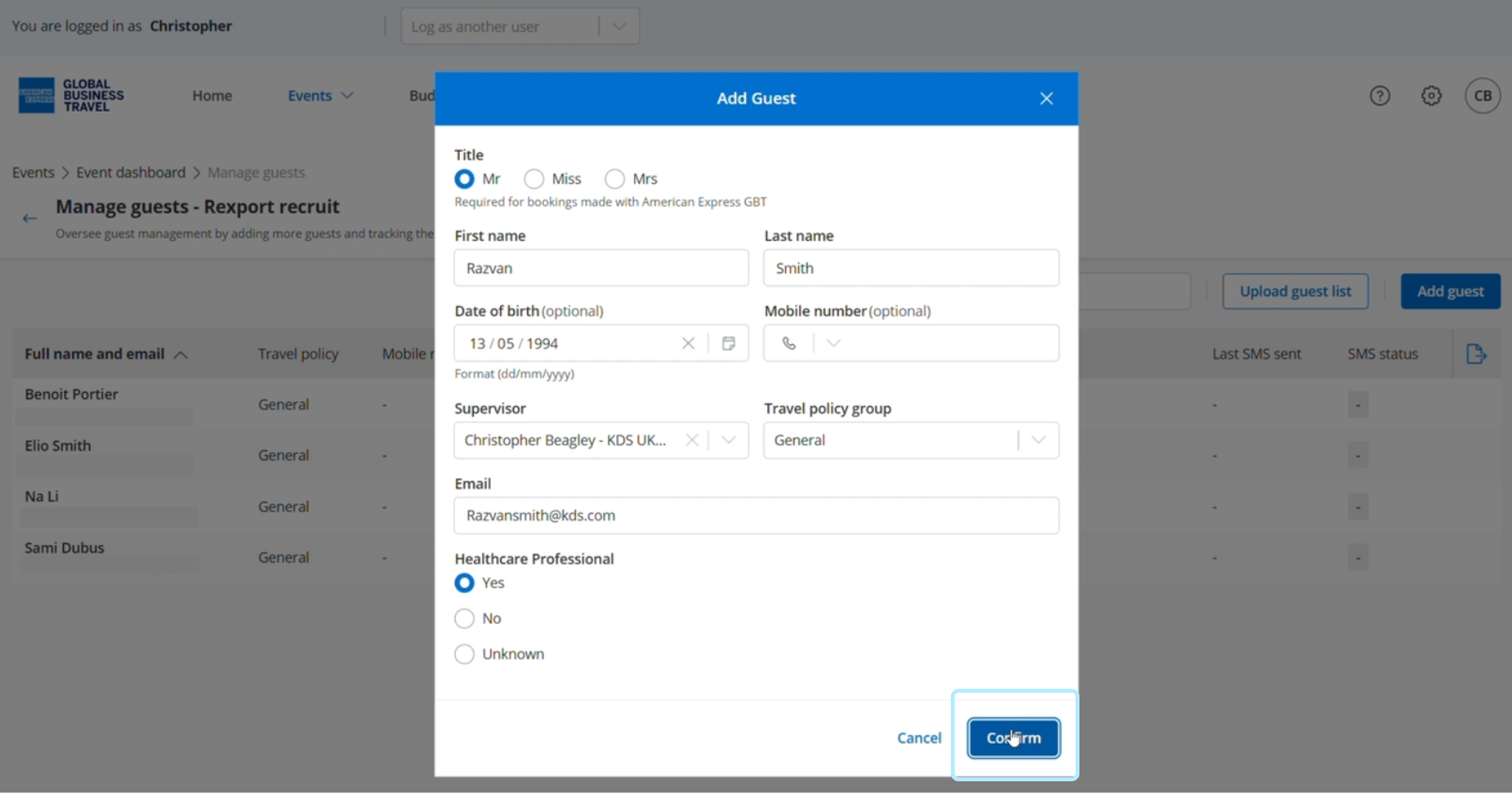
Click ‘Add guest’.
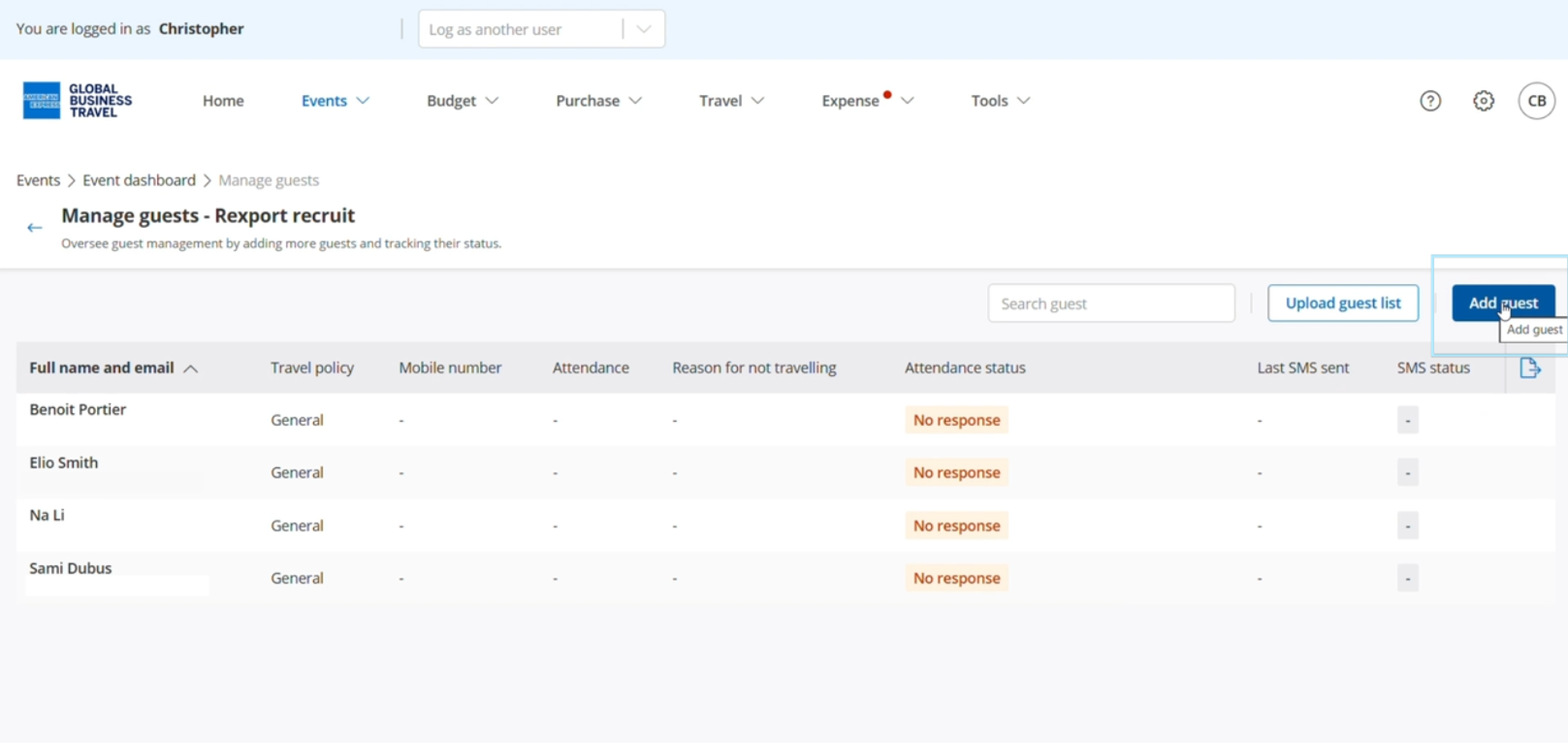
Enter the guest’s information:
- First name
- Last name
- Date of birth (optional)
- Mobile number (optional)
- Supervisor
- Travel policy group
- Email Healthcare professional ( if you select ‘Yes’ - guests will be asked to fill out required information).
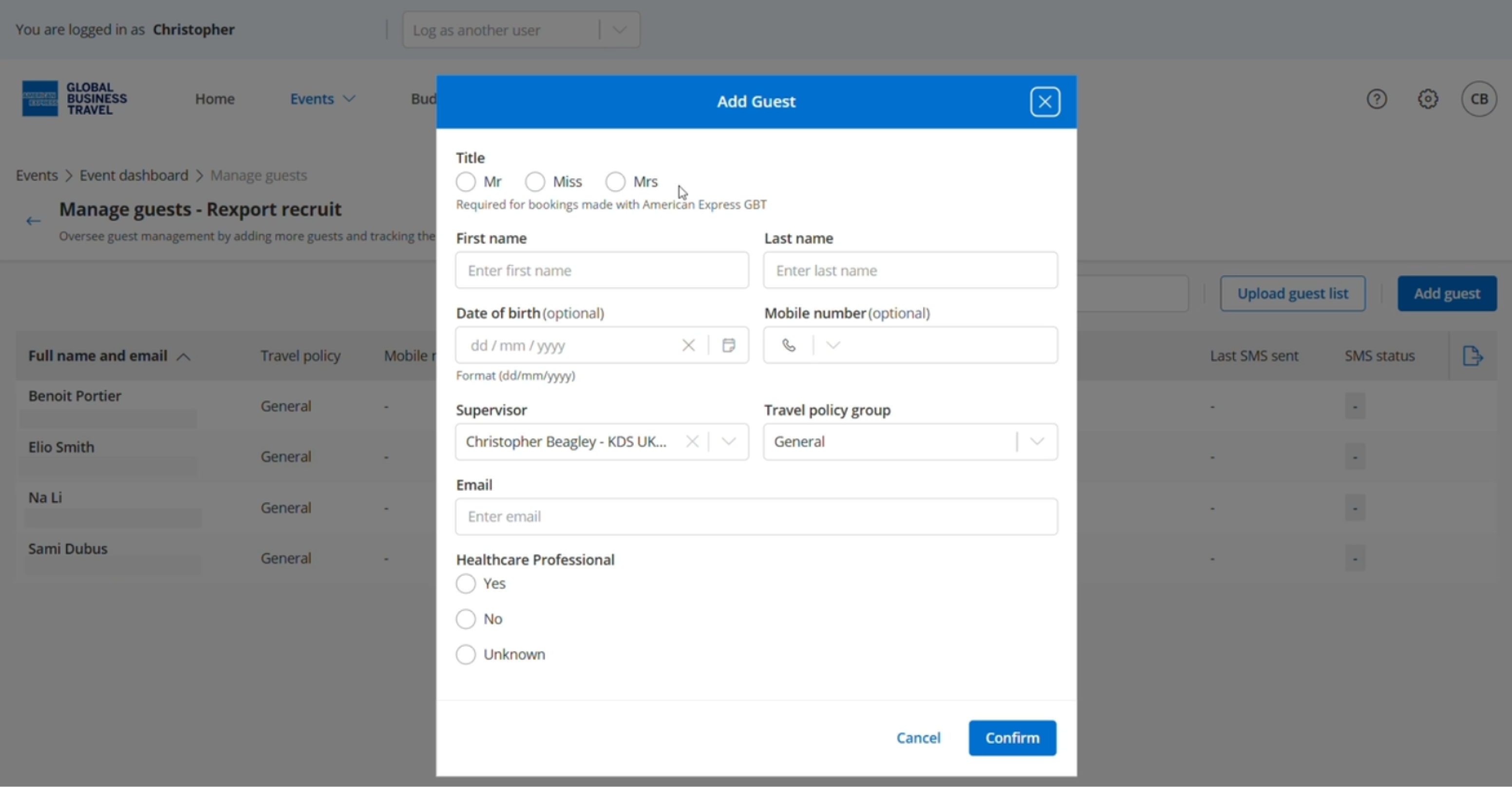
Click 'Confirm'.
Guests can now update their HCP information
The guest are added to your event and can now complete their profile from the invite link.
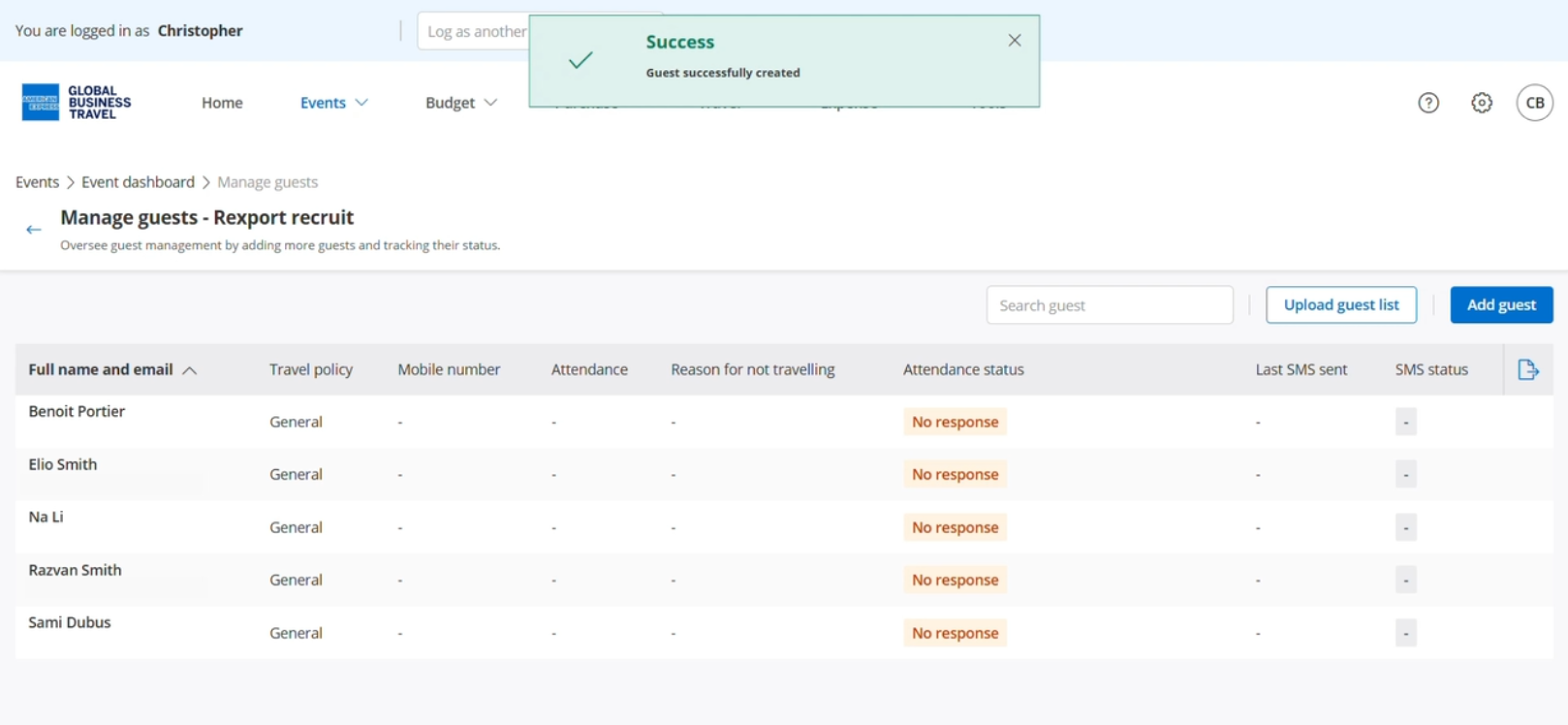
The guest are added to your event and can now complete their profile from the invite link.
Read the next article: Finding your event RSVP link.