

 Audience: Travelers
Booking business travel takes just a few minutes — flights, trains, hotels, and ground transportation all in one place. Your event details are pulled in automatically, so you start with destination, dates, and times already filled in.
 Tip: Before you start: Make sure your profile is complete and that you've received the "Ready to Book" email.
Step by step guide
 Tip: Add your loyalty card in your profile to make sure points are credited automatically.
Start your search
- Click Book Trip on your dashboard.
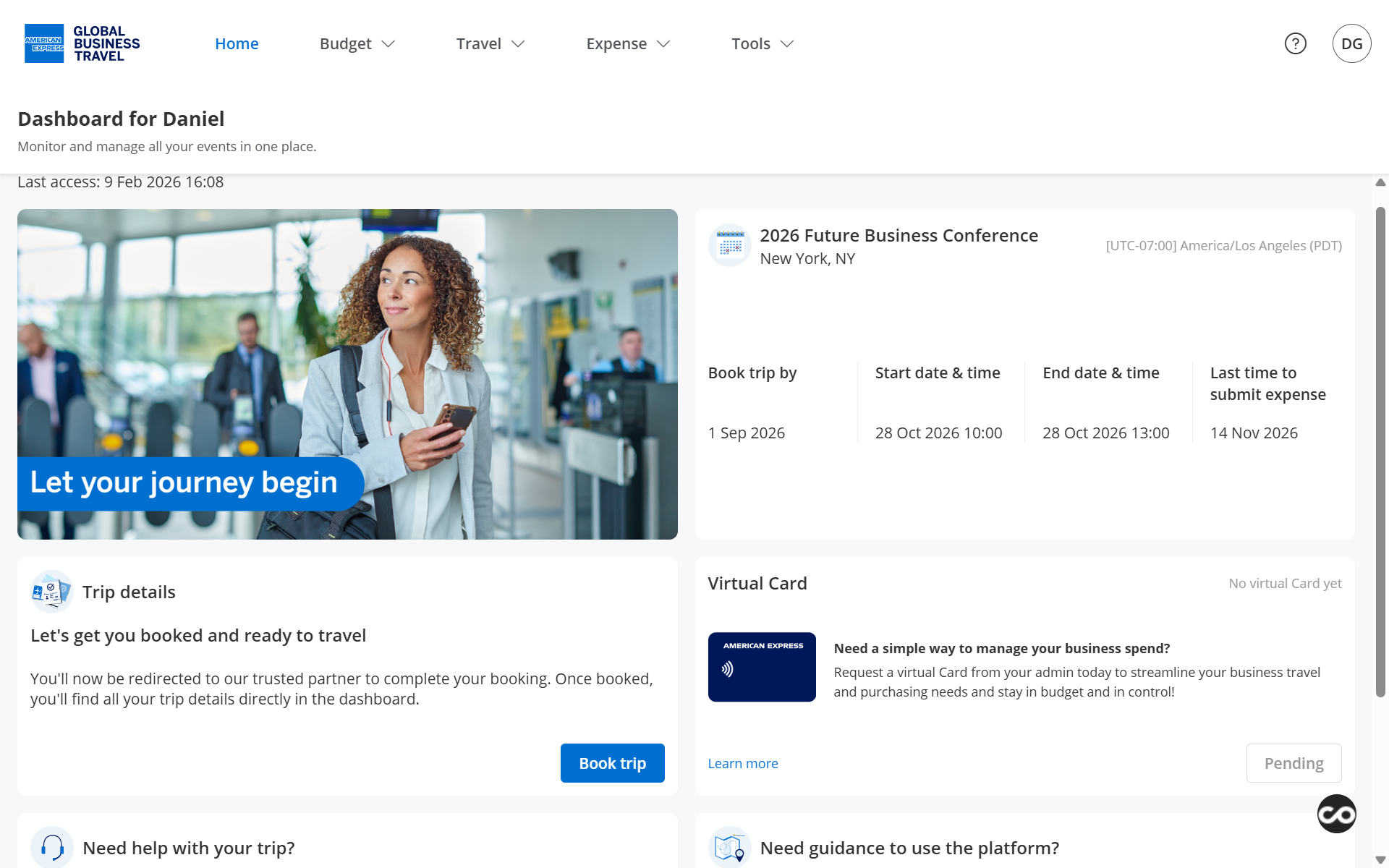
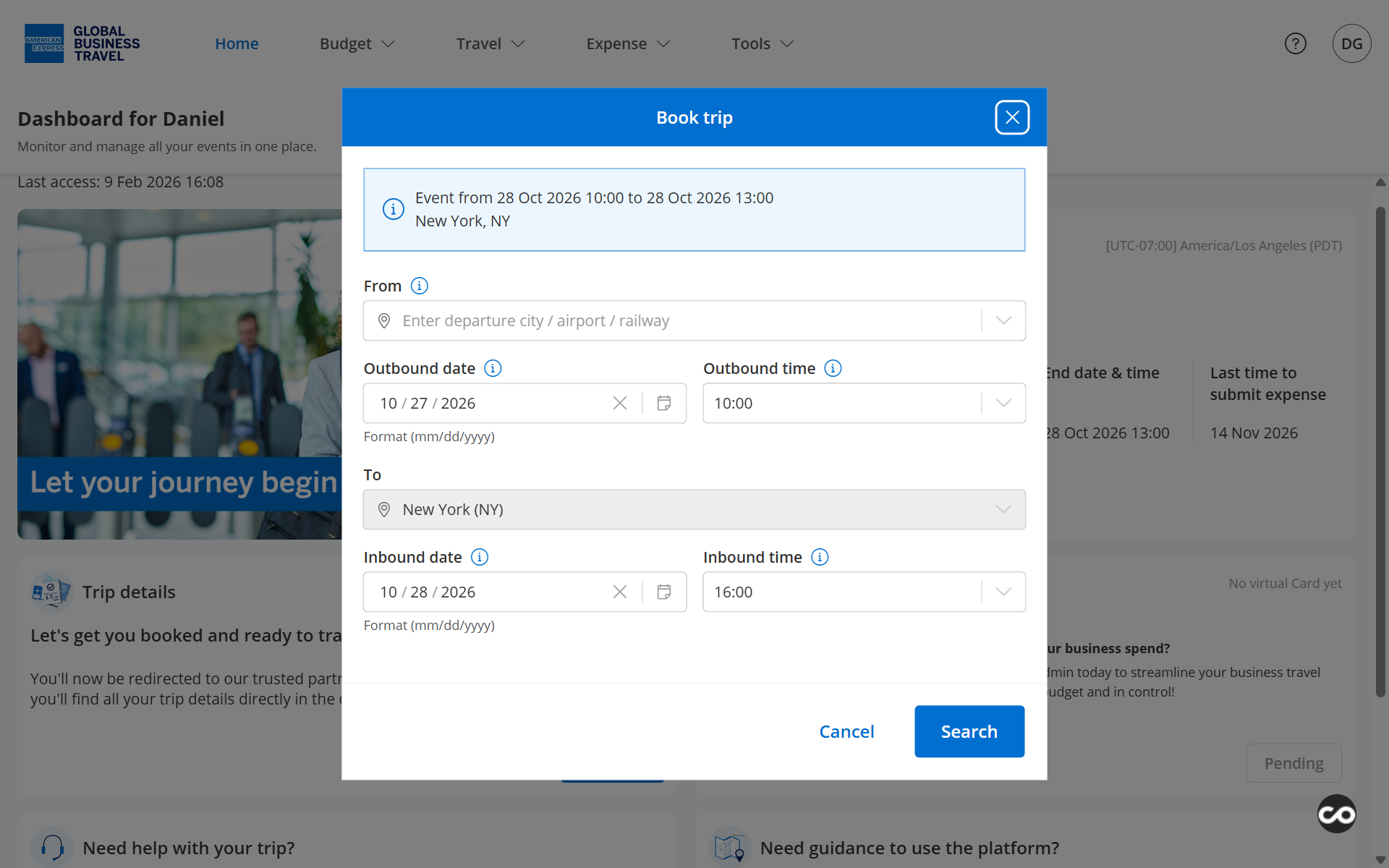
- Enter your departure location in the From field.
- Destination, dates, and times are pre-filled from your event — adjust if needed.
- Click Search.
Find your best option
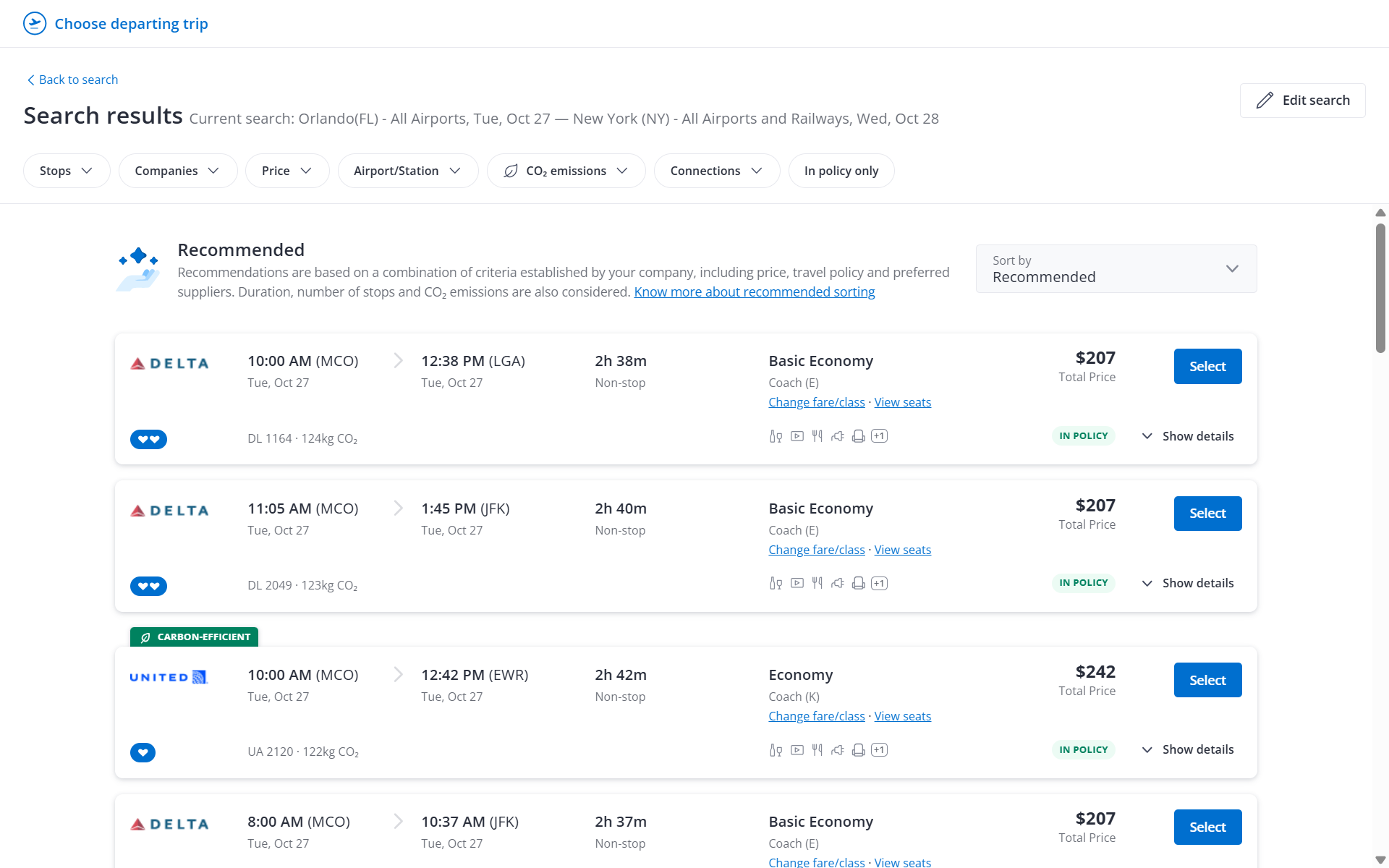
- Filter results by stops, carrier, or connection using the top bar, or use the smart filters below it to sort by Recommended, Earliest, Fastest, or Cheapest.
- Click Select to choose your outbound option. View fare details and select the most convenient fare.
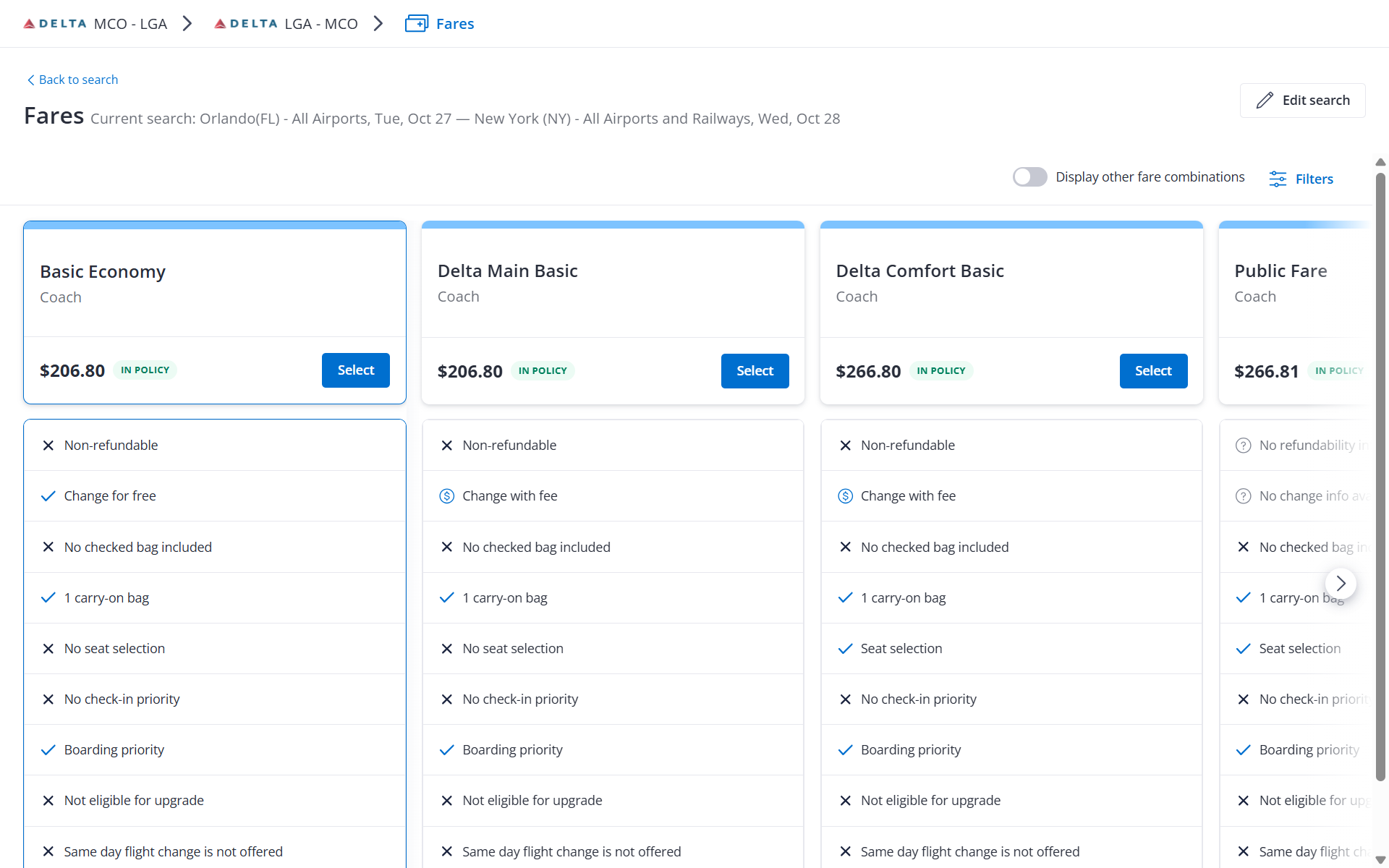
3. Pick your return, then select your seat if applicable.
Tip: Use the expand icon on any result to see routing, amenities, and fare conditions before committing.Complete your booking
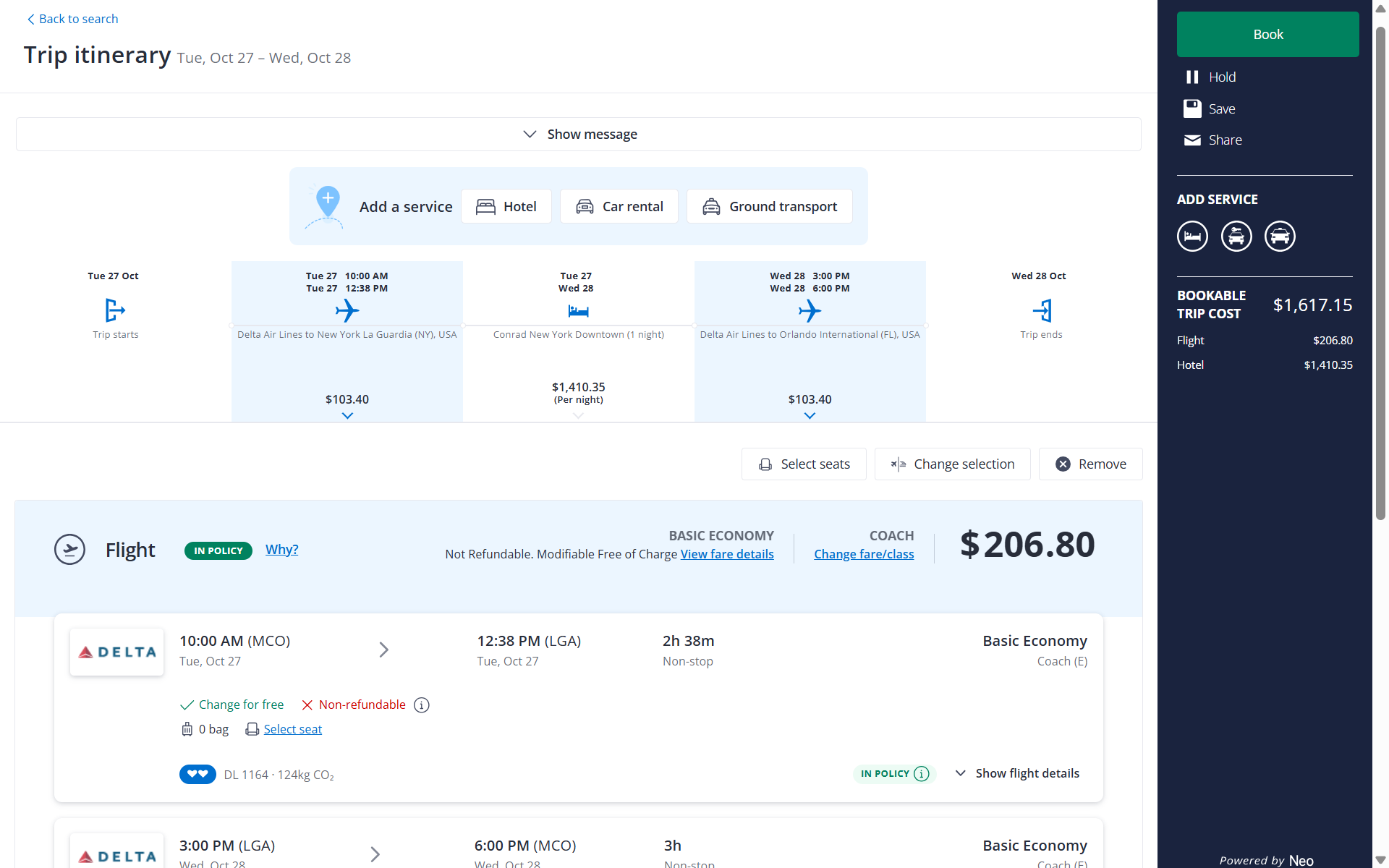
On the Trip Itinerary page, use Check Fare Details to review flexibility and cancellation penalties, or Change Fare/Class to explore other options. From here you can also add a hotel or car — click Add a Service, select what you need, review the fare, and click Book.
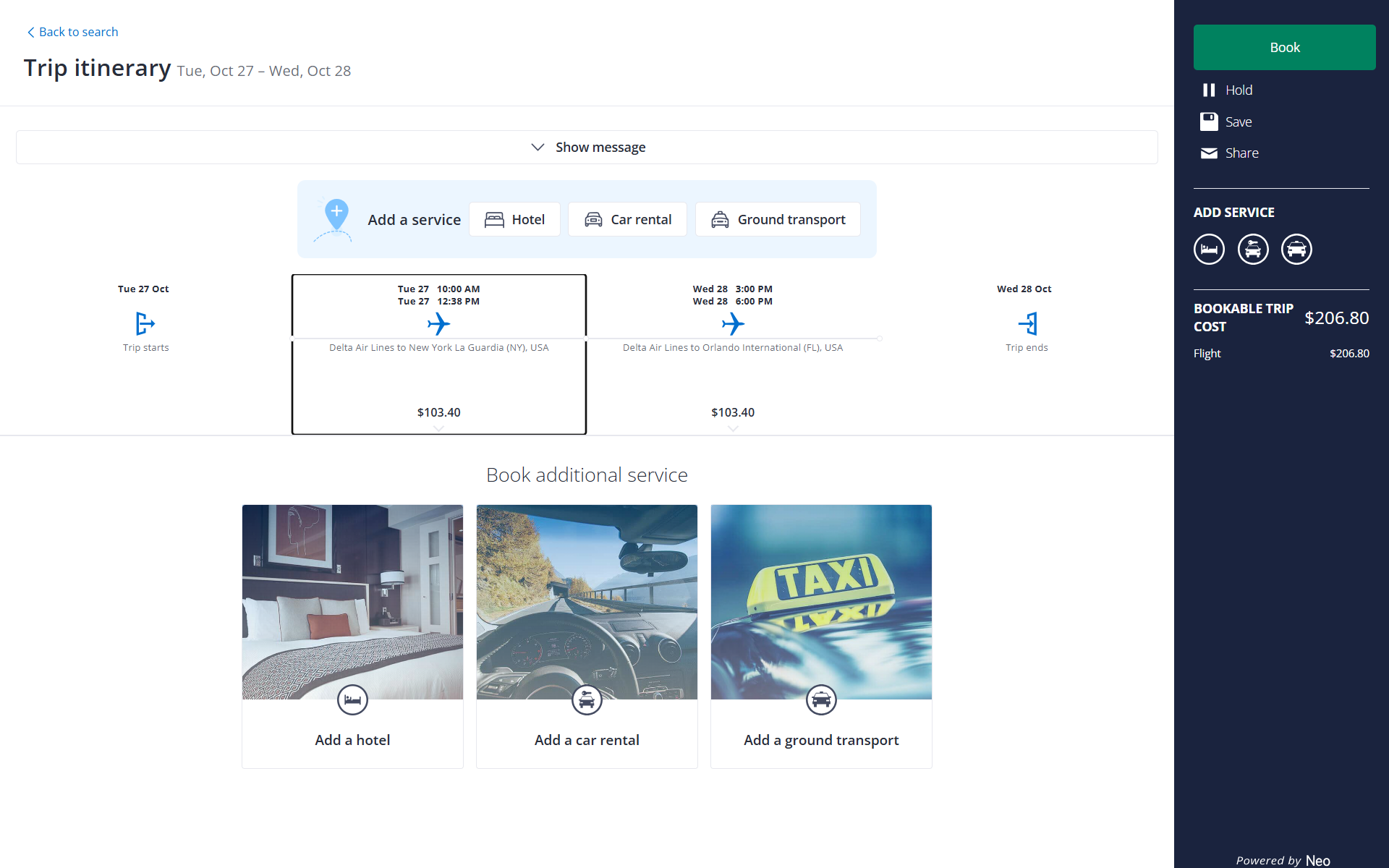
Book, hold, or save
- Click Book to confirm all segments at once — you'll review cancellation policies for each before finalizing.
- Click Hold to reserve your itinerary before committing. Check ticketing deadlines under Show Details before placing a hold.
- Click Save to save your progress and return later.
Tip: Note: Hold is a courtesy extended by airlines and carriers. While rare, they may reclaim a held seat at any time without notice. For issues or questions about travel booking, contact our support team at help@amexgbtone.com