

 Audience: Travelers
The expense feature allows travelers to justify shared or virtual Card spend by attaching receipts and submitting expenses. Smart automation pre-fills expense details using card transaction data and receipt scanning, saving travelers time and reducing manual data entry.
View expenses awaiting justification
Select 'Expense' then 'Expense requests' in the top navigation menu.
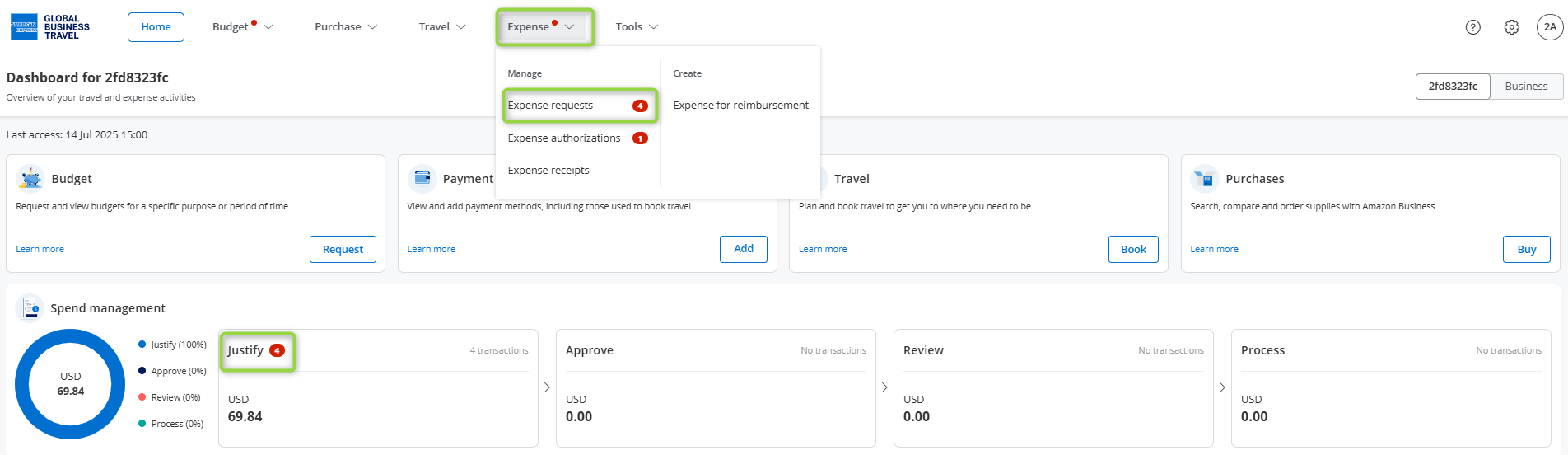
A red notification badge indicates the number of expenses awaiting your action.
The expense interface
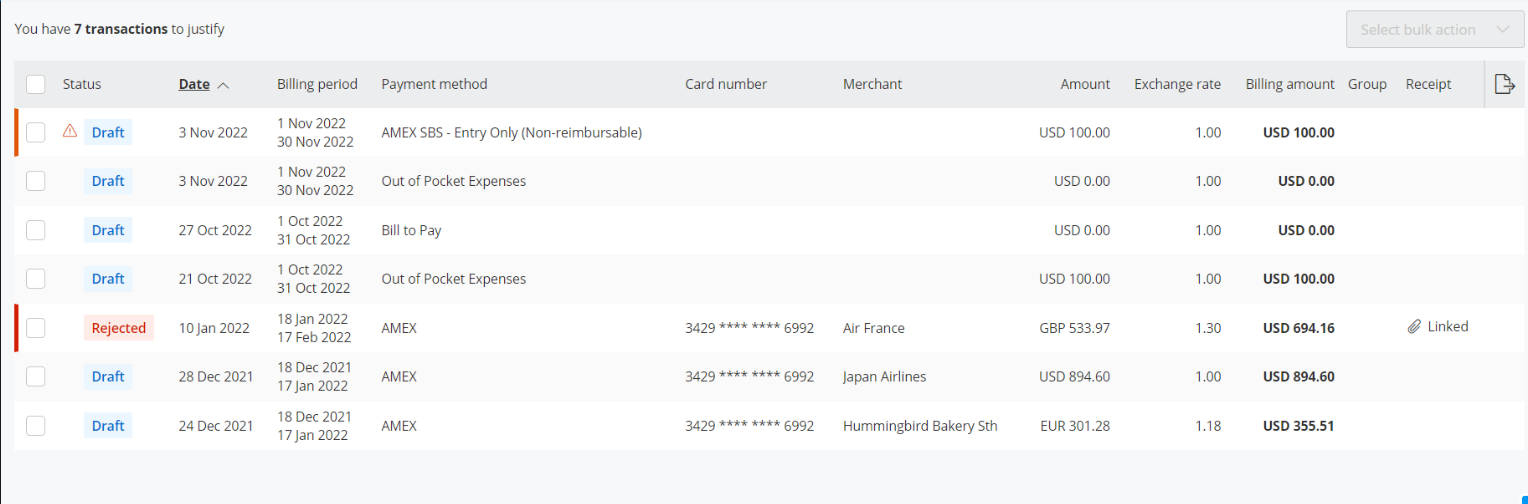
Expenses are listed in reverse chronological order, with the most recent at the top.
Select an expense from the list to begin justification.
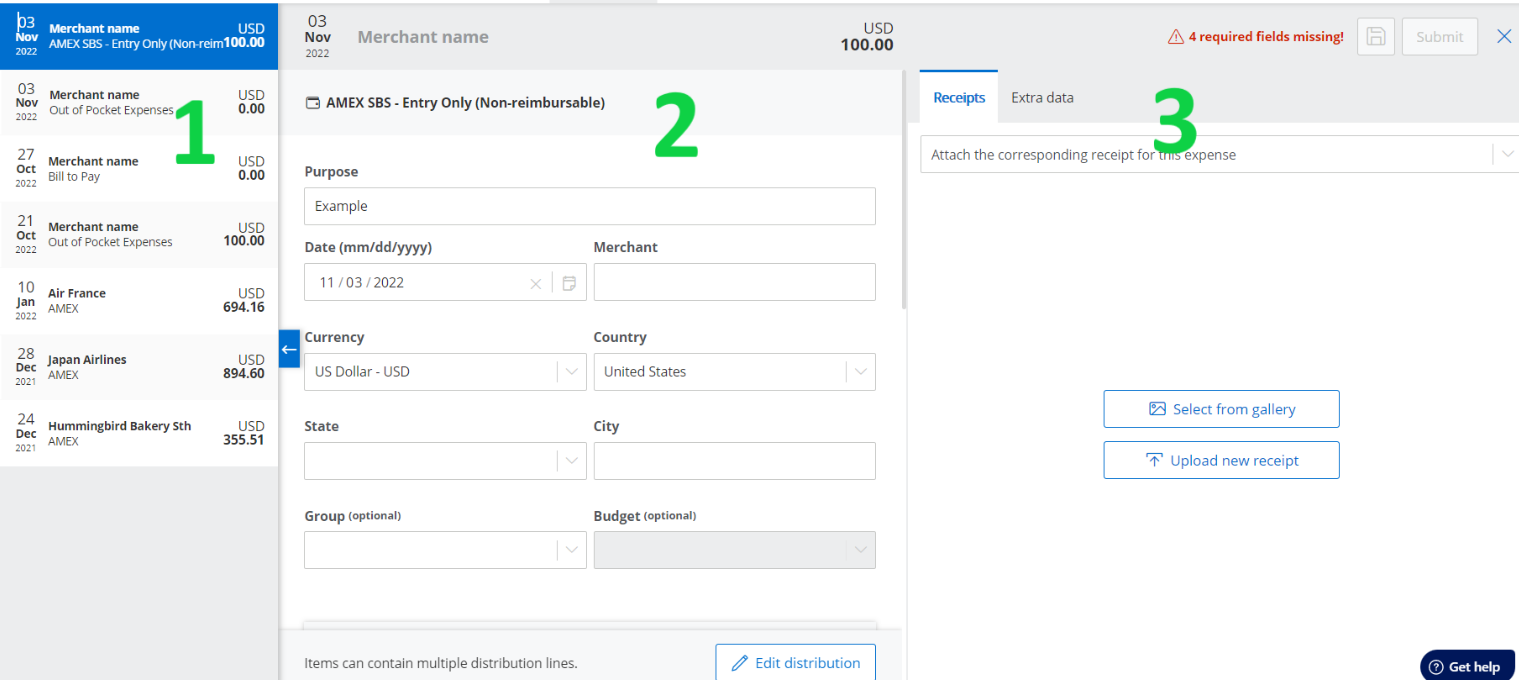
The expense screen is divided into three panels.
- On the left, your list of expenses awaiting justification.
- In the center, the expense details.
- On the right, the receipt associated with the expense.
Justify an expense
Attach a receipt
On the right, attach a receipt to justify the expense.
- Click 'Select from gallery' to select a receipt captured with the Amex GBT One mobile app.
- Click 'Upload new receipt' to upload a receipt from your desktop.
 Tip: For travel booked within Amex GBT's platform, the airfare receipts will automatically link to the transaction.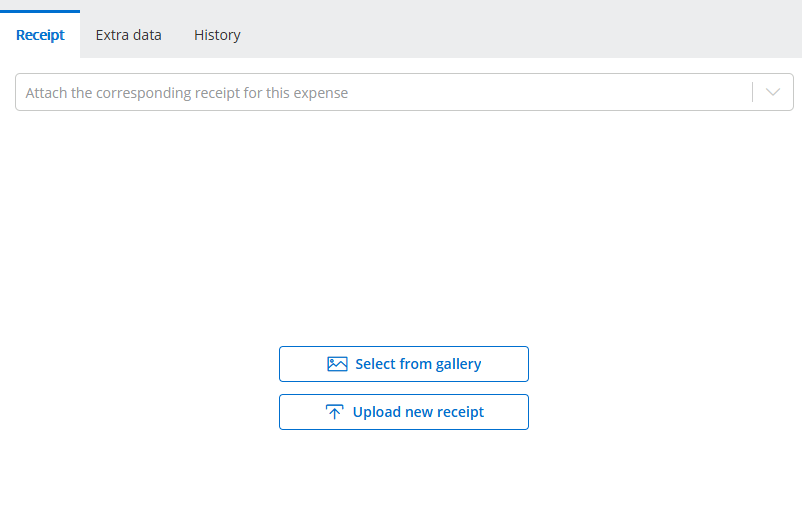
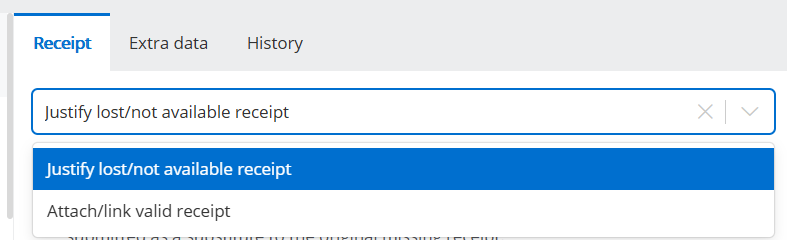
Note: A receipt is required to justify an expense. If you're missing your receipt, select 'Justify lost/not available receipt' and confirm the expense was for the event attendance purpose.
Complete expense details
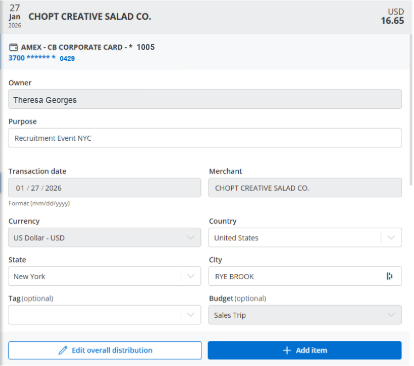
In the center, most details including merchant, amount, date, currency, country and category are automatically pre-filled from your card transaction data and receipt scanning.
- Fields may vary depending on event's setup.
- Review and complete fields if necessary.
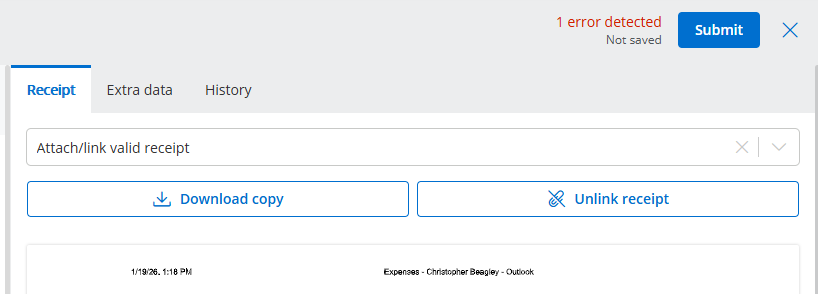
- Click 'Submit' in the top right corner to submit your expense.
- If an error message appears, review the center panel and complete any mandatory fields before submitting.
Read next article: Spend management overview - track your expenses directly from the dashboard.