

 Audience: Travelers
If you have paid out of pocket for any travel-related costs, you can submit an expense for reimbursement directly through the platform. Smart automation pre-fills expense details using receipt scanning, saving you time and reducing manual data entry.
 Tip: Before making any out-of-pocket payments, check the event organizer's expense and payment policy.
Video: How to create and submit an expense for reimbursement (out-of-pocket)
Create an expense
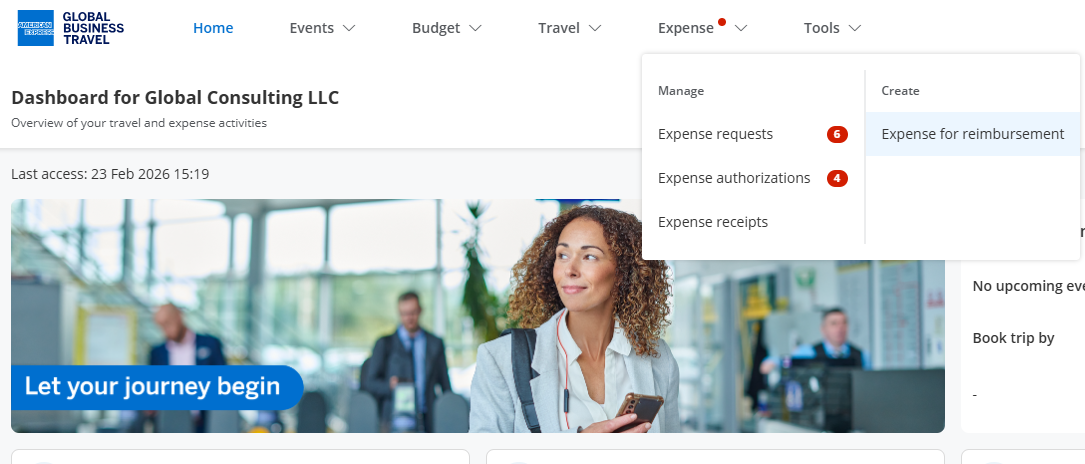
From any page, select 'Expense' then 'Expense for reimbursement' in the top navigation menu.
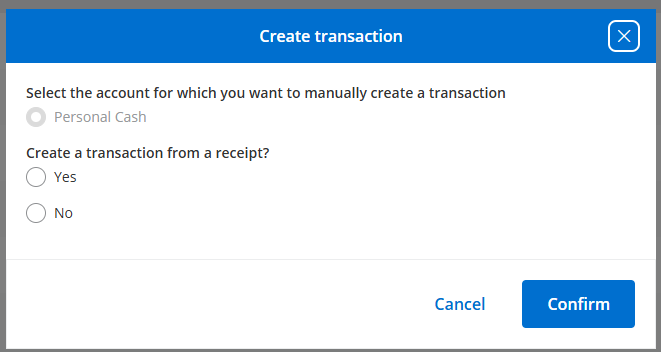
To take advantage of smart receipt scanning and automatic field population, create your expense from a receipt.
- Select 'Yes'.
- Click 'Confirm'.
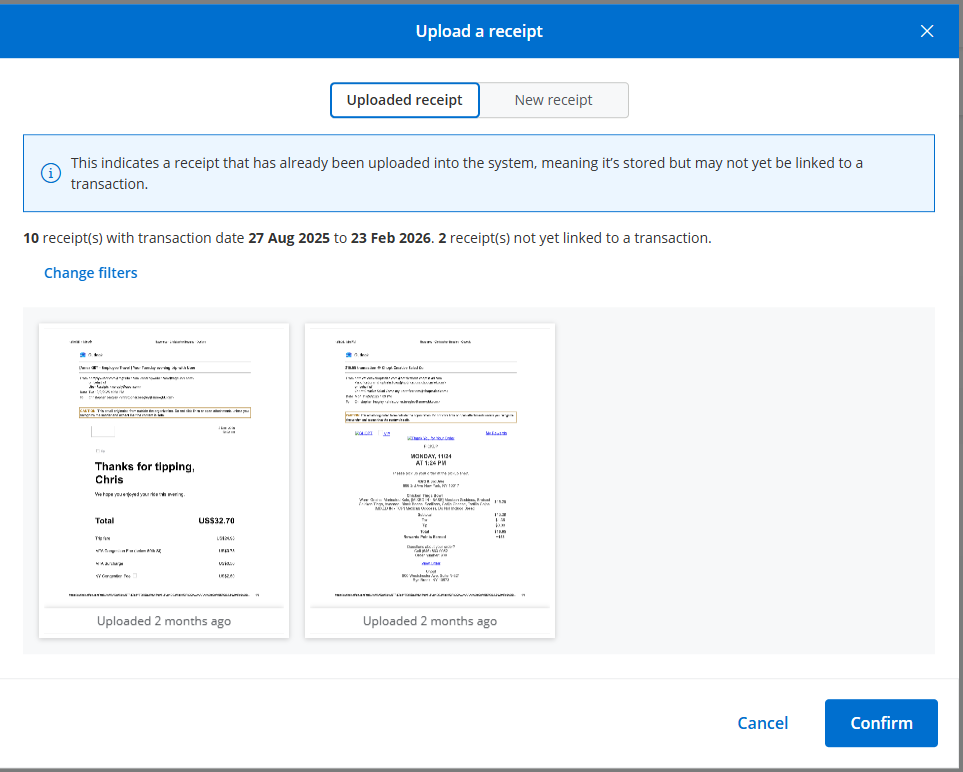
Attach a receipt
Using the Amex GBT One mobile app
If you have already scanned a receipt using the the Amex GBT One mobile app, select it from your uploaded receipts.
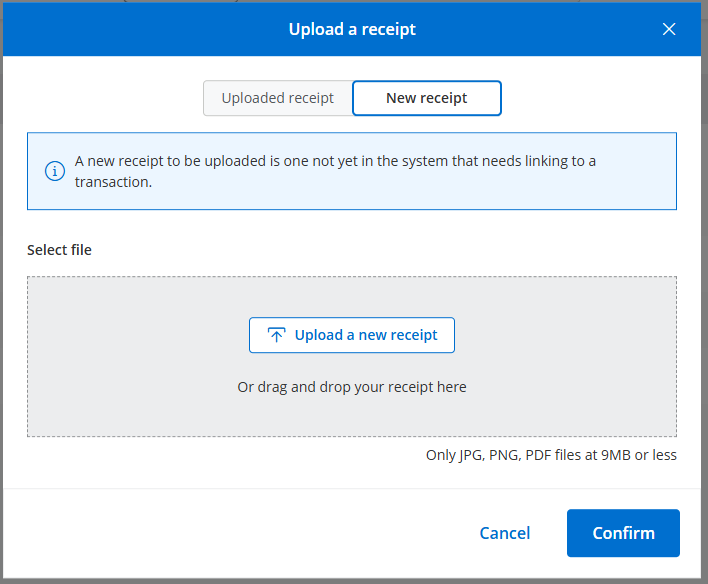
Uploading a new receipt
- Select the 'New receipt' tab.
- Click 'Upload a new receipt'.
- Select your receipt.
- Click 'Confirm'.
Review details and submit expense
The expense screen is divided into three panels.
- On the left, your list of expenses awaiting justification.
- In the center, the expense details.
- On the right, the receipt associated with the expense.
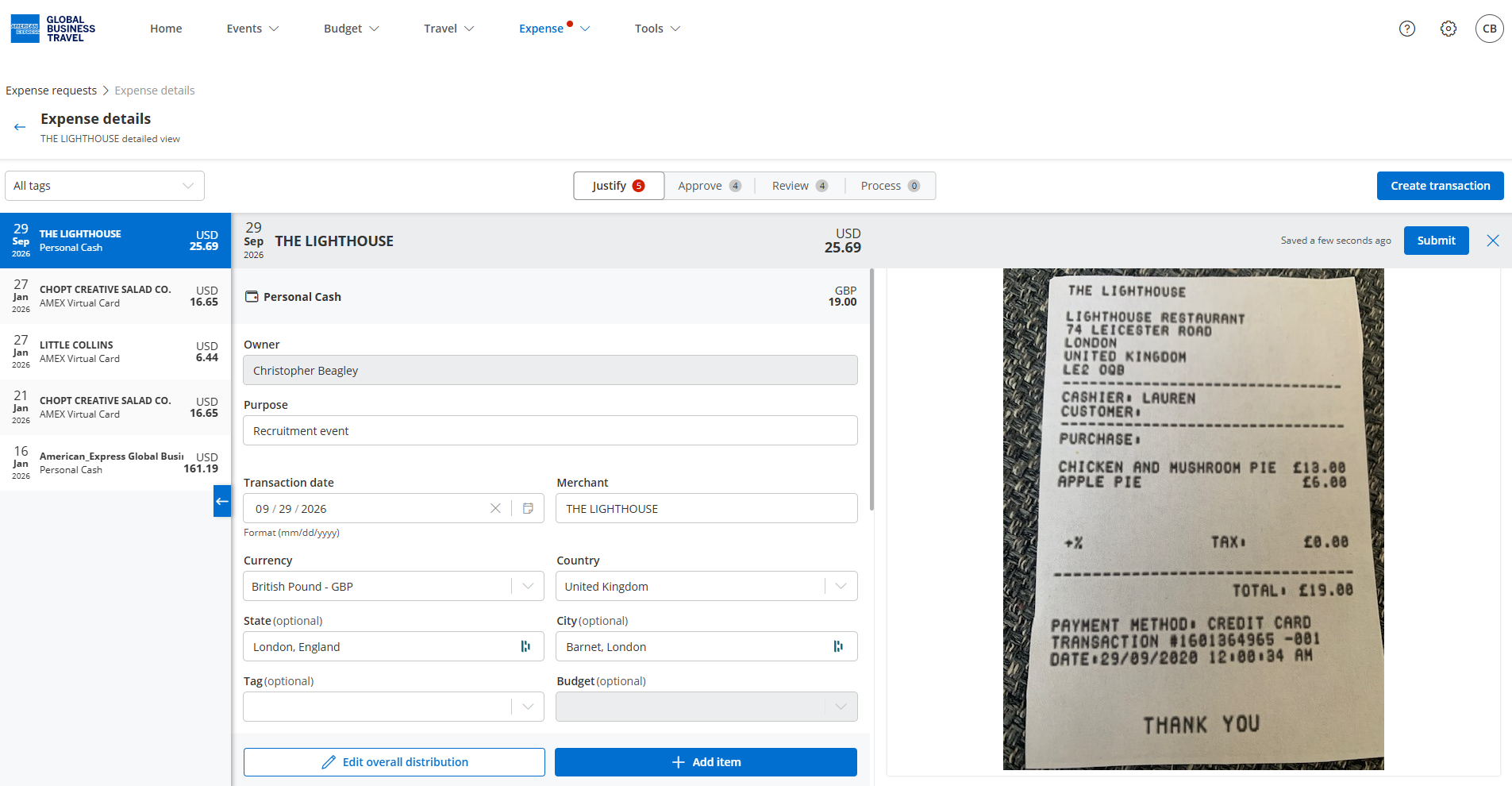
- Review the pre-filled expense details in the center panel.
- Click 'Submit' in the top right corner.
Read more: track your expense status from the Spend management overview.