

 Audience: Admin
 Events are the starting point for managing your guests' travel and expenses. By creating an event, you define key parameters — such as dates and locations — that drive travel and expense automation. You can also configure payment methods and budgets when applicable. Once set up, your event becomes the foundation from which the entire guest travel and expense workflow is automated.
Step by step
- Step 1: create your event
- Step 2: event details
Budget and Payment Configuration
- Step 6: budgets and payment methods.
- Step 7 (optional) : budget setting.
Event Information
Step 1: create your event.
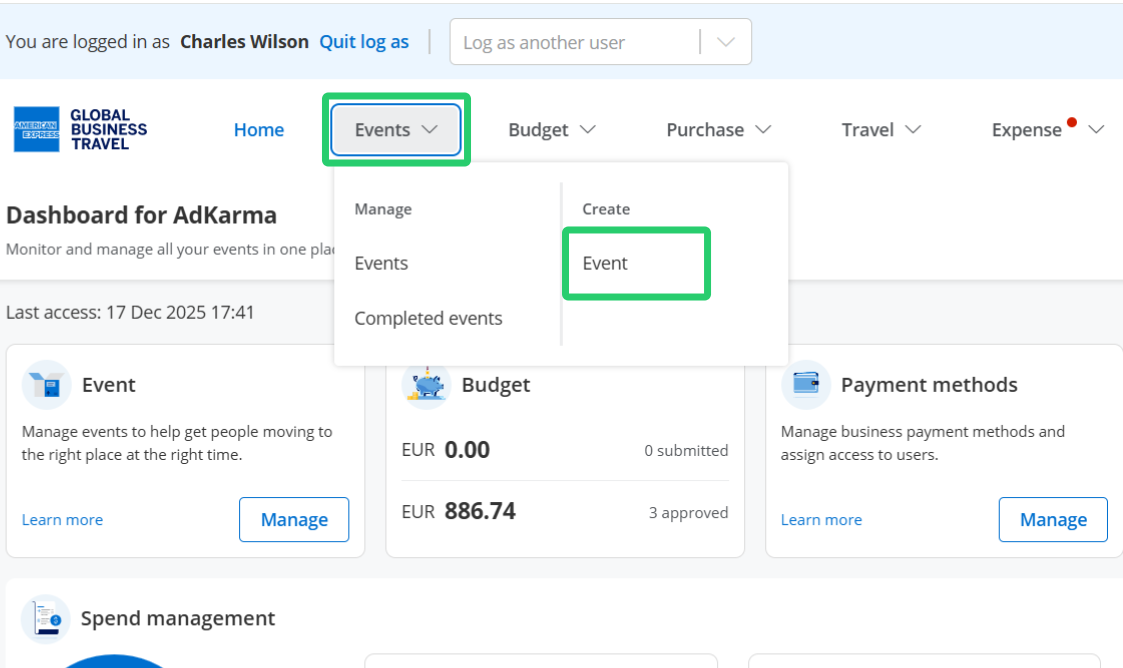
Select Events from the top navigation menu. Then select Event under the Create column.
Step 2: enter event details
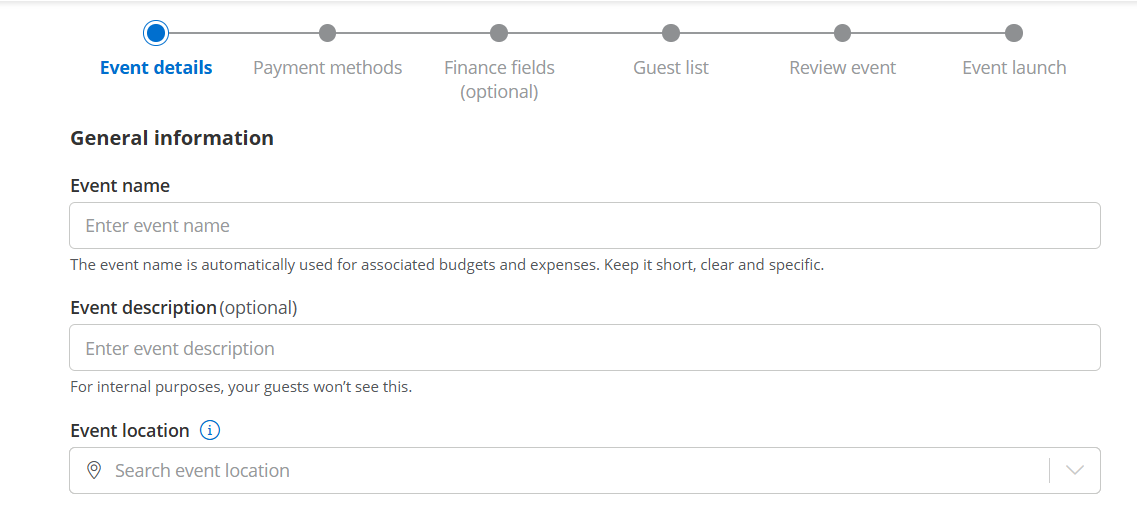
- Event name: create a name that's easy to identify as this will be used as a purpose for all related expenses.
- Event description (optional): add internal notes or details about the event for your team's reference. This helps you stay organized but remains hidden from guests.
- Event location: establish the destination for all travel arrangements.
 Tip: Use descriptive event names that will make sense in expense reports.
 Key timeline management
Set up automated workflow triggers with five essential dates. The platform uses these dates to send targeted email and SMS reminders, ensuring guests complete their bookings on time and arrive/depart as planned.
Step 3: Event schedule.
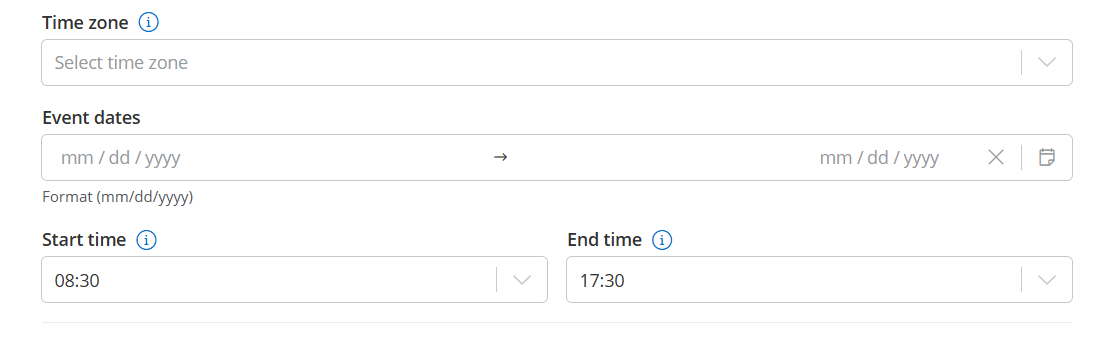
Click on each field and pick dates from the calendar that opens. Also select times by clicking the clock—by default the current time will be applied.
Define key dates for your users to take action:
- The start and end dates of your event.
- Registration deadline: when guest accounts should be ready for booking.
- End Time:When your event concludes and guests can depart.
Tip: set realistic deadlines with enough time for booking completion.
Step 4: Event timeline.
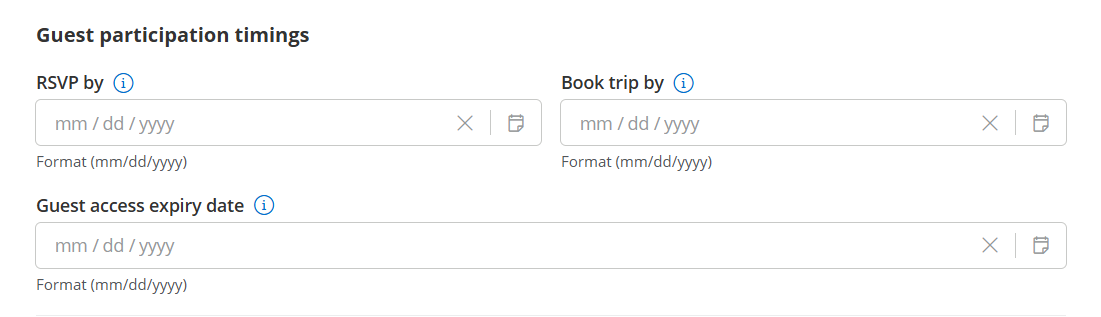
Key dates are automatically set based on your event dates, but you can adjust them as needed:
- RSVP by: When guests should confirm their attendance.
- Book trip by: Final date for guests to complete their travel reservations.
- Guest access expiry date: When guest access to the platform ends.
Tip: set your arrival time earlier than the time your training session, presentation or event's key activity actually starts at. Guests always need a bit more time to find location and seat or grab a coffee before the session. Step 5: Guest Notifications (Optional)
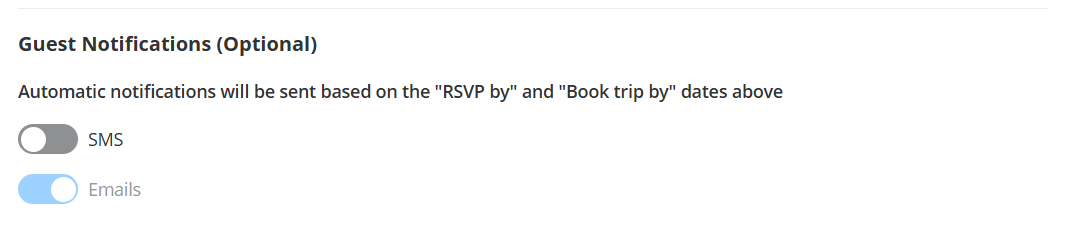
These key dates will trigger automated reminders so your guests can take action on time. Select which channels to enable for notifications.
Travel Policy
Step 6: Enable travel categories and set up your policy
Enable Air/Rail, Hotel, Ground Transportation or Car Rental categories for booking.
When disabled, guests won't be able to book that category.
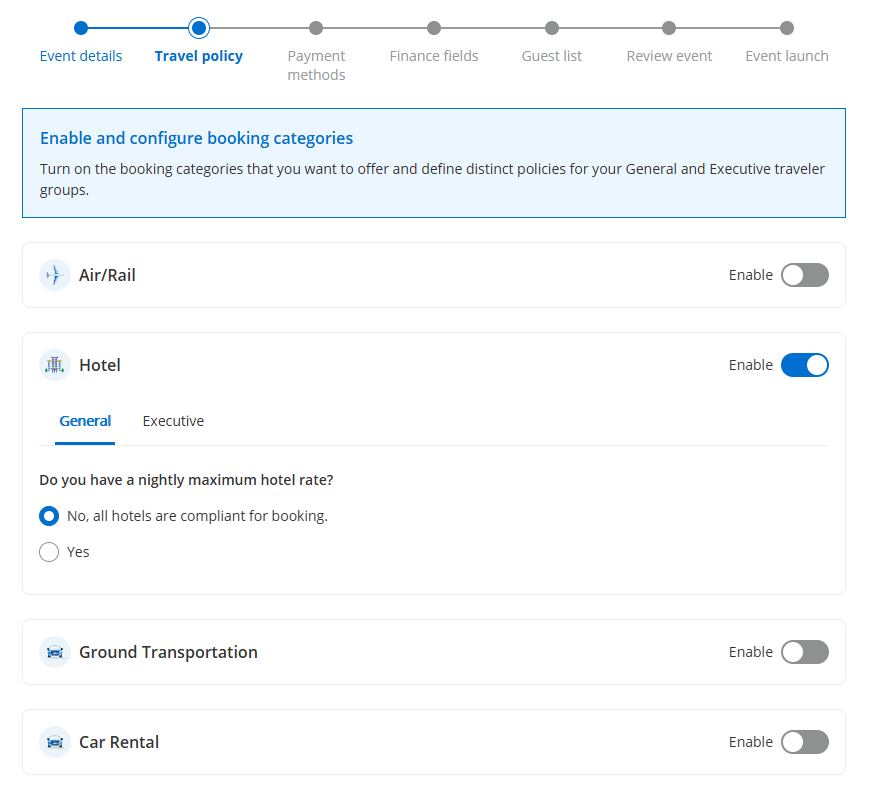
When a category is enabled, the travel policy options for that category are displayed.
For each category, set up a policy for the General and Executive guest groups to customize travel rules based on guest type.
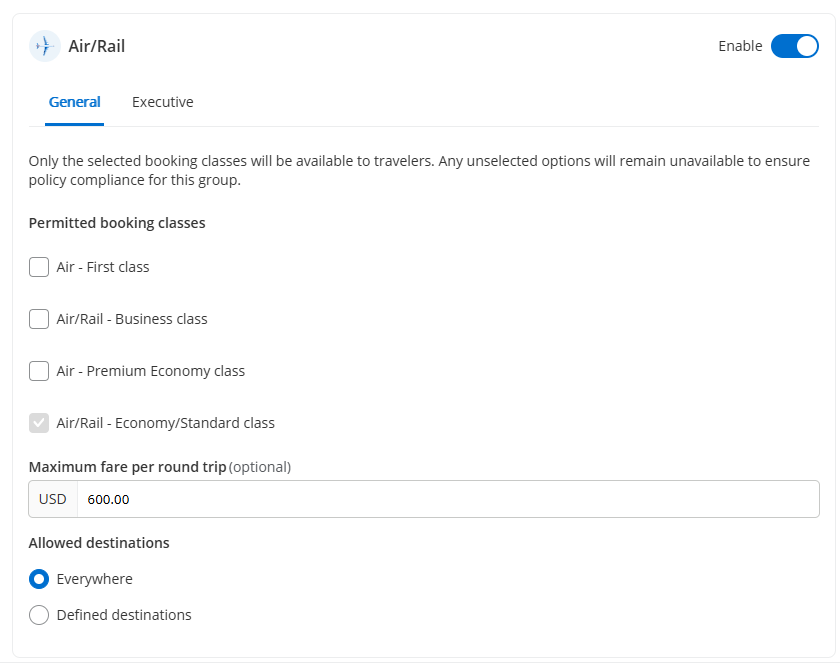
Read this article to learn more about Travel Policy Groups and settings in detail.
Budget and Payment Configuration
Step 7: Budgets and payment methods.
Select the payment method and expense process that you want guests to use for this event.
- Issue virtual Cards to guests for all expenses.
- Let guests use personal cash and request reimbursement.
- Use a lodge or shared card for travel bookings.
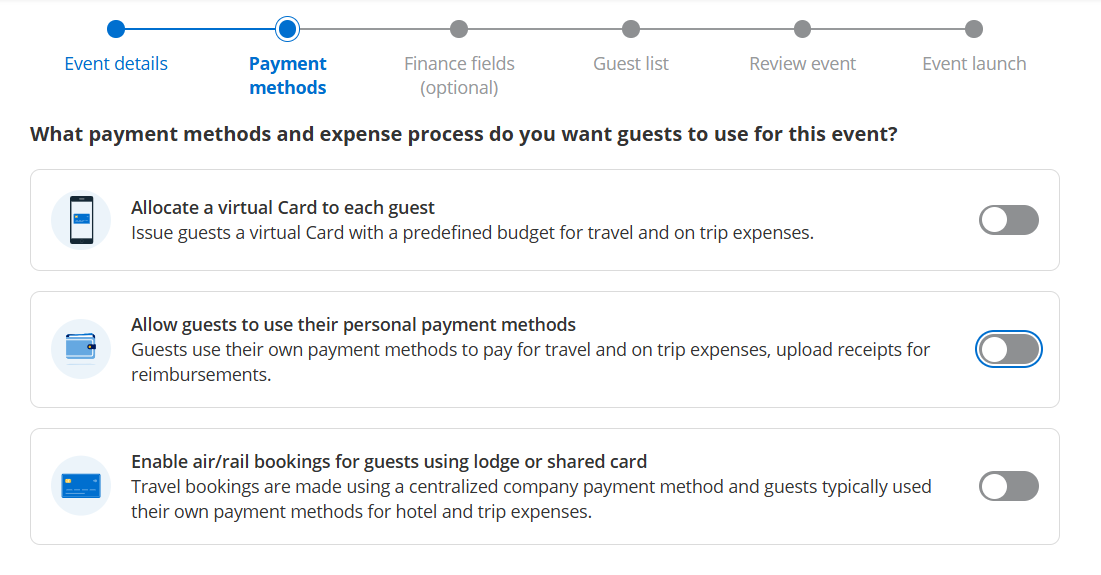
We recommend issuing virtual Cards to guests to simplify expense tracking and eliminate the need for manual reimbursements.
1. Define a budget - this is the maximum spending limit for each virtual Card. Then enter the virtual Card end date.
2. Tick the first box to confirm you authorize virtual Cards creation for your guests.
3. Tick the second box to allow budget flexibility for unexpected travel disruptions.
Tip: you can allow 30-40% budget flexibility for complex itineraries with connection risks.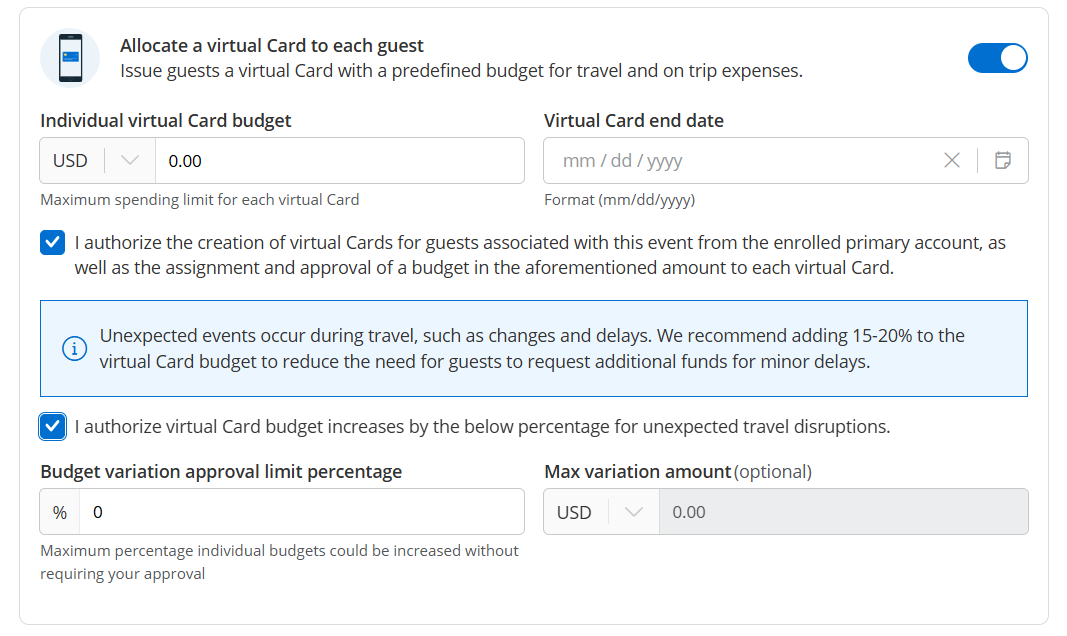
Tip: set budget closure dates 5-7 days after the event end date to cover return travel, expenses and transactions processing. Next Steps: review SMS notifications guests will receive.