 Audience: Admins
 Events come in all sizes — from a handful of candidates to hundreds of conference attendees, with different traveler types. A travel policy handles that complexity for you, keeping bookings consistent, costs in check, and approvals out of the equation. Tailor the rules to each event, and let your guests book within them automatically.
Where to set up your event travel policy
Travel policy is the second step of your event creation.
From the top navigation menu, select Events > Create Event and setup your event to automate workflows and monitor guest travel and expense.
 Read the article Create an Event
Travel policy settings options
Policy parameters can be set for each travel category: Air/Rail, Hotel, Ground Transportation and Car Rental.
Enable the categories for booking. When disabled, guests won't be able to book that category.
When enabled, you can tailor the rules for each category to your event.
Air/Rail
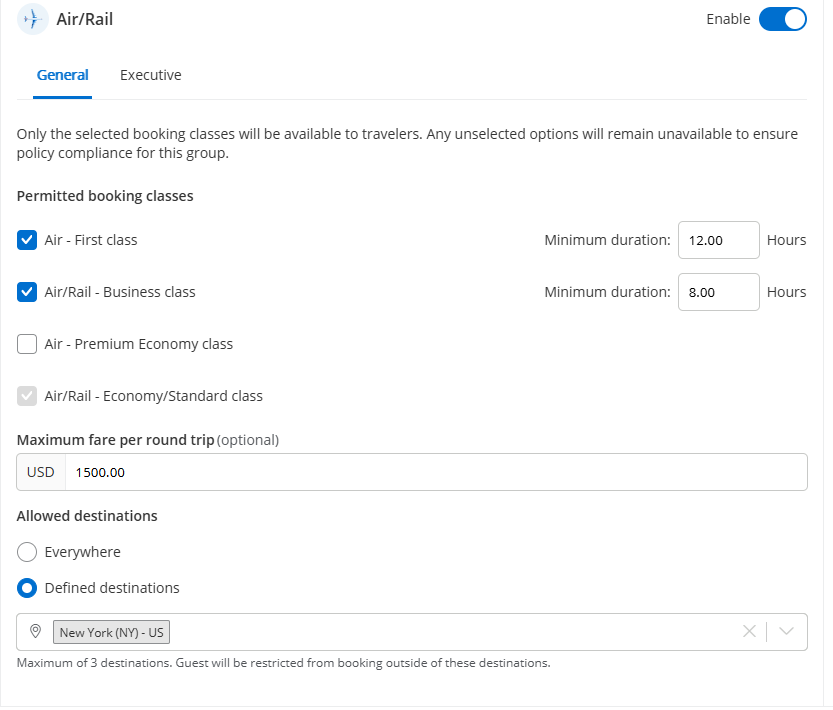
1- Select the permitted booking classes.
Economy/Standard is selected by default. You can select additional classes and specify the minimum flight duration for which this class is permitted.
Unselected classes will not be displayed to travelers when booking online.
2- Add a maximum fare limit for a round trip.
This additional level of control over your event's budget is optional.
3- Define allowed destinations.
Restrict bookings to 1-3 destinations, or open bookings to any destination.
Hotel
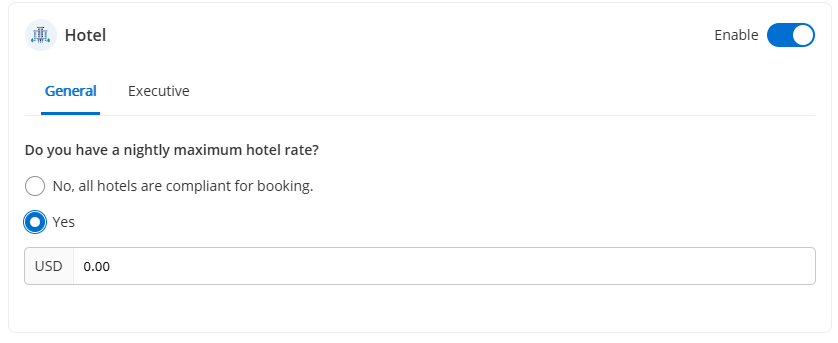
Set a maximum hotel rate per night.
Car Rental
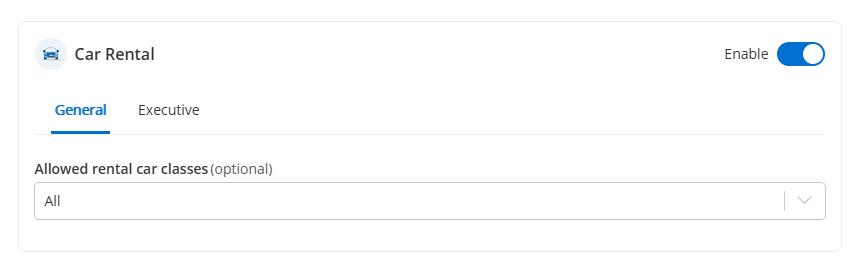
Select permitted car rental classes.
Travel policy groups
When setting up your travel policy, you can see two tabs for each travel policy group: General and Executive.
You can set the General policy to include the standard restrictions applicable for most (or all) guest travelers.
Setting an Executive policy is optional. It creates an alternative policy for those guests who require less travel restrictions.
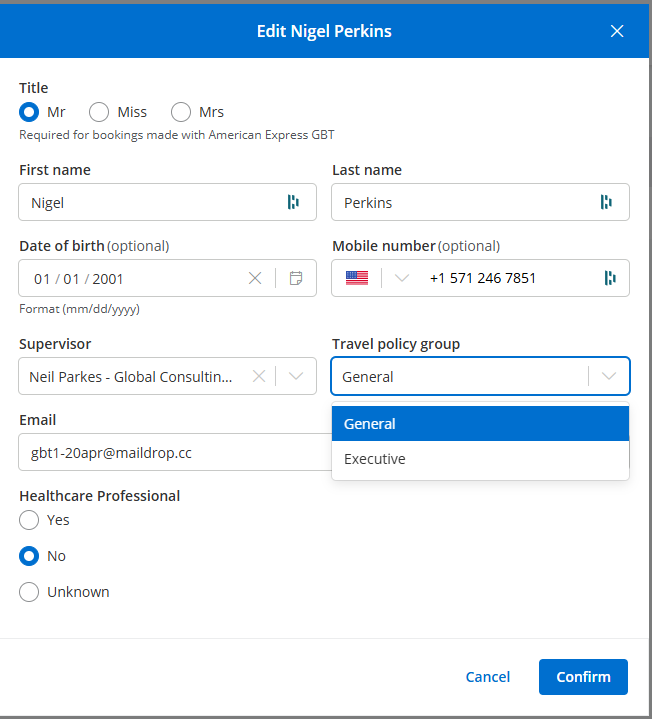
Travel policy group assignment can be set when creating a guest. All guests are set to the General travel policy group by default.
To update travel policy group assignment go to your event dashboard, click 'Manage Guests', click the pencil Edit icon next to the guest name, and select the appropriate group.