

 Audience: Admins
Mapping expense categories allows the correct Account/PL/Nominal Codes to be automatically assigned when users submit expenses, eliminating manual entry and reducing errors. For example, selecting 'Hotel' as an expense category automatically applies the corresponding Hotel/Travel account code from your finance tool, saving time and ensuring consistency across all submissions.
Overview:
Create and manage expense categories
Add and manage automation rules
Confirm field default automation rules
Create and manage expense categories
Once you have created fields and loaded your Chart of Accounts, you can map expense categories to those field values. Start by managing the primary expense category settings to activate, deactivate, rename, or recategorize the default categories. If needed, you can also create new expense categories that align with your requirements.
Manage expense category settings
Click on Settings then under Expense, click 'Expense categories'.
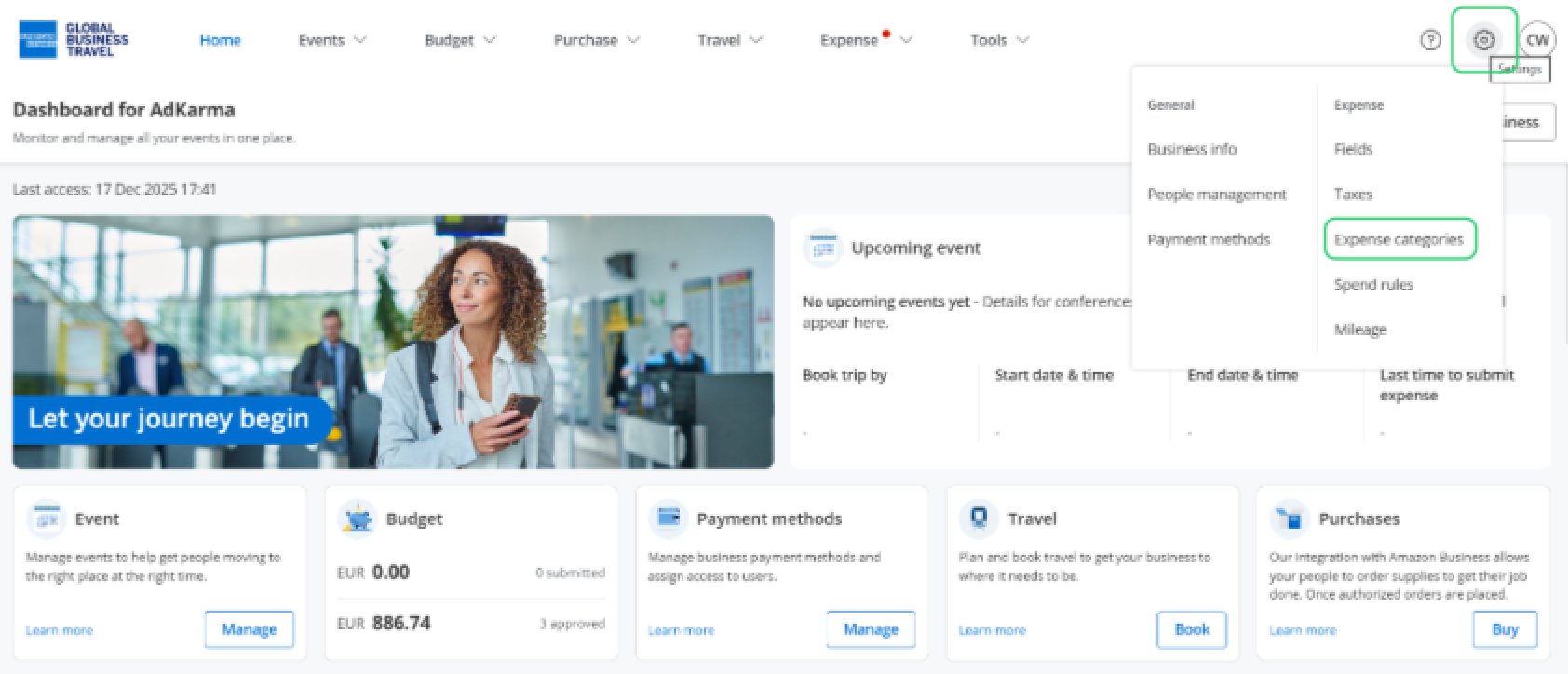
You will find a library of defaulted expense categories that are popular for most accounting setups.
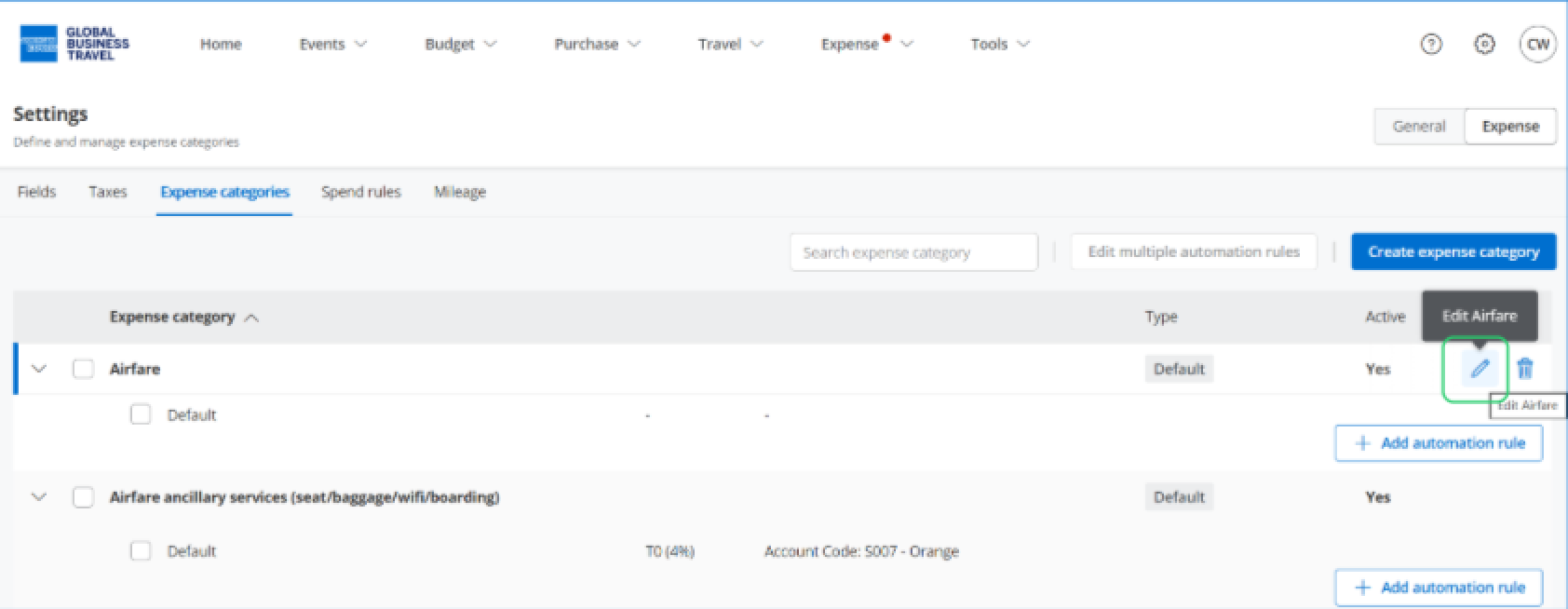
Click Edit (pencil icon) to manage the category settings for the desired expense category.
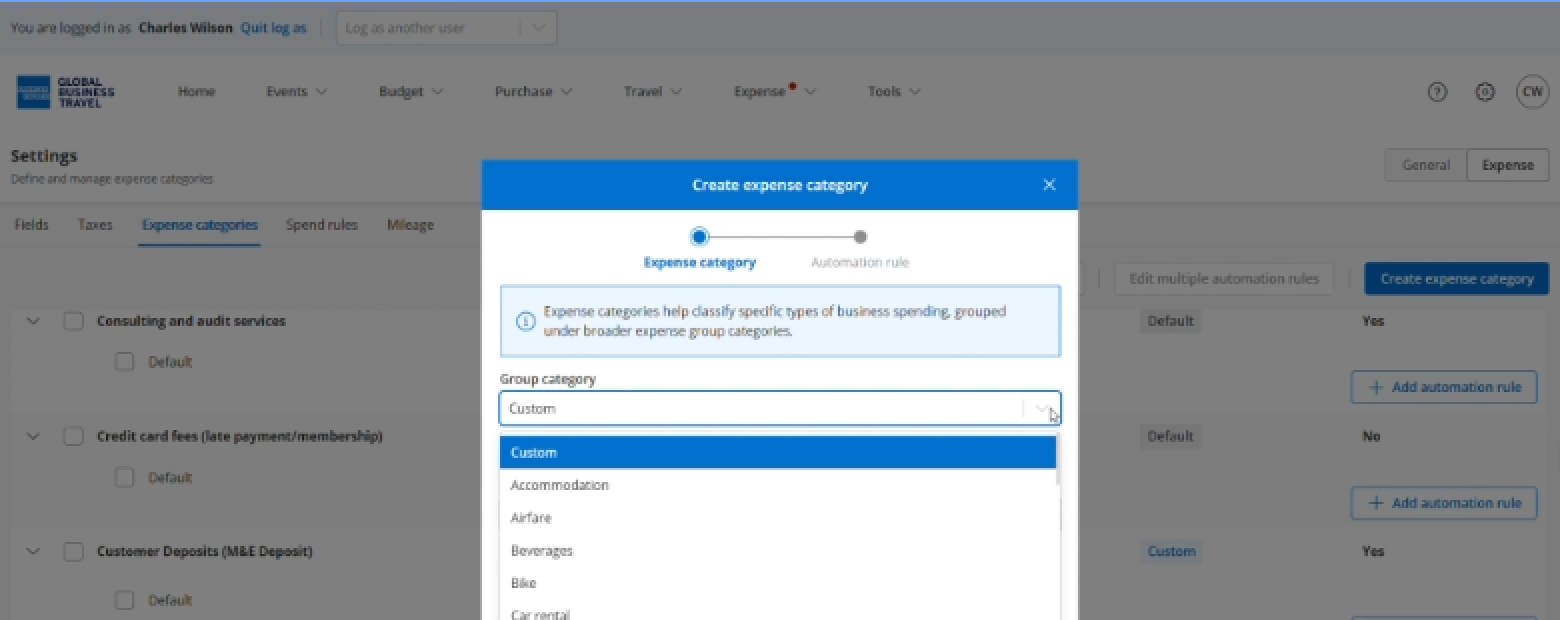
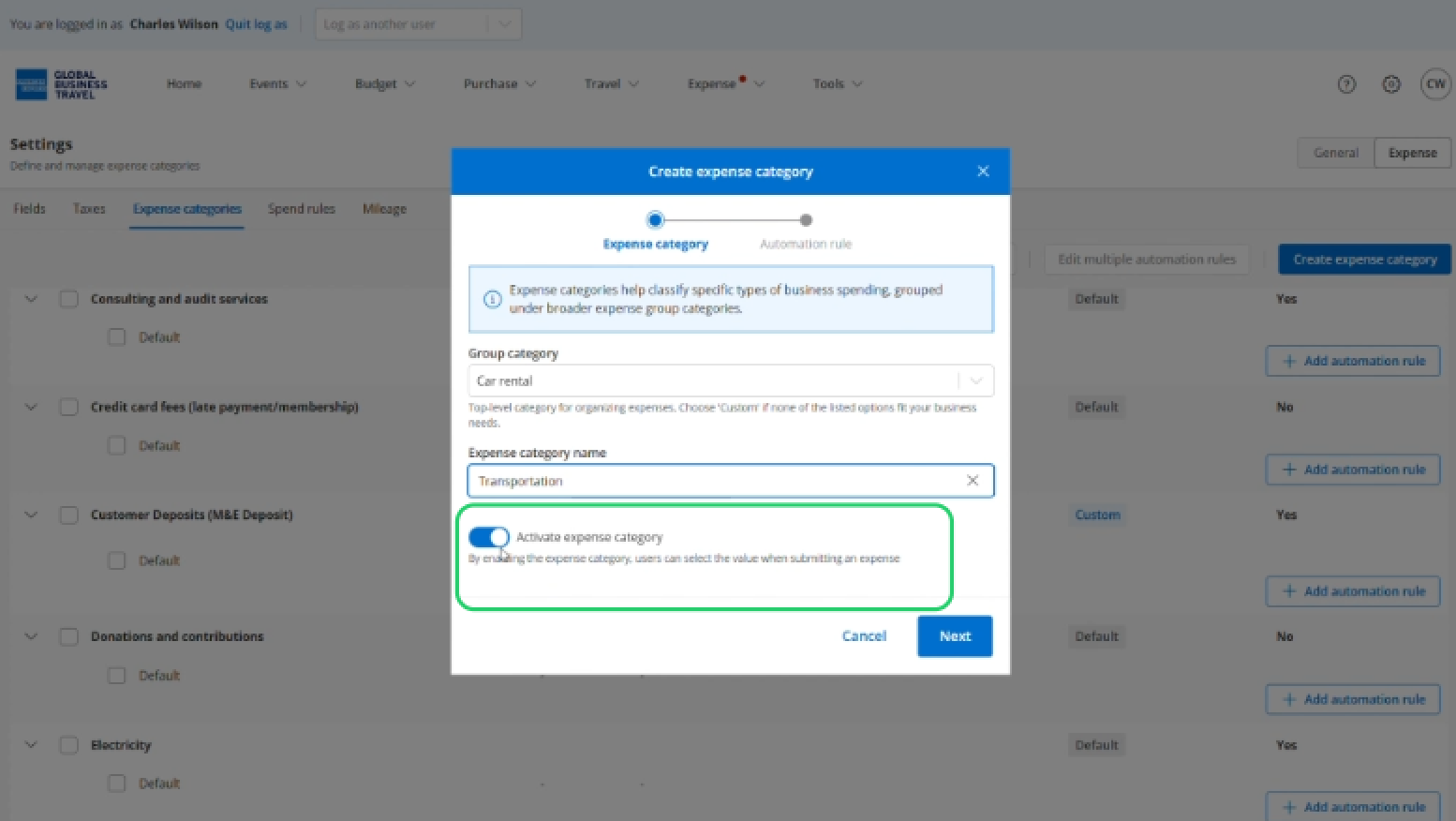
Select a group category.
Modify the expense category name.
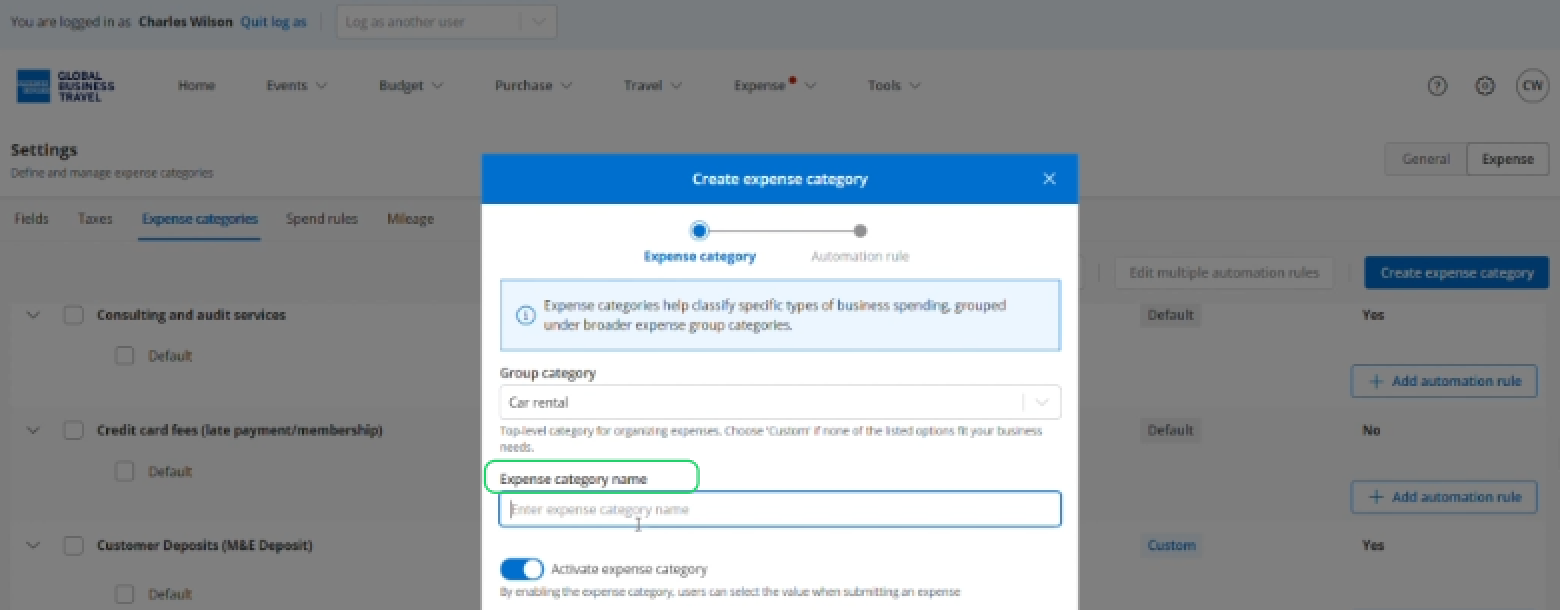
To let users select this category when submitting expenses, toggle it to active.
Click 'Next'.
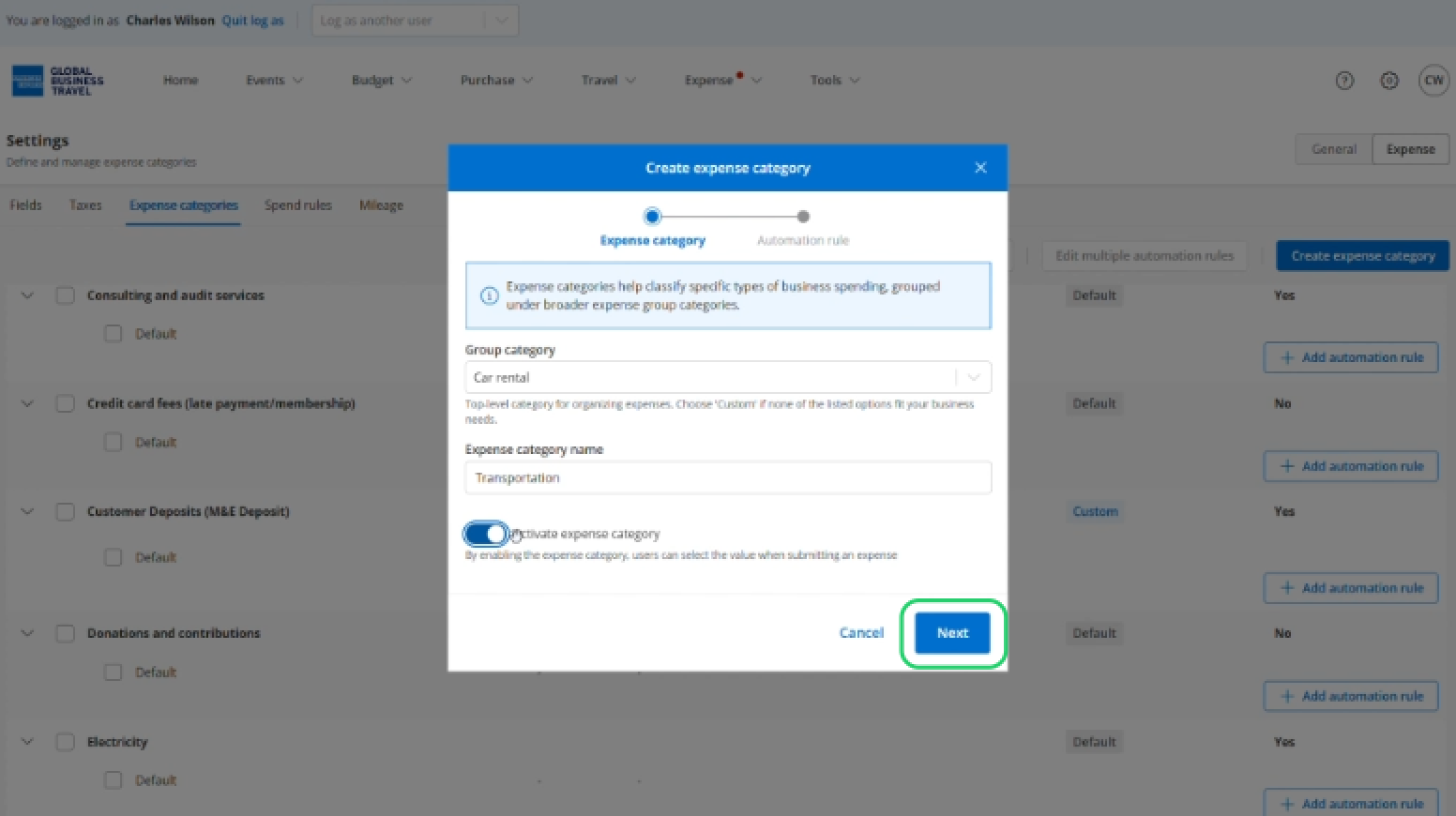
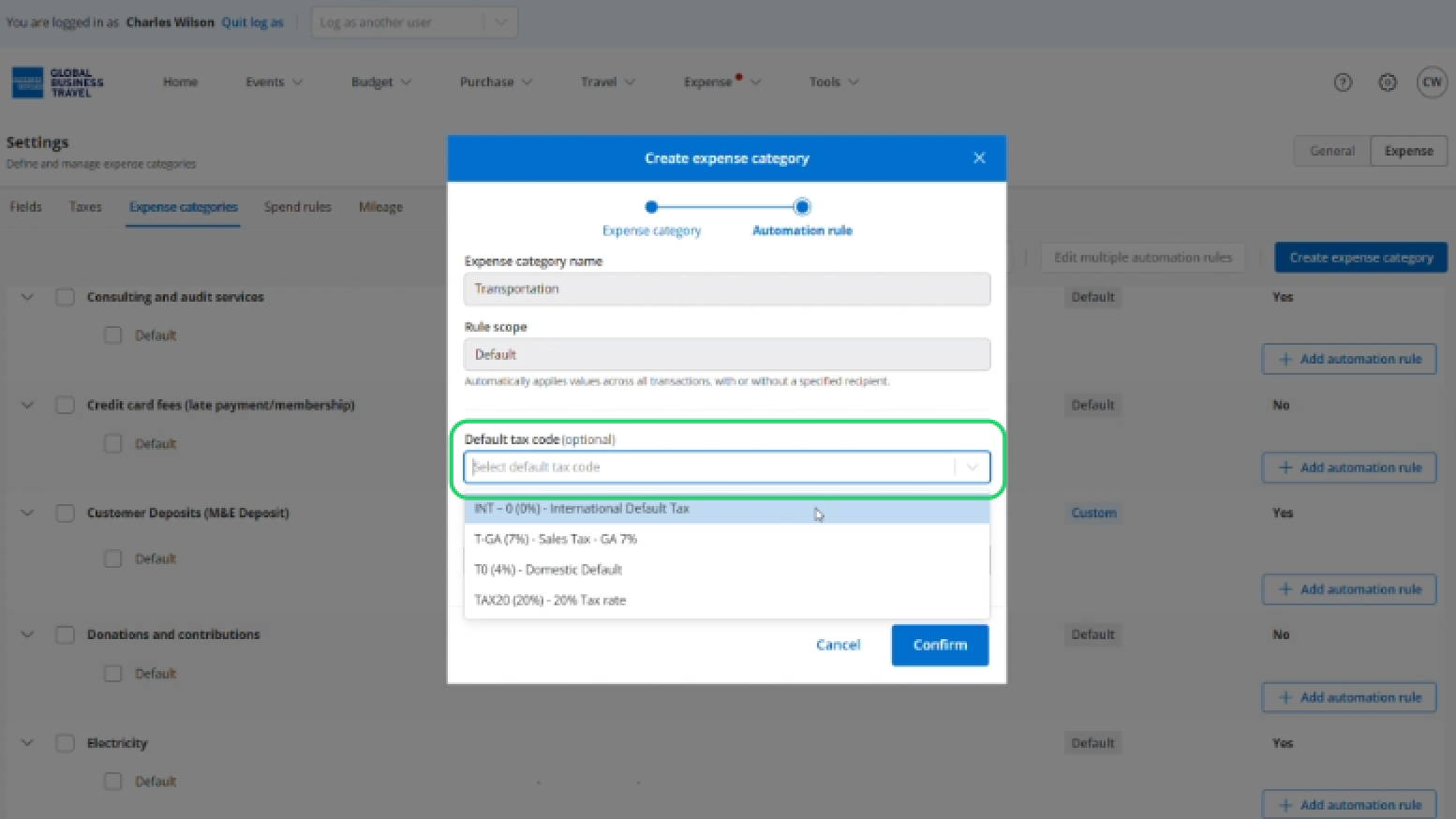
You can now edit the default automation rule for this category. Note that this rule applies by default to all groups of people, and you can add automation rules for specific groups of people.
Select a default tax code - this step is optional.
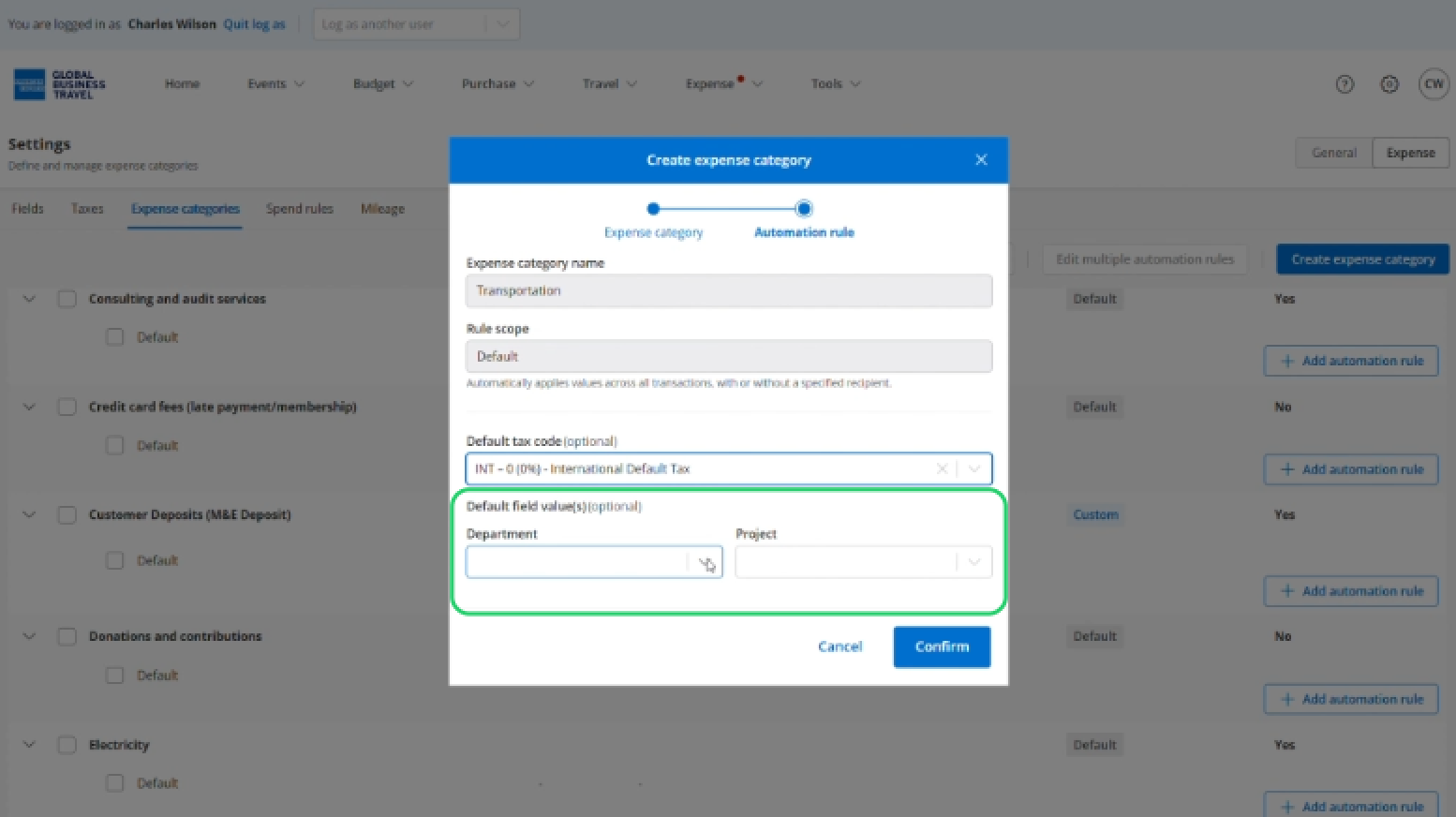
Select default field value(s) - to map your expense category to the fields you've defined.
Click 'Confirm'.
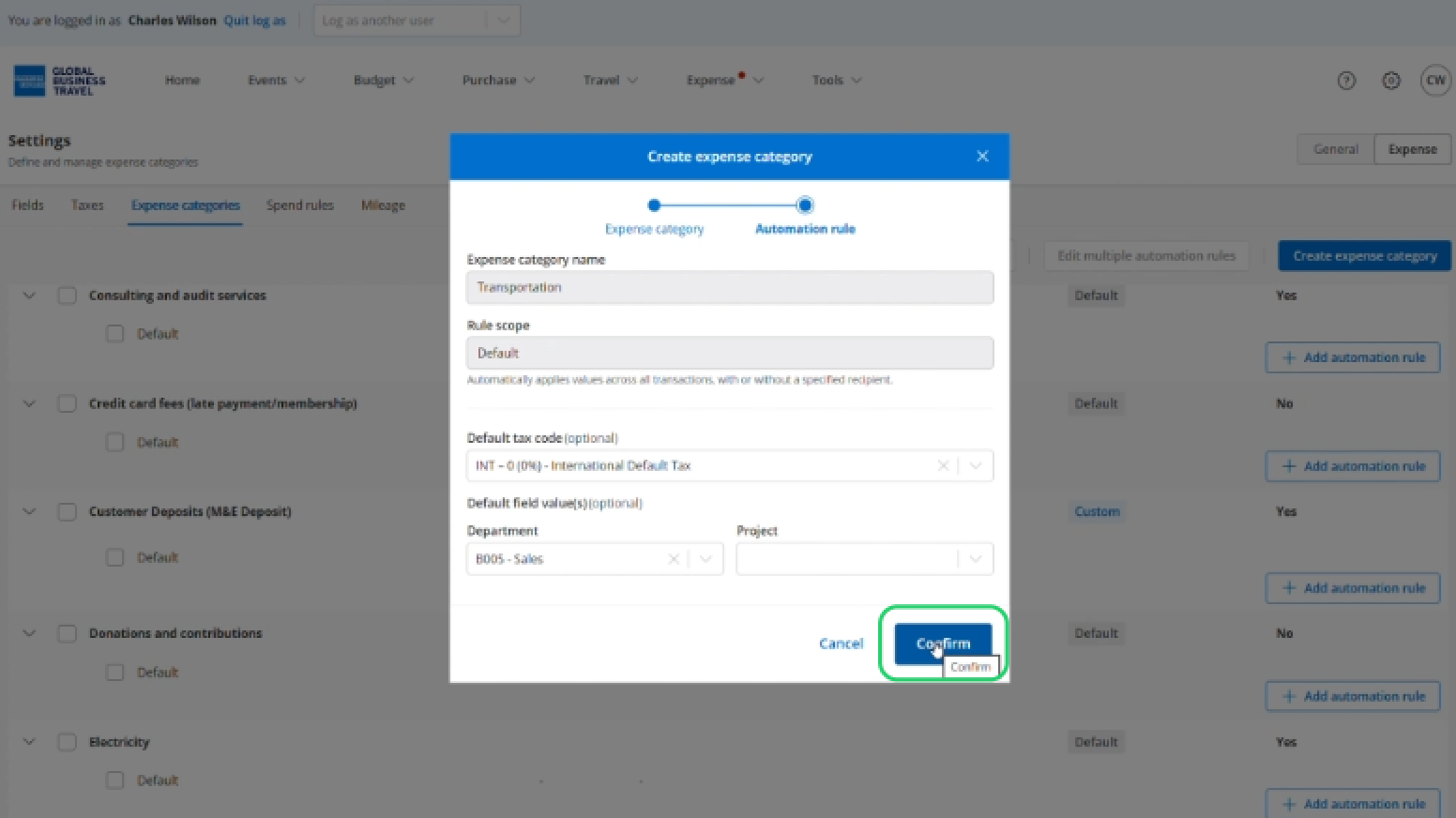
Create a new expense category
Click on Settings then under Expense, click 'Expense categories'.
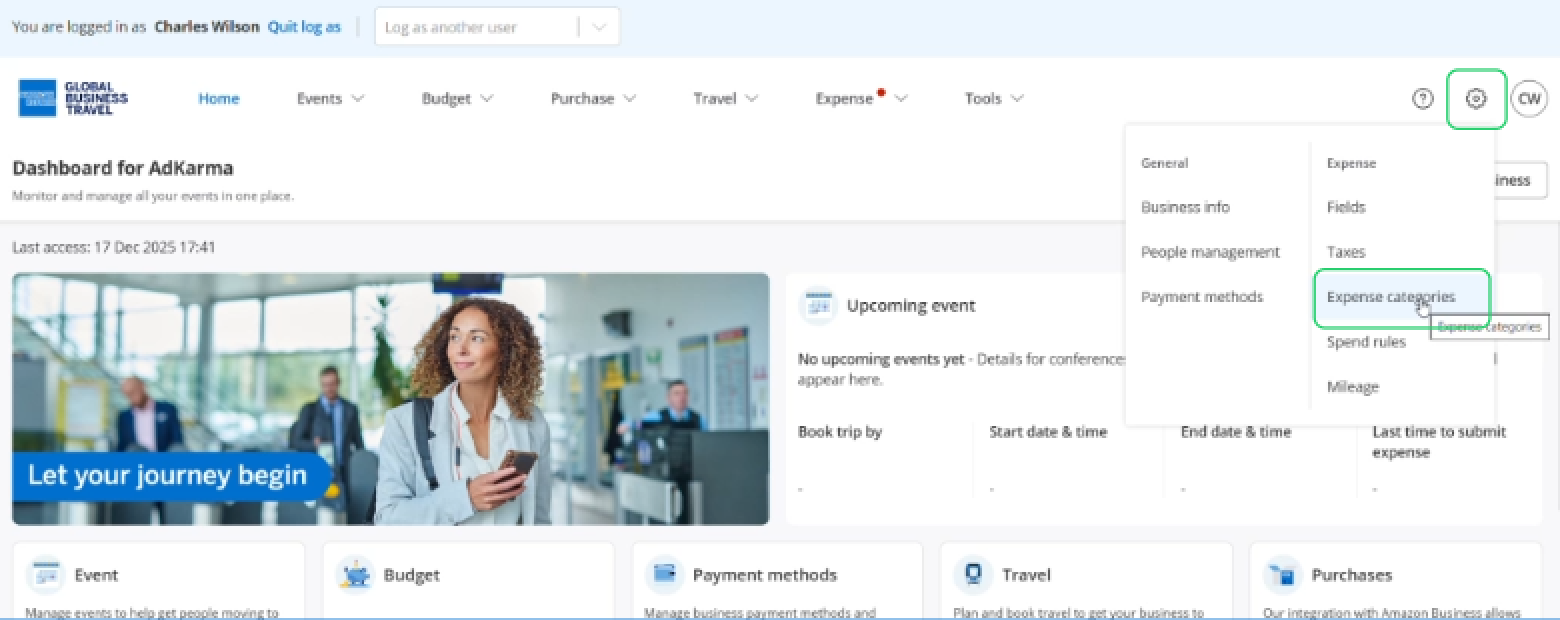
You will find a library of most popular expense categories setup by default. If the default categories don't align with your needs, you can create a custom expense category (maximum of 50 custom categories permitted).
Click 'Create expense category'.
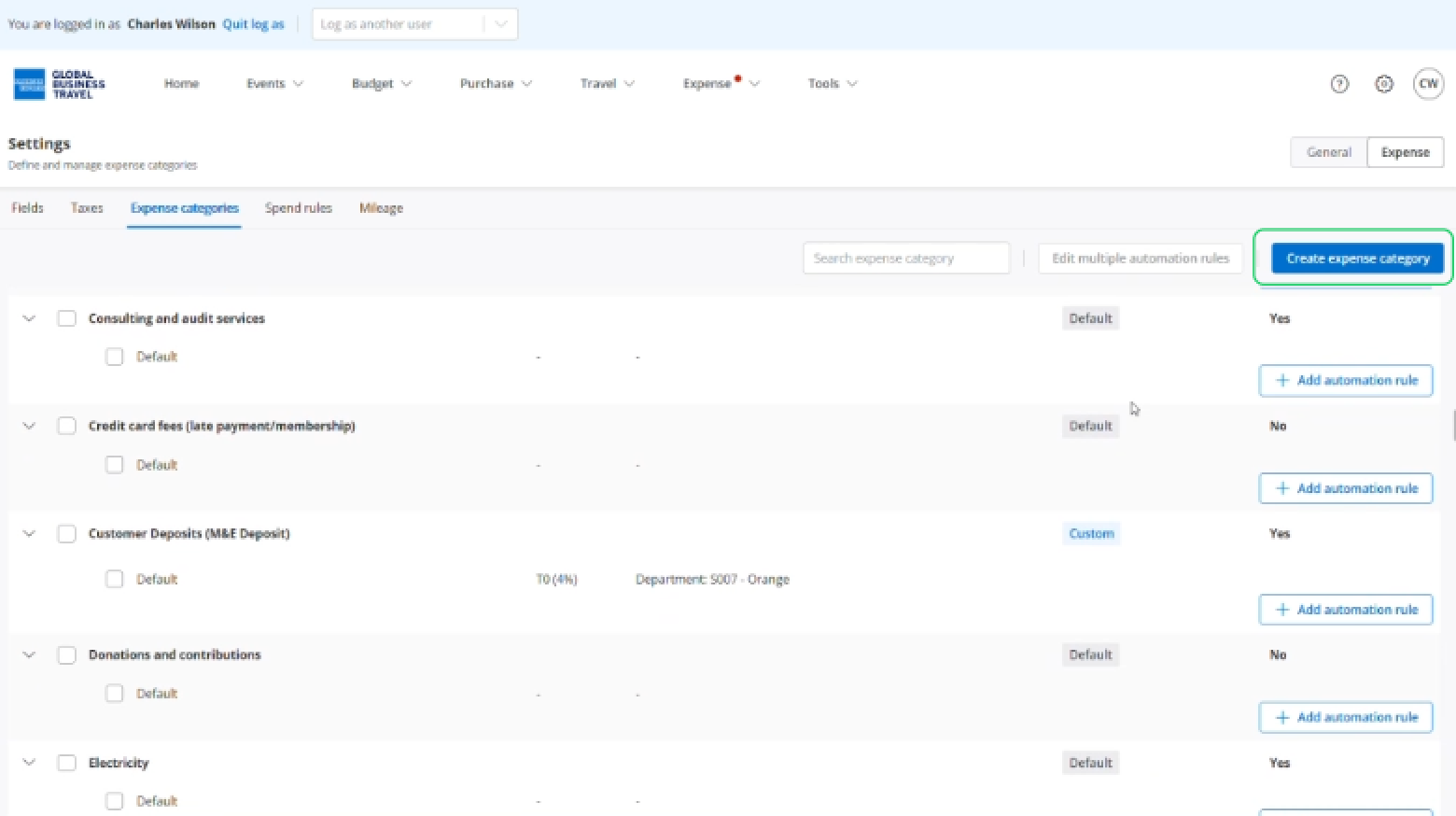
Add and manage automation rules
Automation rules let you map your categories to the fields you've created. By default, each category comes with an automation rule that you can edit, and you can add additional rules for different groups of users.
Add automation rule
Click 'Add automation rule'.
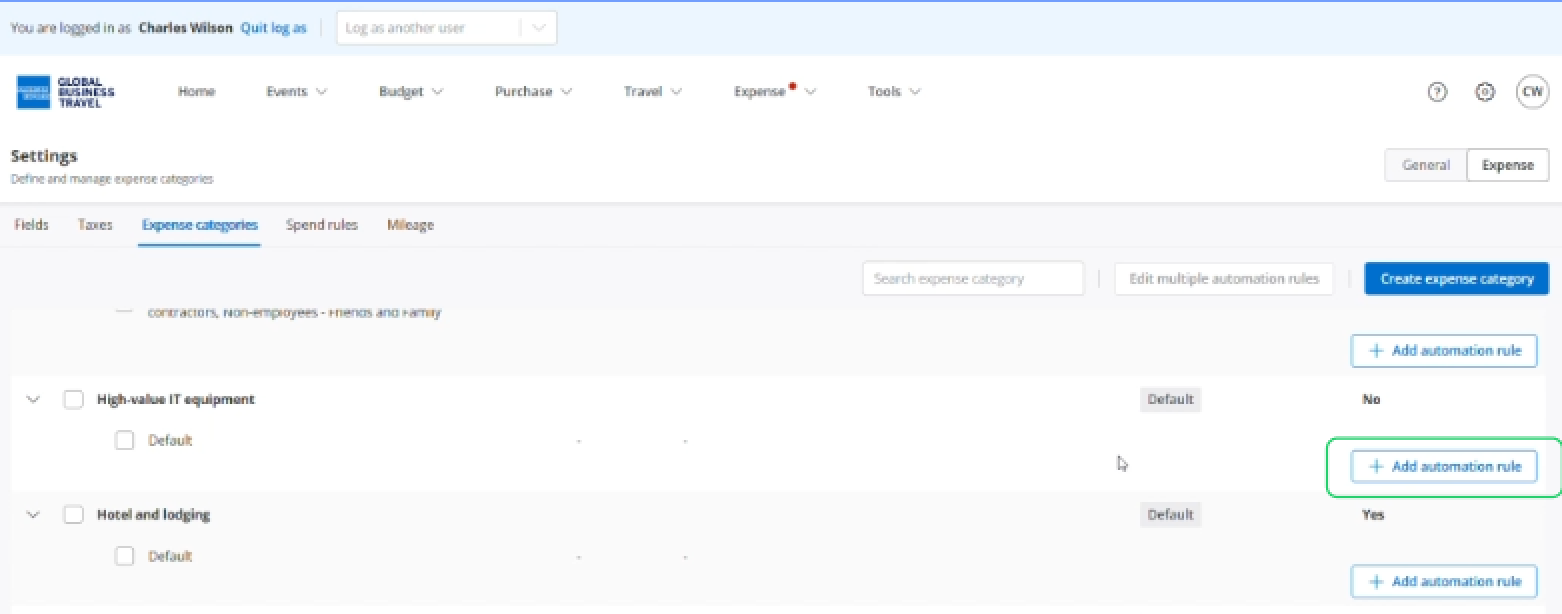
Select the groups of people this rule will apply to.
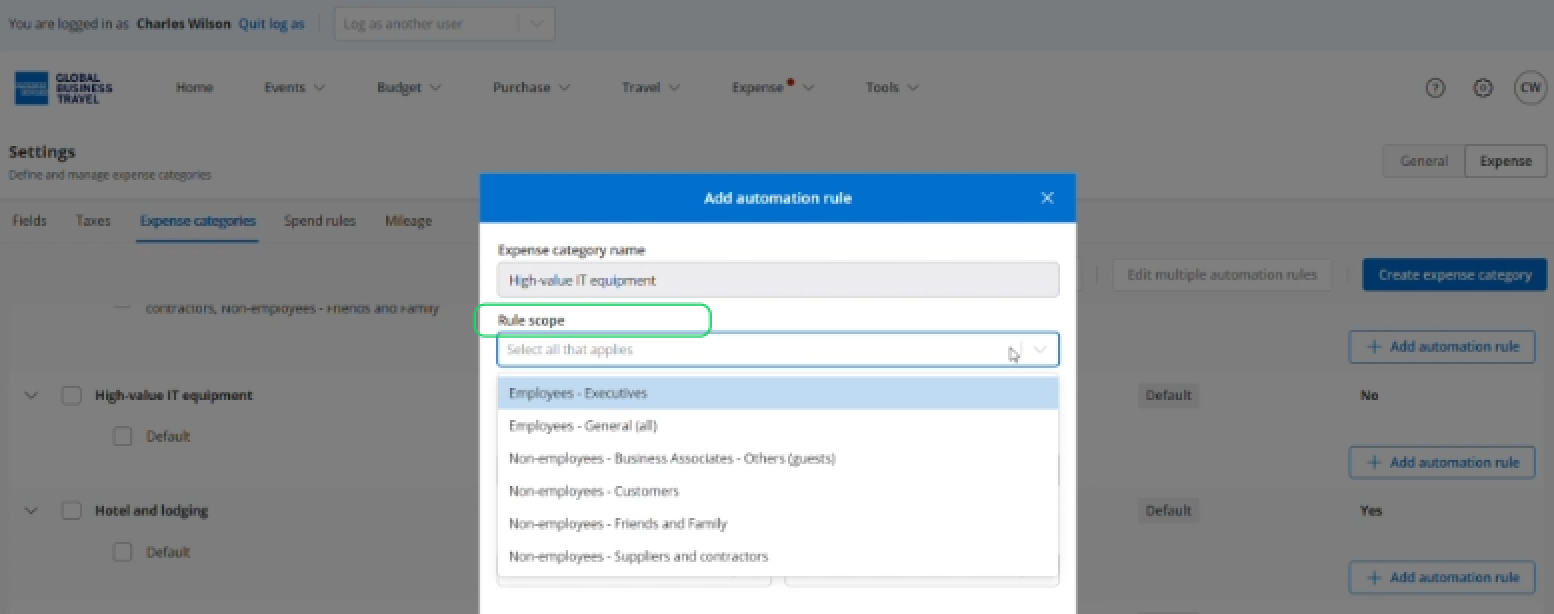
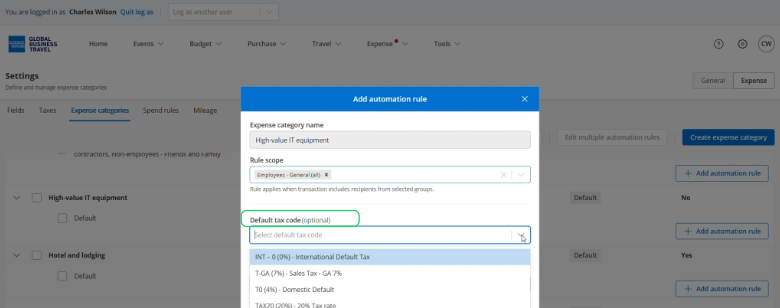
Select a default tax code - this step is optional.
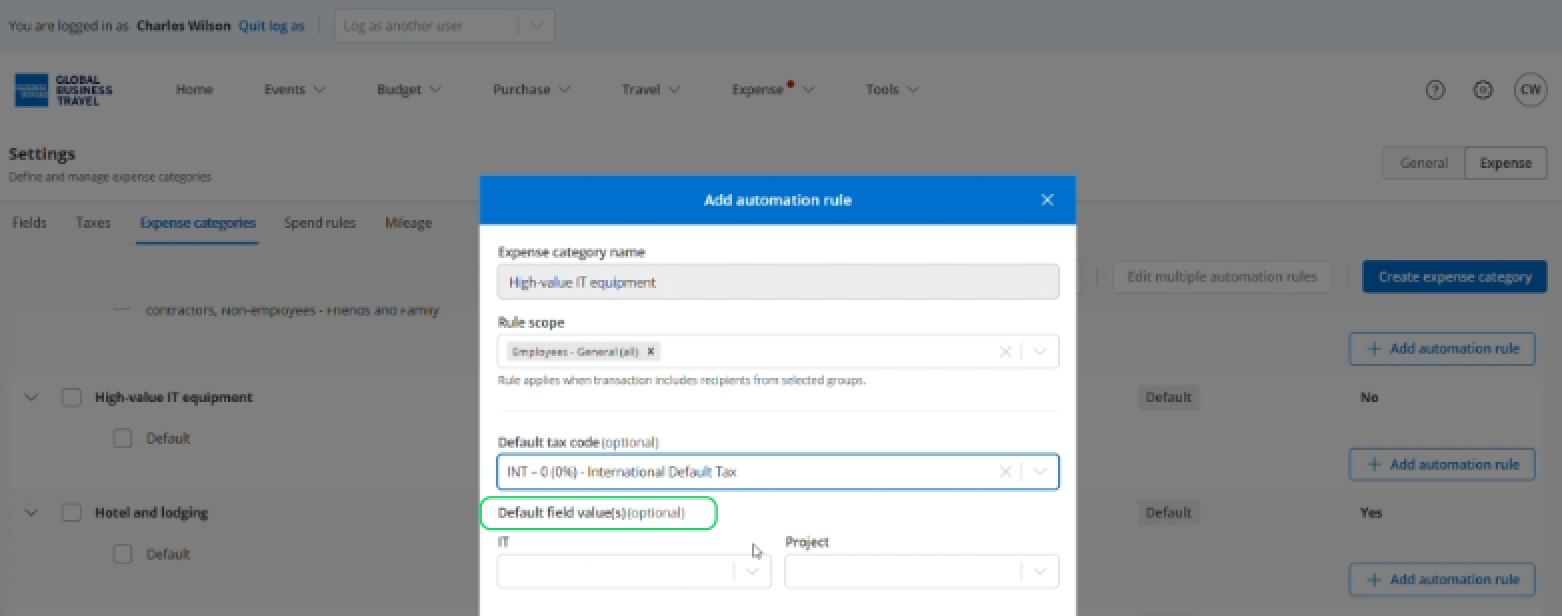
Select default field value(s) - to map your expense category to the fields you've defined
This is where you will find your loaded chart of accounts and default the appropriate code
to align with your financial tool.
Click 'Confirm'.
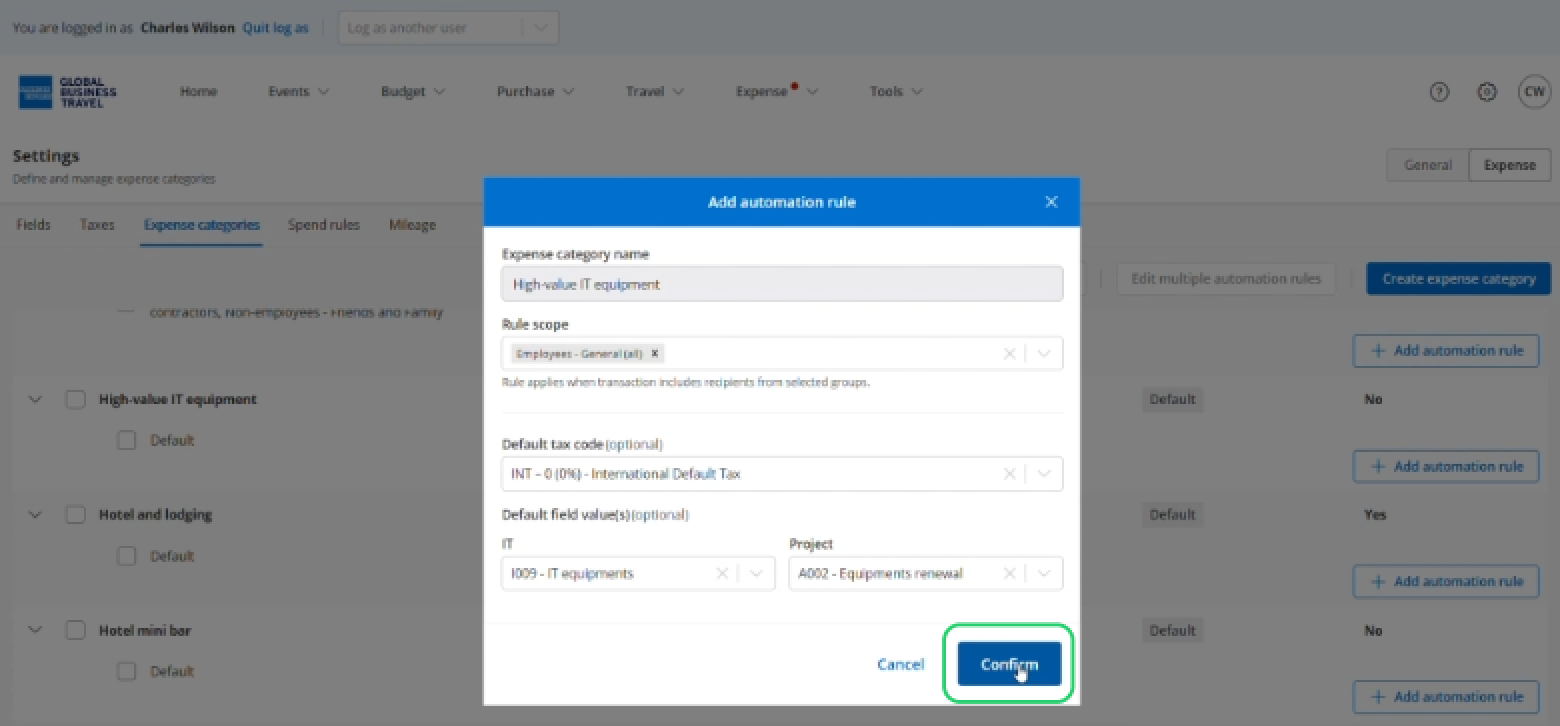
Automation rules are displayed under each category.
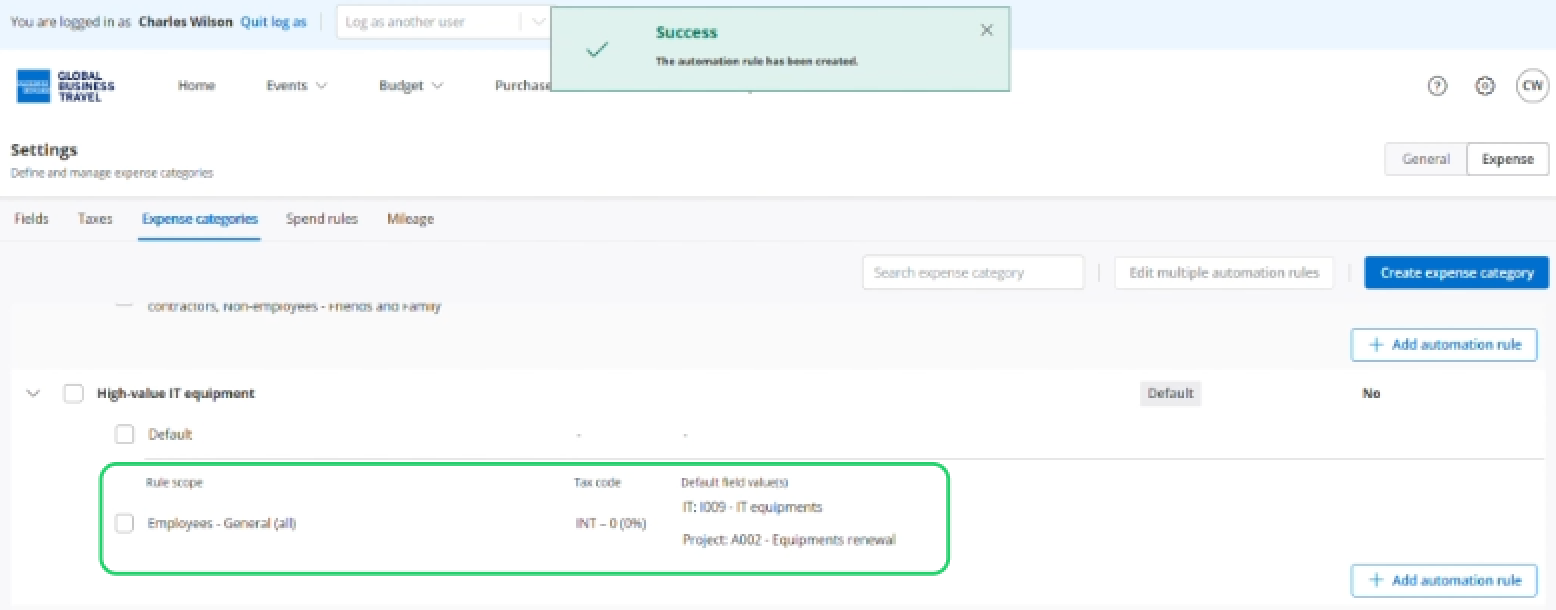
Manage automation rules
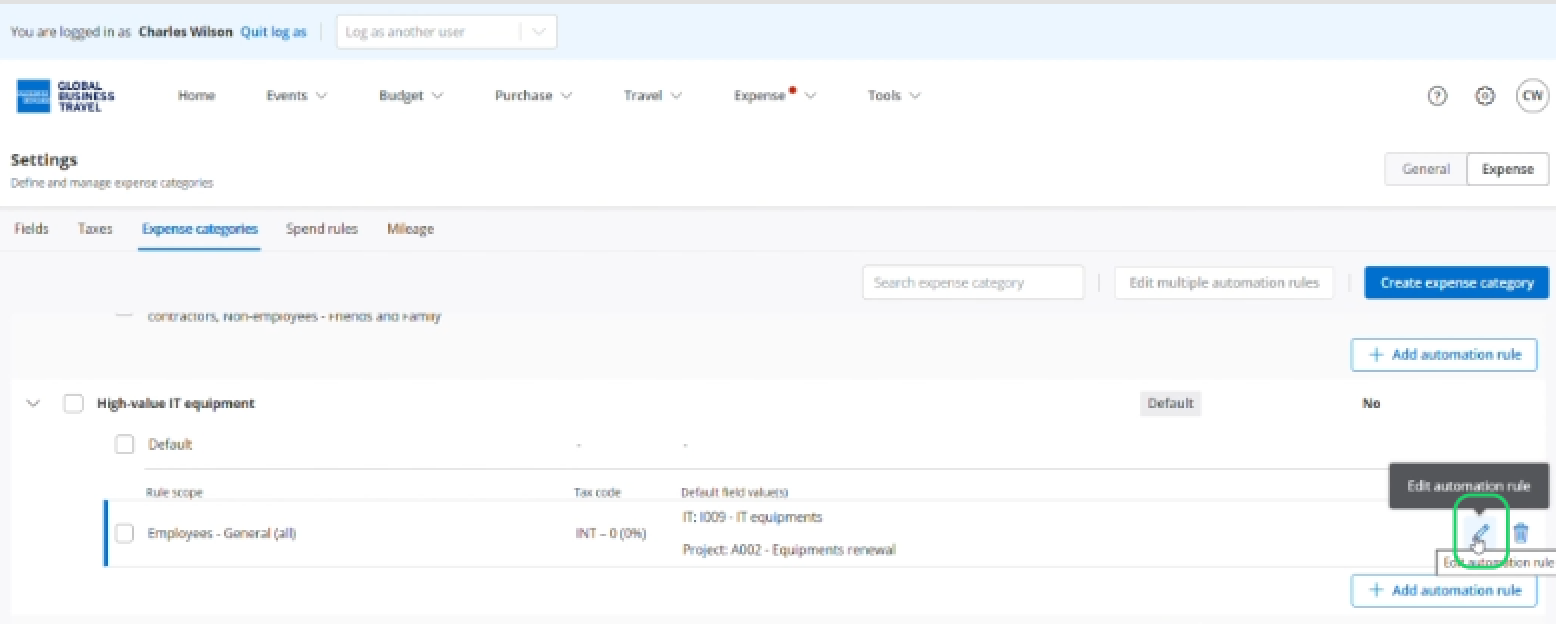
Manage automation rules settings by clicking the pencil icon to the far right of the rule.
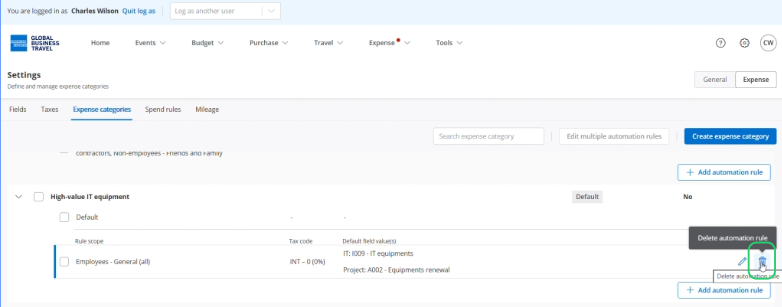
If you want to delete the automation rule, click the bin icon to the far right of the category.
Confirm field default automation rules
After mapping your expense categories, you can set this mapping as default when an expense category is selected in a spend submission. Edit your Chart of Accounts/Account Code field to define Expense category as the default coding source.
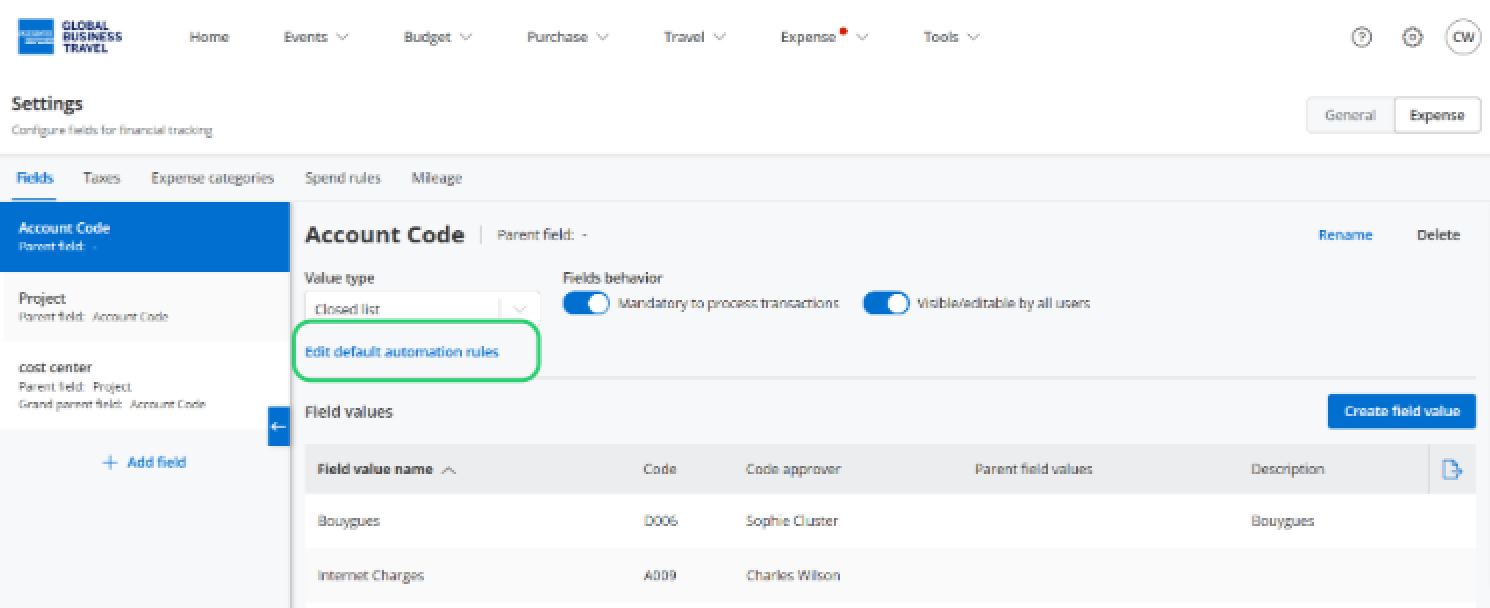
Click on Settings then under Expense, click 'Fields'.
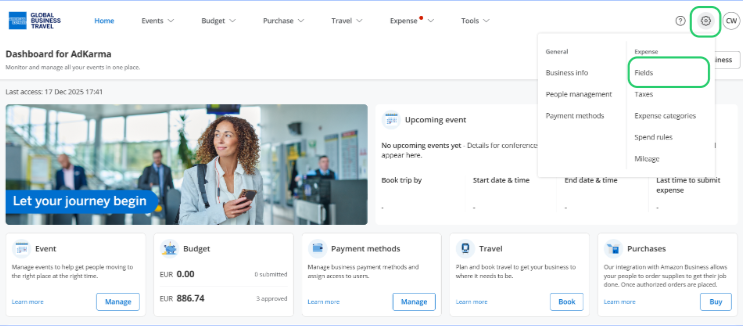
Click 'Edit default automation rules'.
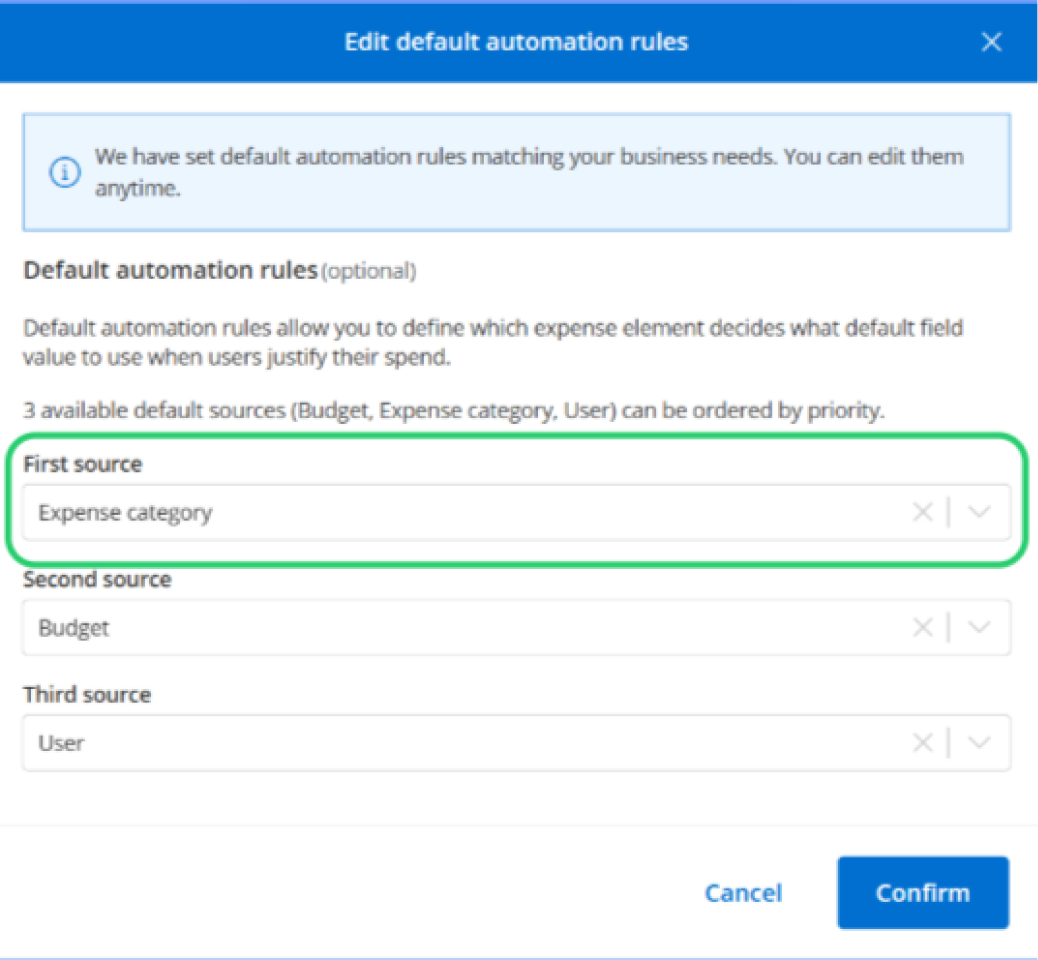
Select Expense category as a default coding source.
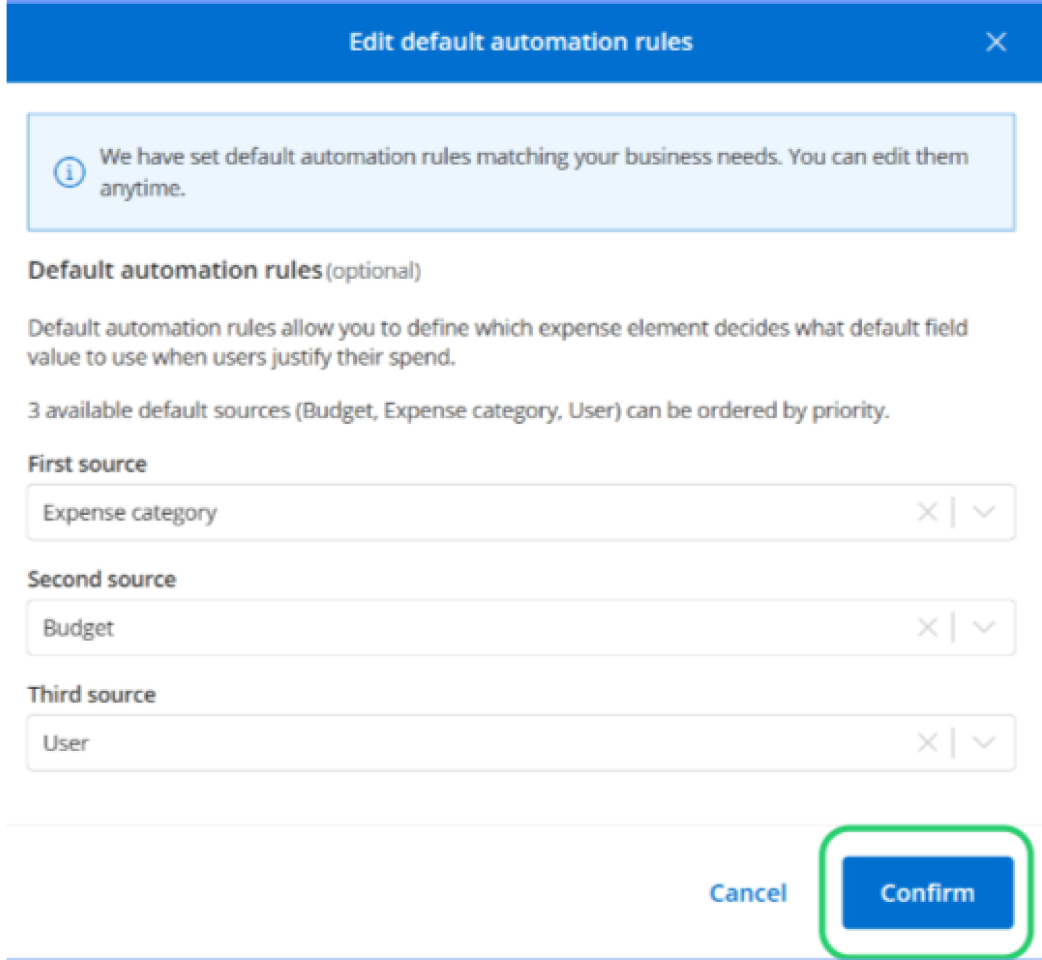
Click 'Confirm'.
Read the next article: Connecting corporate cards ( if applicable)