

 Audience: Admins
When managing guest travel, virtual Cards offer a straightforward approach to keeping spend within policy, sparing guests from fronting costs themselves, and connecting every transaction back to the right event or trip — making your post-trip reconciliation effortless. It works by linking a corporate card to your program; when you select virtual Cards as the payment option for an event, individual virtual Cards are automatically issued and funded from that corporate card — one per guest.
Overview
- Get prepared before connecting your Corporate card to issue virtual Cards
- Connect & Configure
- Validate your information
- Connect to Card Account
- Enroll & Authorize
- Issue virtual Cards
- Set visual spend monitoring
- Check for Cards not processed
Get prepared before connecting your Corporate card to issue virtual Cards
Step 1: In order to smoothly reconcile charges for virtual Cards on your monthly statement, and
not cause disruption to service, should an existing physical card be compromised we strongly
recommend you request a new physical plastic card or use an existing one solely for virtual Cards.
If using an existing card, cease using it for regular transactions once designated.
Important: Designate one physical plastic card to be used as the 'funding card' for issuing all virtual Cards.
This card can be issued in anyone's name, typically this is the primary Admin.
All virtual Cards act as supplementary cards under this 'funding card.'
Step 2: Once you have the card in hand, you'll create a MYCA login (American Express site,
Manage Your Card Account) - https://www.americanexpress.com/en-hk/account/login?inav=hk_utility_login
Amex GBT's Guest Travel & Expense platform requires that you log into the Amex MYCA site and choose which card you are selecting to issue virtual Cards against (thus, why you have to register your physical plastic card against MYCA and then use those same login credentials when connecting).
Connect & Configure
- Click 'Settings', the select 'Business Info' in the General section.
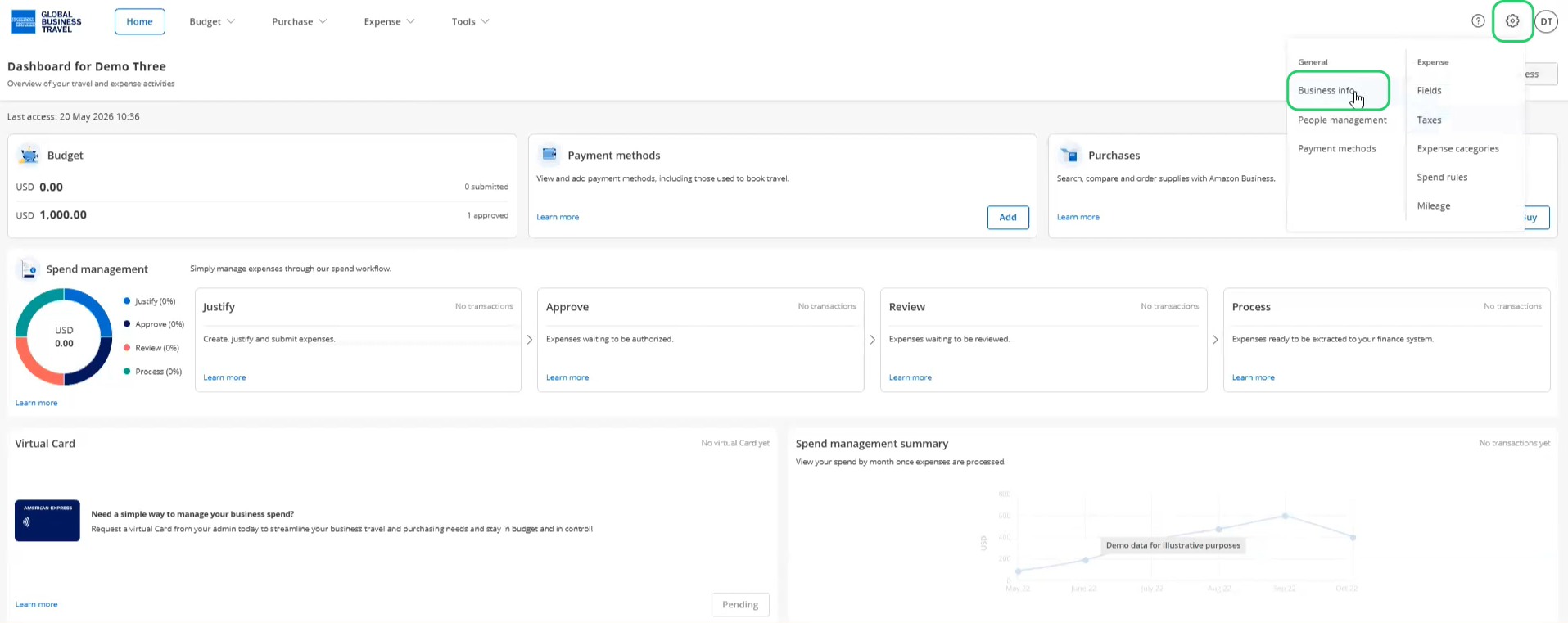
- Click 'Configure', under virtual Cards.

Tip: Please manage your pop-up blocker settings to allow popups to action next
steps.
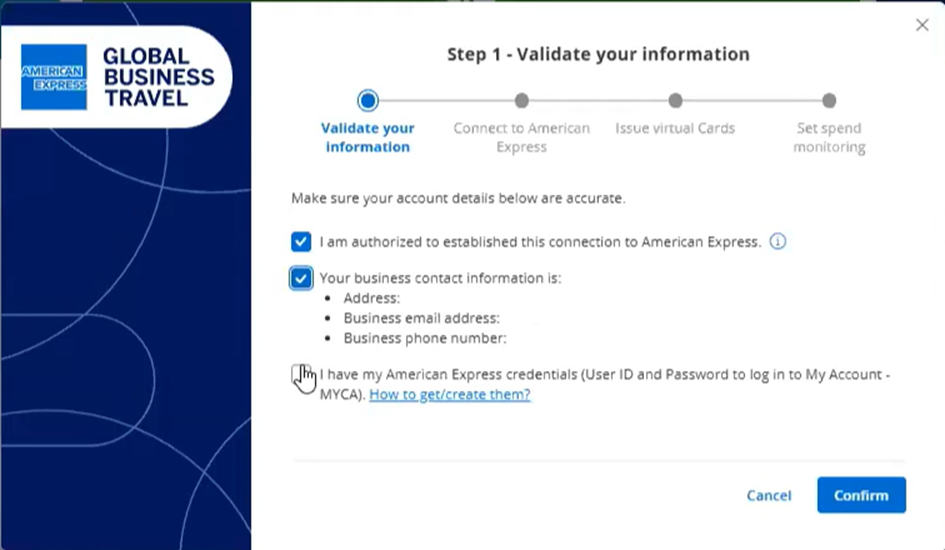
Validate your information
- Confirm that you are authorized to establish this connection
- Confirm your business contact information
- Confirm that you have credentials for My Account
Connect to Card Account
You'll now be prompted to be redirected to the login page (screen will be a pop-up)
- Enter your login credentials - User ID and password - for My Account
- Click on login

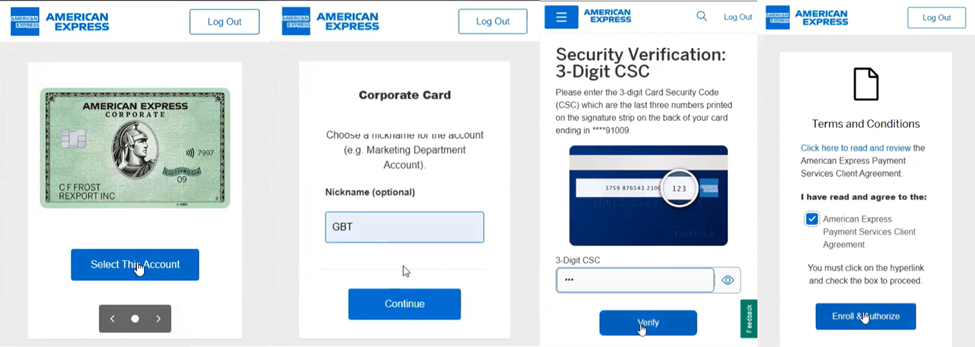
Enroll & Authorize
Now you are ready to enroll and authorize your Card for virtual Cards.
- Select the Card you want to enroll
- Enter a nickname for your account
- Enter the three digit security code
- Read and agree to the terms and conditions
- Click on enroll and authorize
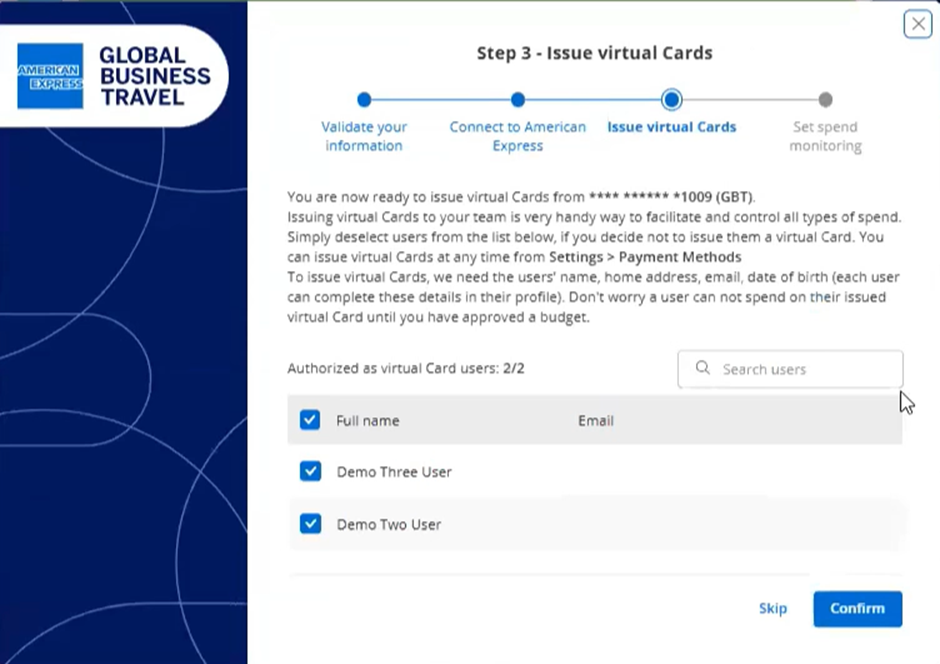
Issue virtual Cards
- By default, if you have created users, they will all be selected here. We recommend deselecting them for now. You will then be able to decide to allow virtual Cards creation for your guests, event by event.
Set visual spend monitoring
- You can skip this step for now. The virtual Card spending limit is set per event, during the event creation process.

You're all set
Your guests can be assigned managed, secure payment methods and expense management — with spend limits set per trip or event, and every transaction automatically tied back to the right booking for effortless reconciliation. When creating an event, you can automatically distribute virtual cards to your guests.
 Next Steps: