

 Audience: Admins
Creating and managing spend rules allows you to define conditions based on expense amount, category, or both, and apply them to specific people groups. Spend rules help enforce policy compliance and ensure complete documentation by automating key requirements.
You can configure rules to:
- Flag spend as out of policy
- Require proof of expense (receipt)
- Require recipient information
Examples:
- A rule that requires receipts for all expenses over $50
- A rule that requires all airfare over $1000 to be flagged as out of policy
- A rule that requires all business meals for general employees to require recipient information
Video: How to create a spend rule
Create and manage spend rules
Create a spend rule
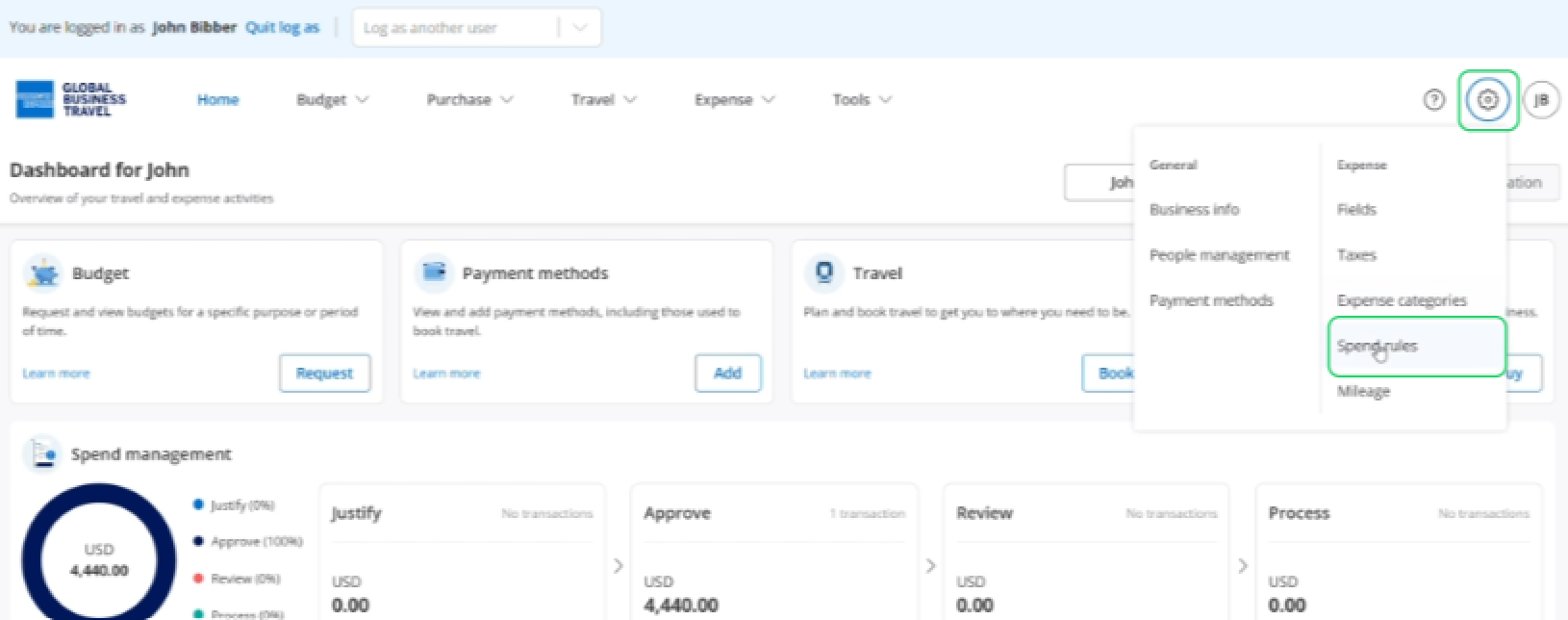
Click Settings, then select 'Spend rules' in the Expense section.
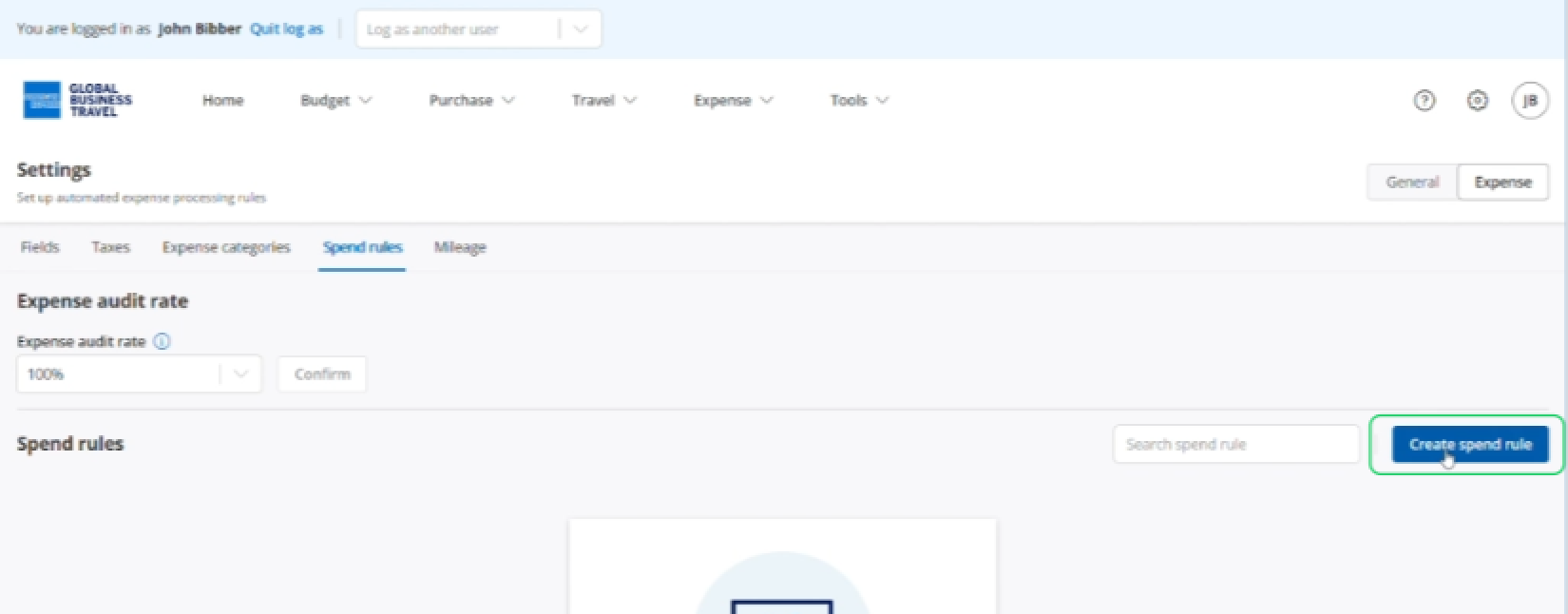
Click 'Create spend rule'.
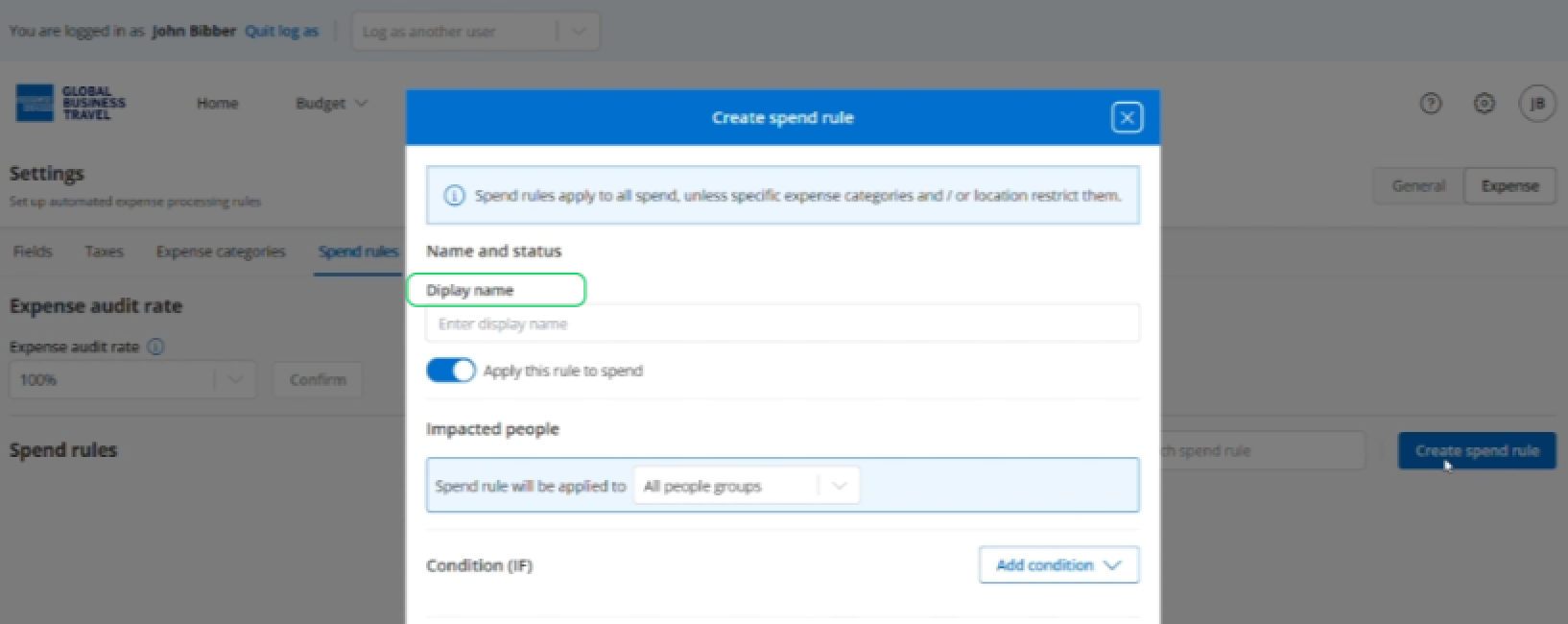
Enter a display name for your spend rule
Under Impacted people, choose whether the rule applies to all people or specific groups.
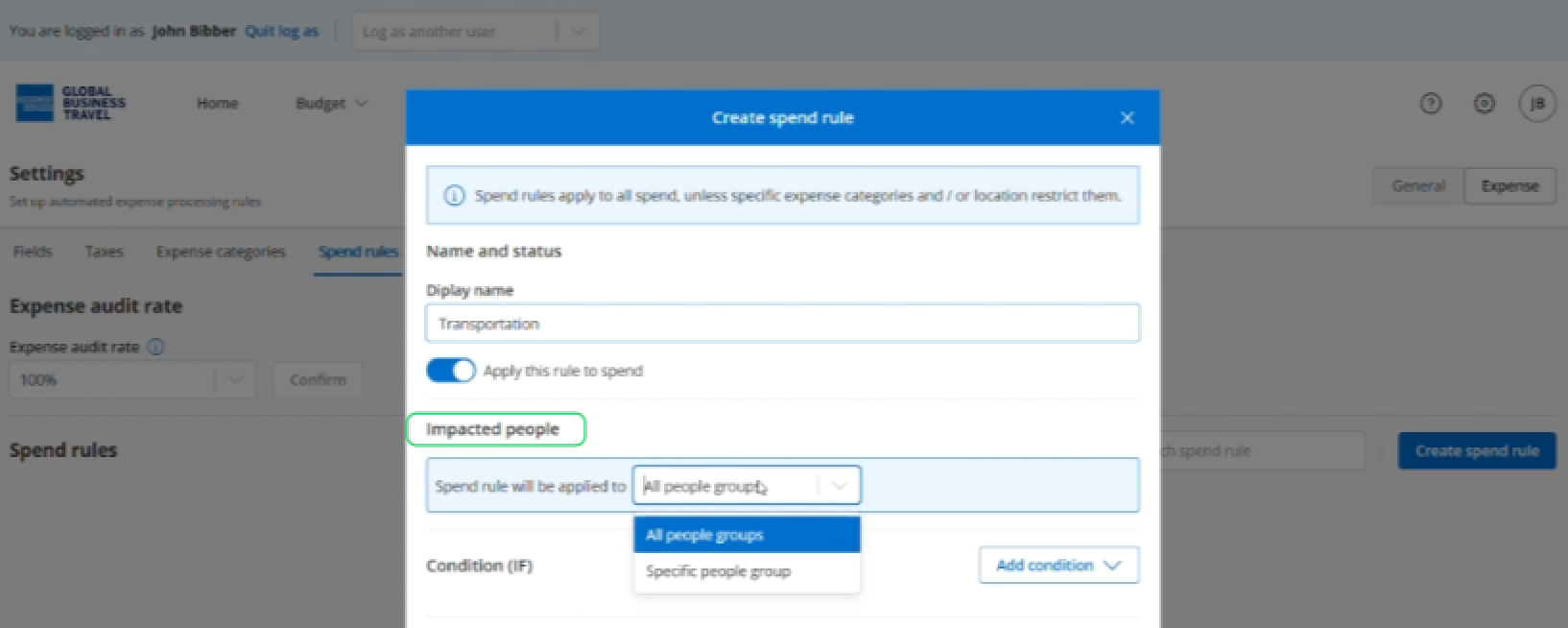
Note: When setting a spend rule for a specific people group, please ensure you have updated your expense category automation to reflect the appropriate coding for that recipient group.
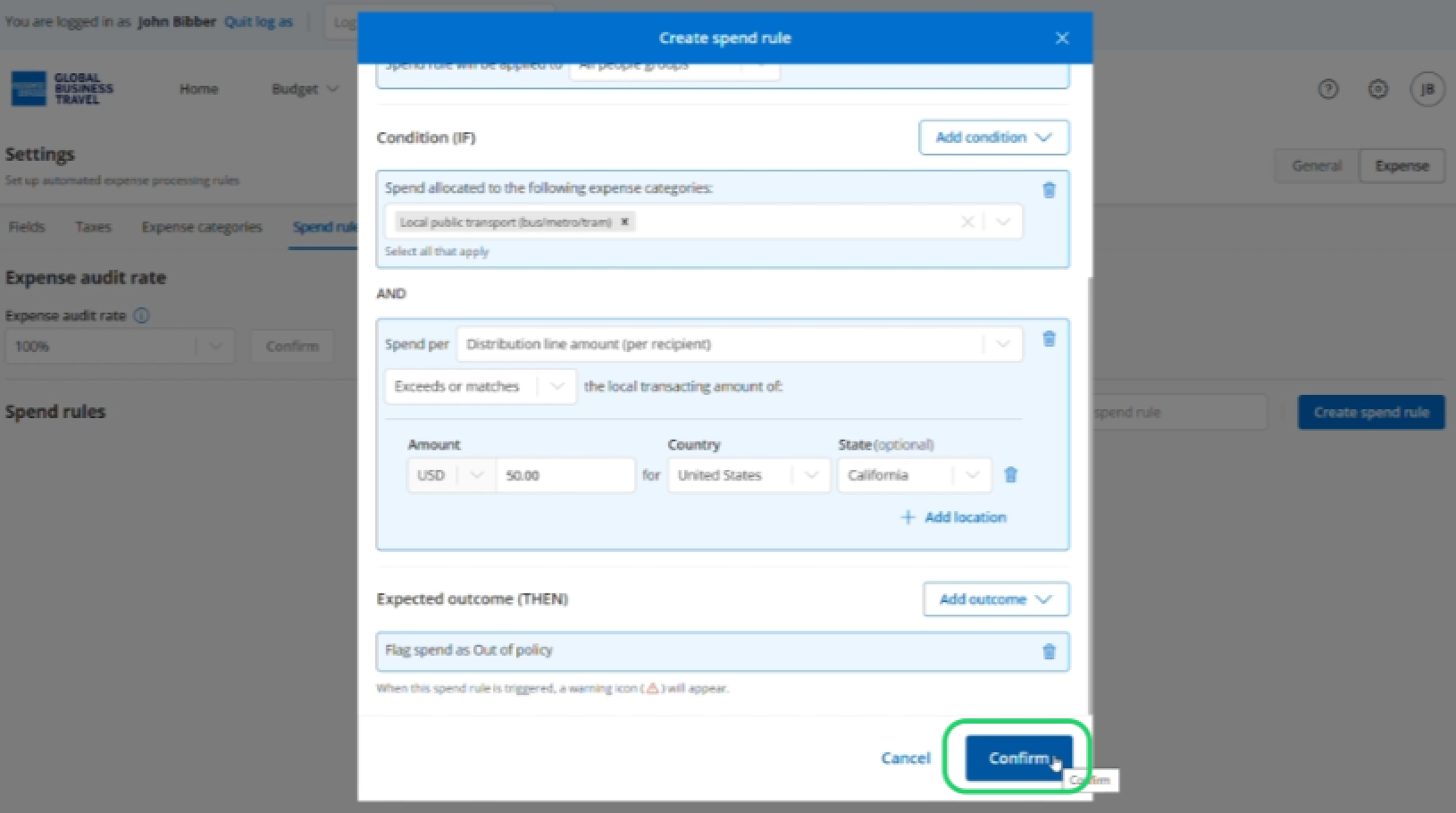
Select the conditions for your spend rule. Multiple conditions can be added.
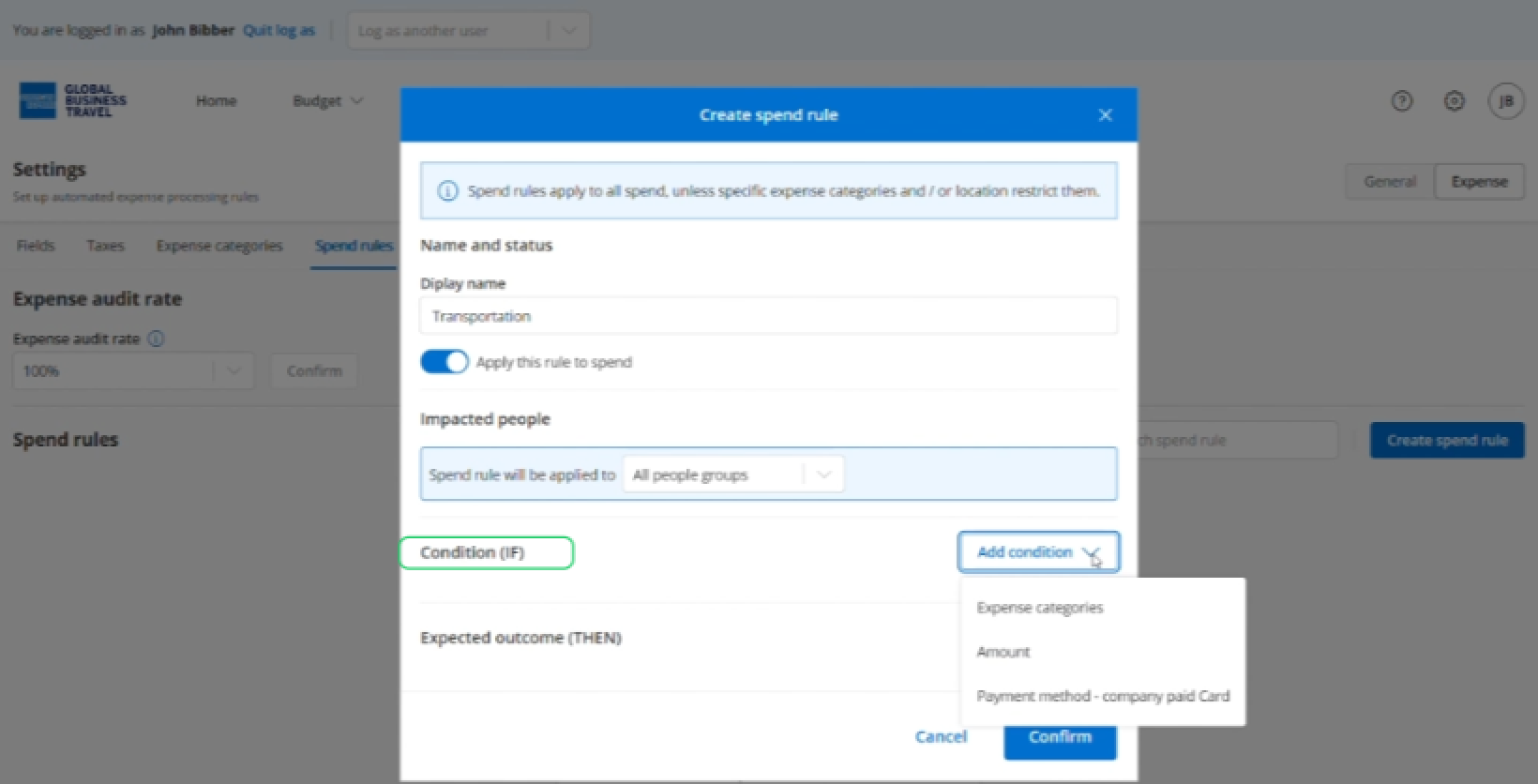
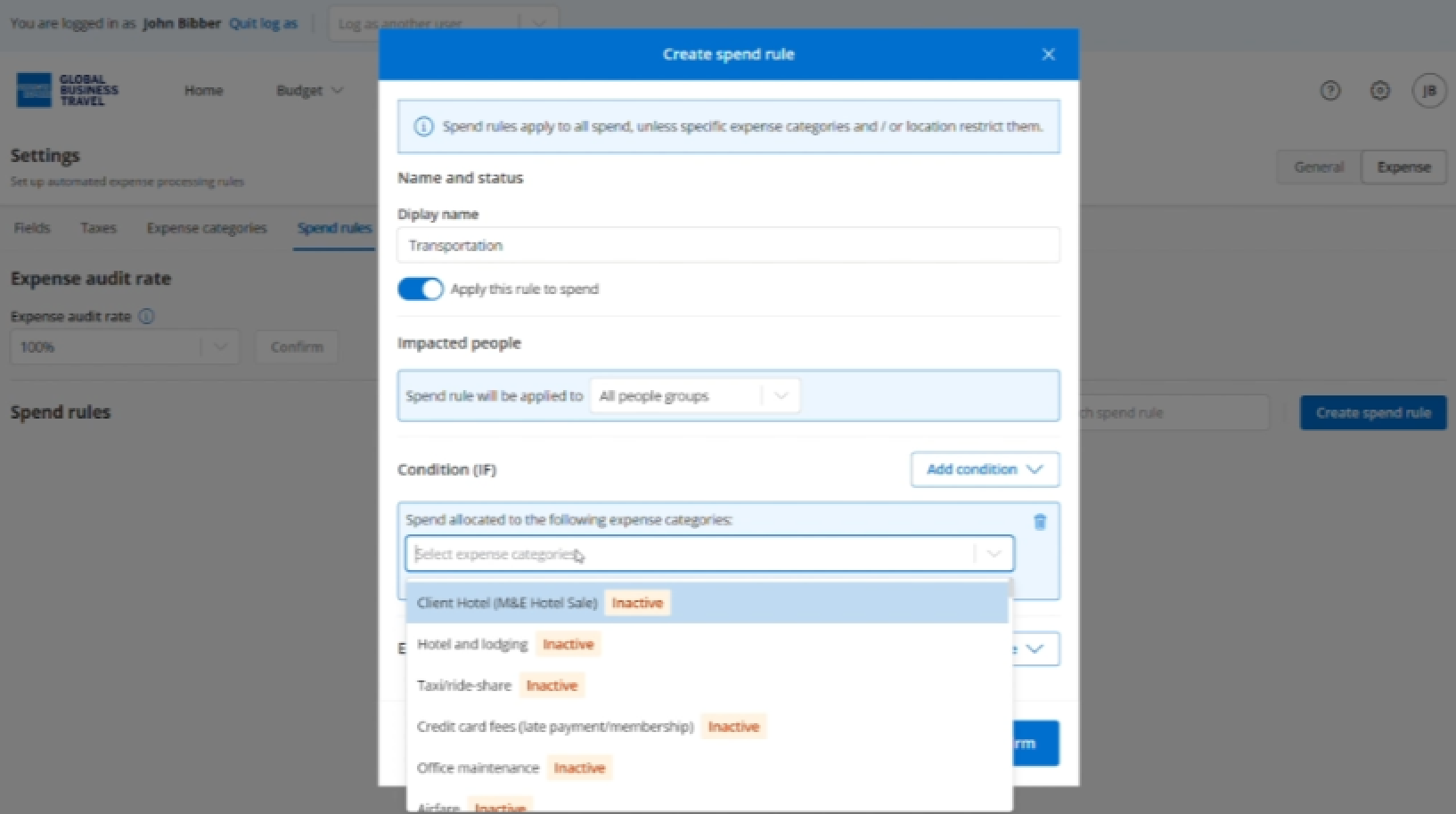
You can select expense categories
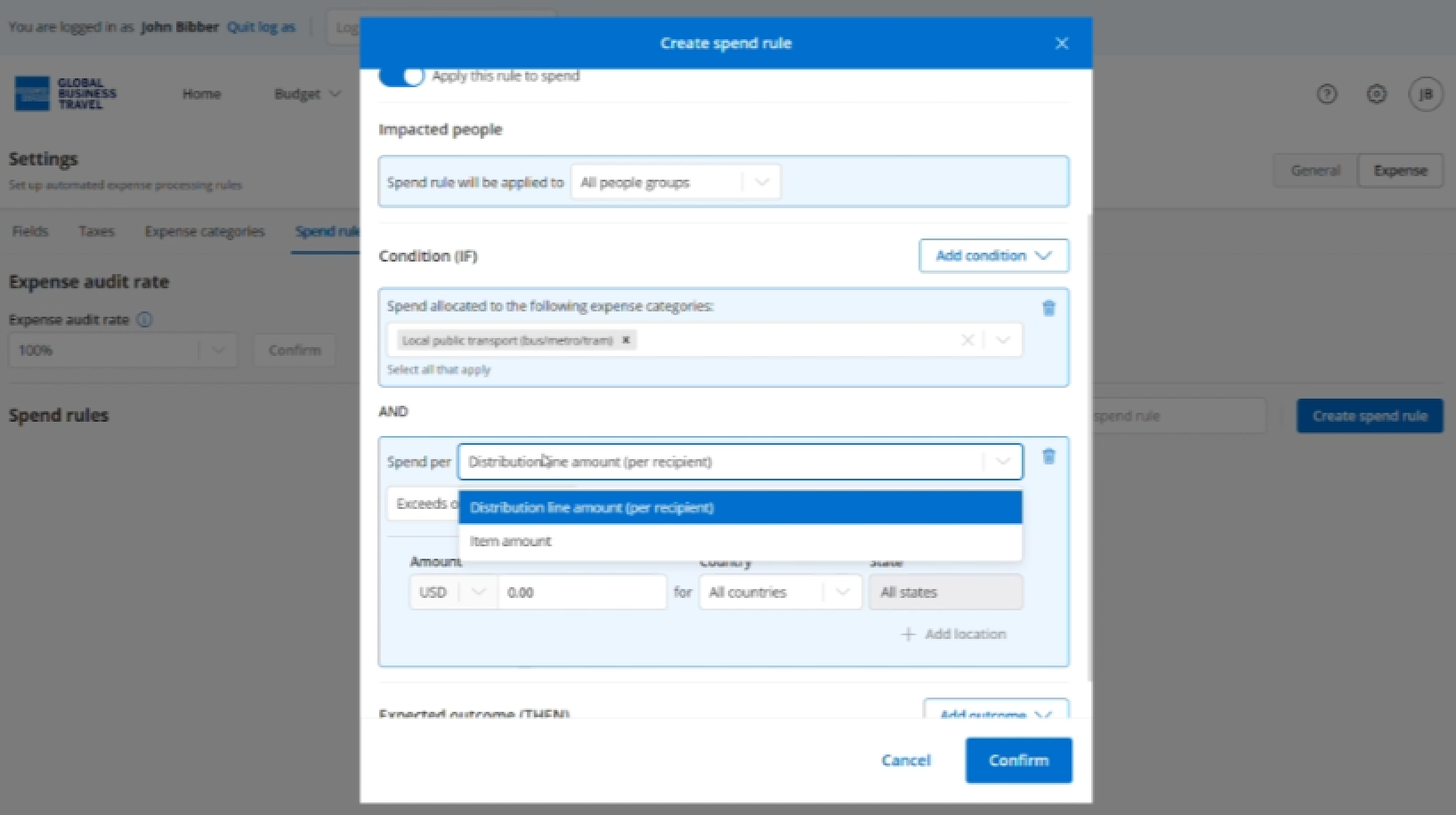
You can add other conditions such as the amount.
Then, define the outcome of your rule.
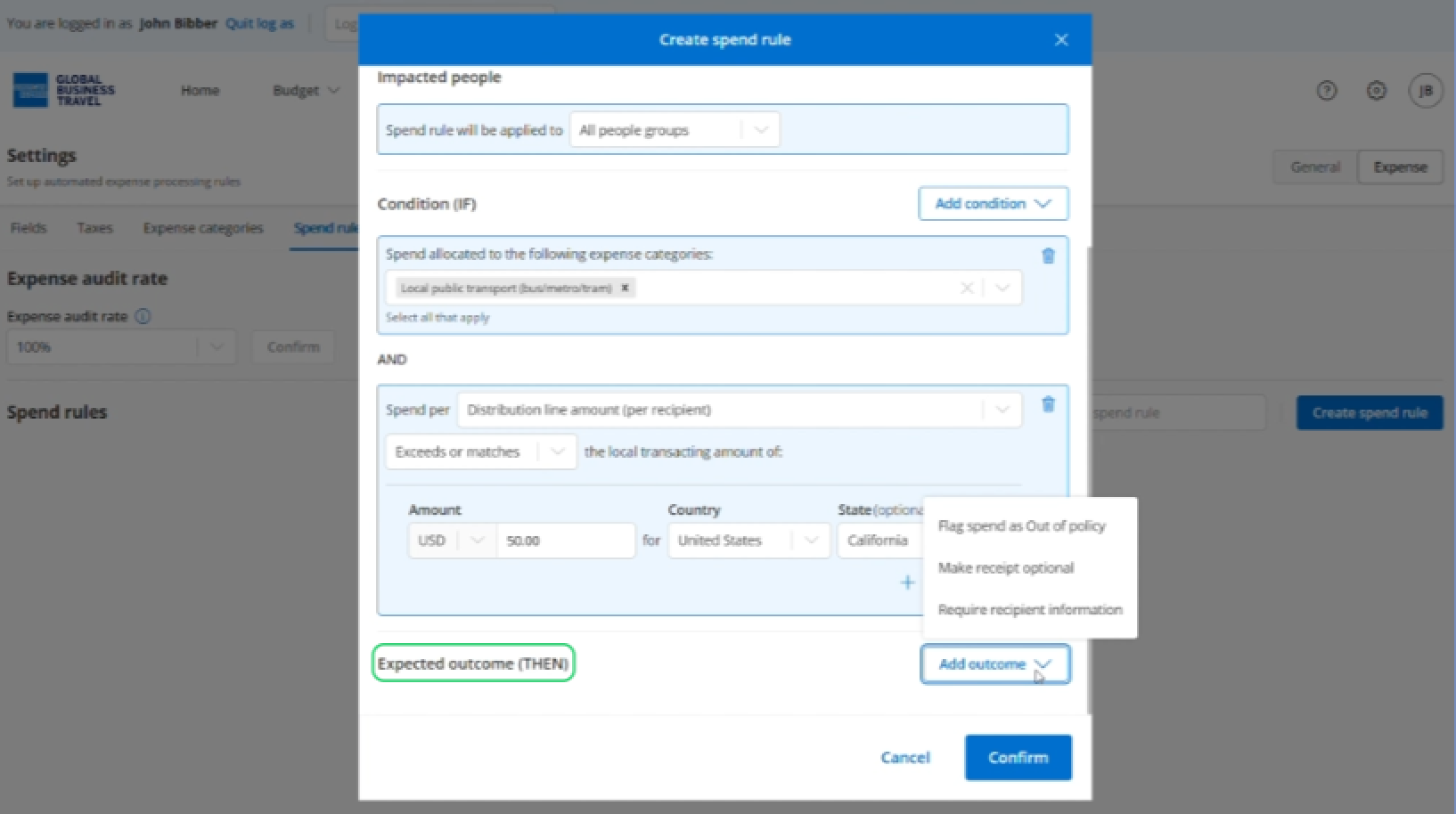
Click 'Confirm'.
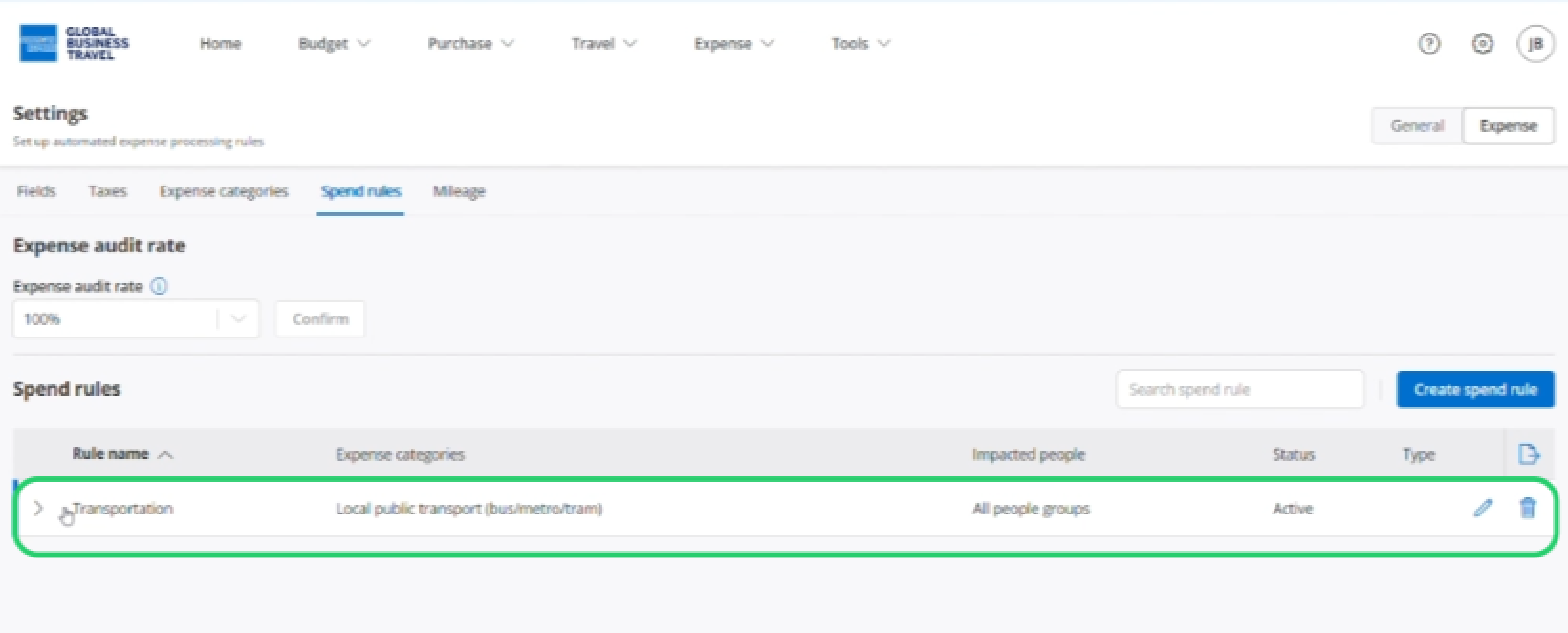
Your new rule is now created.
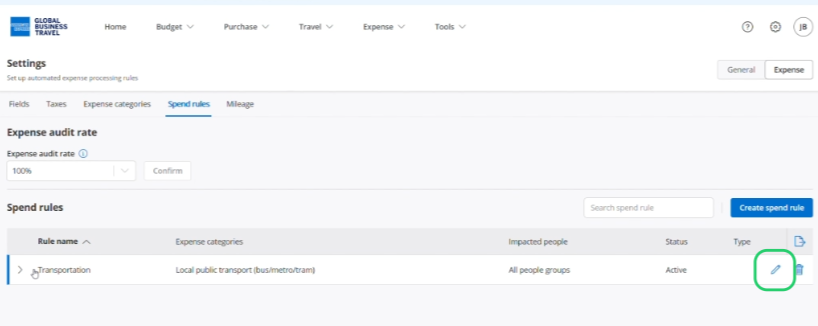
Manage a spend rule.
Manage spend rules settings by clicking the pencil icon to the far right of the rule.
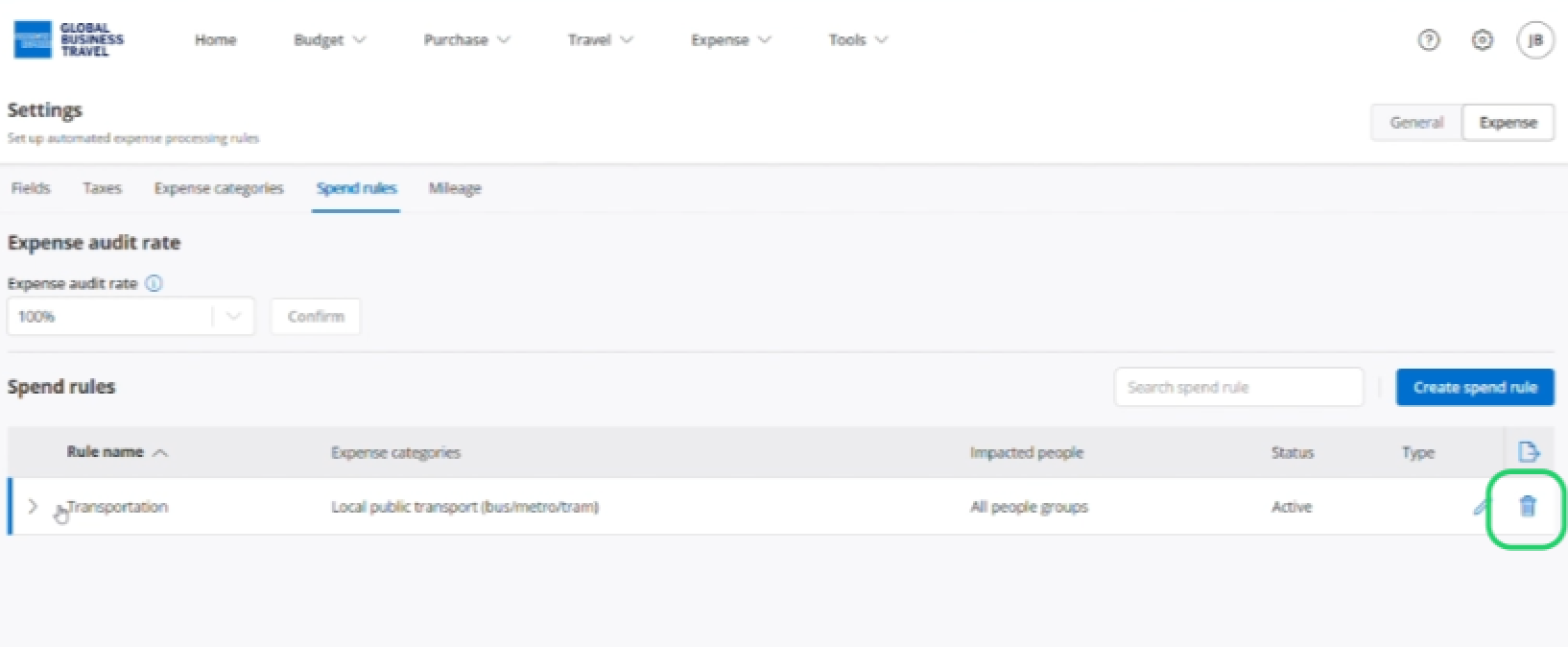
If you want to delete the spend rule, click the bin icon to the far right of the category.
Read the next article: Travel policy and pre-trip approval.